
This guide explains how to let an employee fill missing work hours by selecting a Time Off type in the Detailed Attendance report, so the system automatically completes the gap to the required daily hours with that time off type.
For example: if the required standard is 8 hours and the employee reported only 4 hours of attendance, selecting a time off type such as Vacation or Sick Leave will make the system automatically add 4 hours under that time off type.
System setting
- Go to Settings -> Company Profile -> select "Settings" in the top bar.
- Scroll down and check "Automatic matching of attendance and time off" -> click Update at the bottom.
Time off type setting
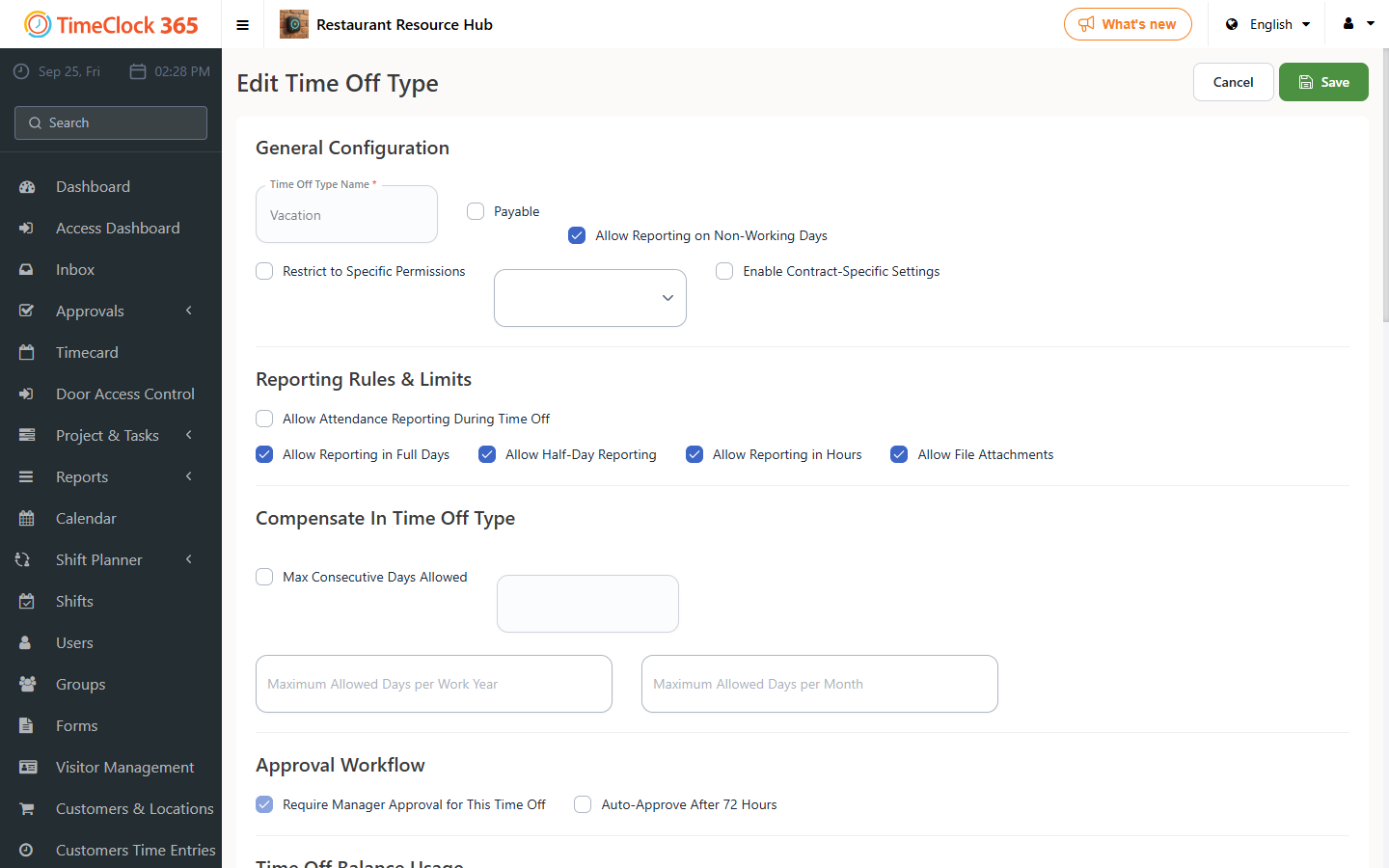
- Go to Settings -> Time Off Types -> click the time off type you want this option to apply to.
- Make sure "Allow reporting attendance in parallel with this time off" is unchecked, then click Save.
How to fill the hours with time off
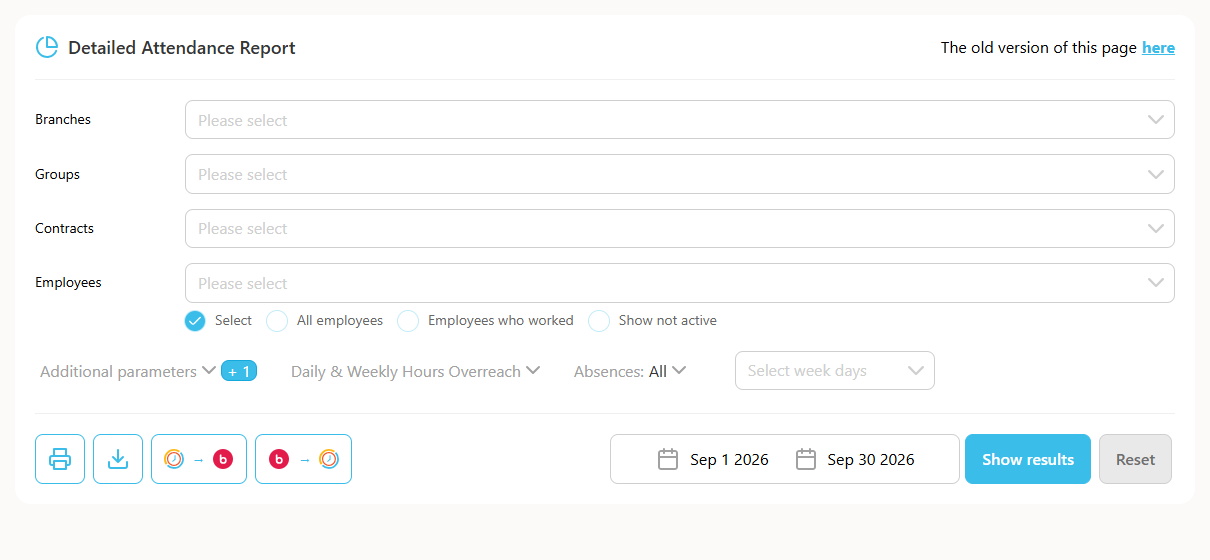
- Go to Reports -> Detailed Attendance -> set the filters you need (employee, period) -> click Show.
- Scroll to the relevant date and, in the Time Off column, select the time off type you want to use to fill the gap.
- In the popup that appears, choose "Report this time off and adjust with attendance", then click Save.
Note: if you instead choose the first option, "Report this time off and adjust the hours", the system will overwrite the existing attendance entry and report a full day of time off instead.