
This guide explains how to change the settings for a Time Off type in TimeClock 365.
How to get there
Click Settings, then Time Off Settings, and select the time off type you want to edit.
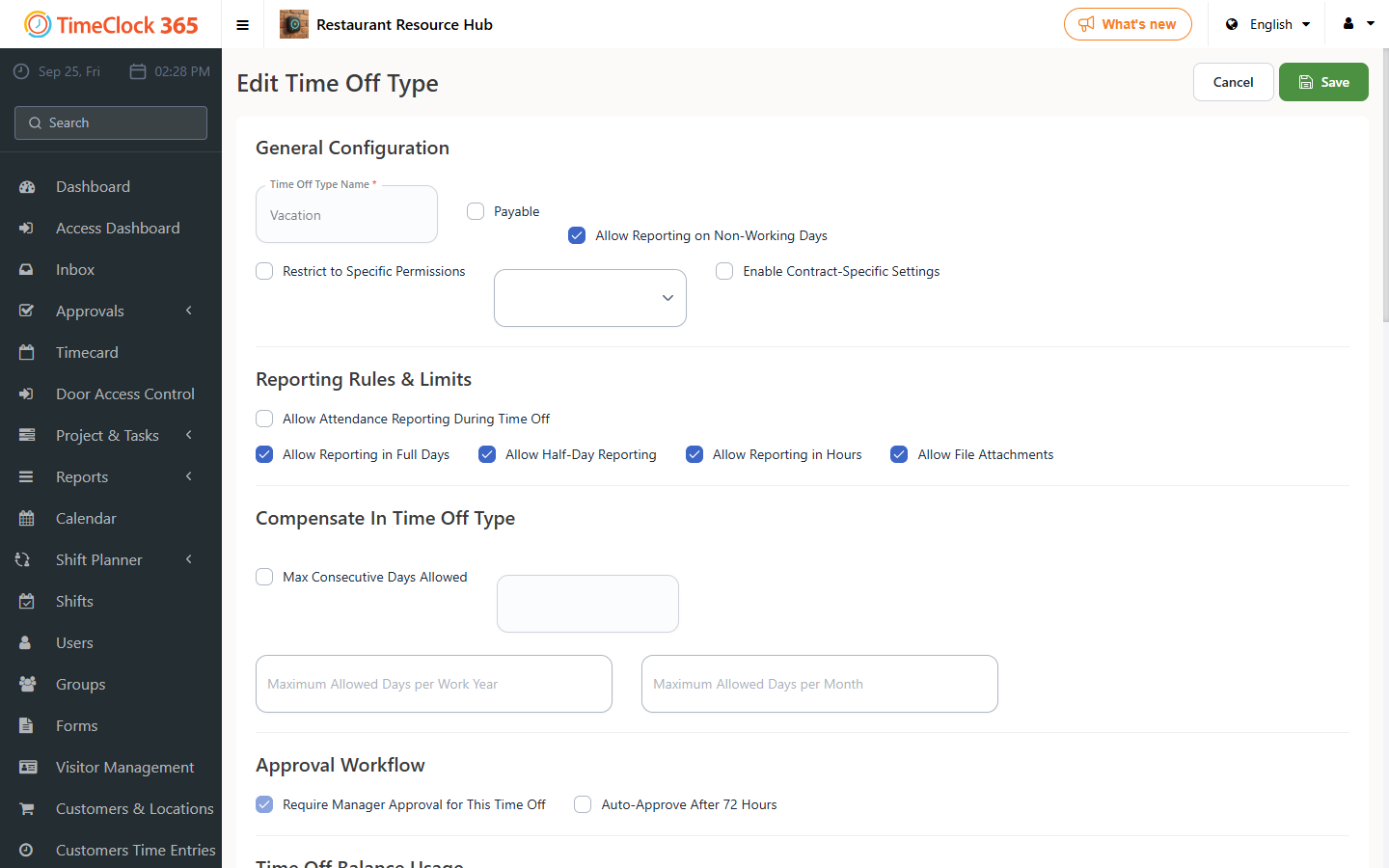
General Settings
- Time Off Name - the name of the time off type.
- Paid - whether the time off is paid (counted toward 100% hours).
- Allow to report Absence on Non-Working Days - whether this absence can be reported on non-working days too.
- Allow only to the following roles - restricts which roles in the company can report this time off type.
Advanced settings in contract
Reporting & Limits
- Allow reporting attendance during this absence - whether working hours or attendance can be added while the employee is on this time off.
- Allow to report in days / half day / hours - lets employees report this time off as a full day, half day, or by hours (multiple options can be selected).
- Allowed to attach files - whether the employee can attach files (such as medical certificates).
- If employee reported this absence type, reward them with - bonus days credited to the employee for reporting this time off type.
- Allow sequence up to - the maximum number of consecutive days that can be reported.
- Annual limit / Monthly limit - limits on the number of days per year or month for this time off type.
Approval Workflow
- Show approvals actions - whether to display approval options in the system.
- Autoapprove after 72 hours - automatically approves the request if a manager has not responded within 72 hours.
Balance Usage
Use balance of this absence - whether this time off type deducts from the employee's day balance (for example, child sick leave can be deducted from the sick leave balance).
Visibility & Reporting Settings
- Display absence in terminated employees report - whether to show this time off in reports for employees who have left.
- Include in payroll regardless of occurrence - whether to include it in the payroll report even if it was not actually reported.
- Global employee report symbol / Days / Hours - the symbol used for payroll software for global/monthly employees, by hours or days.
Accrual Settings
Available for companies with the time off management module (can be purchased separately if needed).
- Calculate accruals - whether to calculate days/hours accrued for the employee.
- Accrual mode - how accrual is calculated (yearly, monthly, etc.).
- Accrual schedule / Calculate balance in - how and when the day balance is calculated, by hours or days.
- Accrual yearly start / end - the start and end of the yearly accrual period.
- Accrual lifetime - the lifetime of an accrual.
- Maximum allowed accrual - the maximum allowed accrual.
- Maximum yearly allowed accrual - the maximum allowed yearly accrual.
- Do not accrue days during this leave - stops additional accrual while the employee is on this leave.
Tenure Bonus
Lets you add bonus days to employees based on seniority.
Negative Balance Rules
- Negative units limit check enabled - whether to check if an employee can go into a negative balance (for example, taking a vacation day without enough accrued days).
- Allowed negative units limit - how many negative days are allowed.
- Roles that can bypass negative limit - which roles can report beyond this limit.
Proration Settings
Calculation of the number of working days for proration - how to calculate days proportionally for part-time work, based on the contract or other parameters.