This guide explains how to control which devices and platforms your employees can use to punch in and out. It helps make sure time is reported only from approved methods, such as an office computer, a designated time clock, or the mobile app restricted to a specific location.
Manage reporting options for a specific employee
Use this method to enable or disable punch-in methods for an individual user.
- Open Users from the main menu.
- Click the name of the employee you want to change.
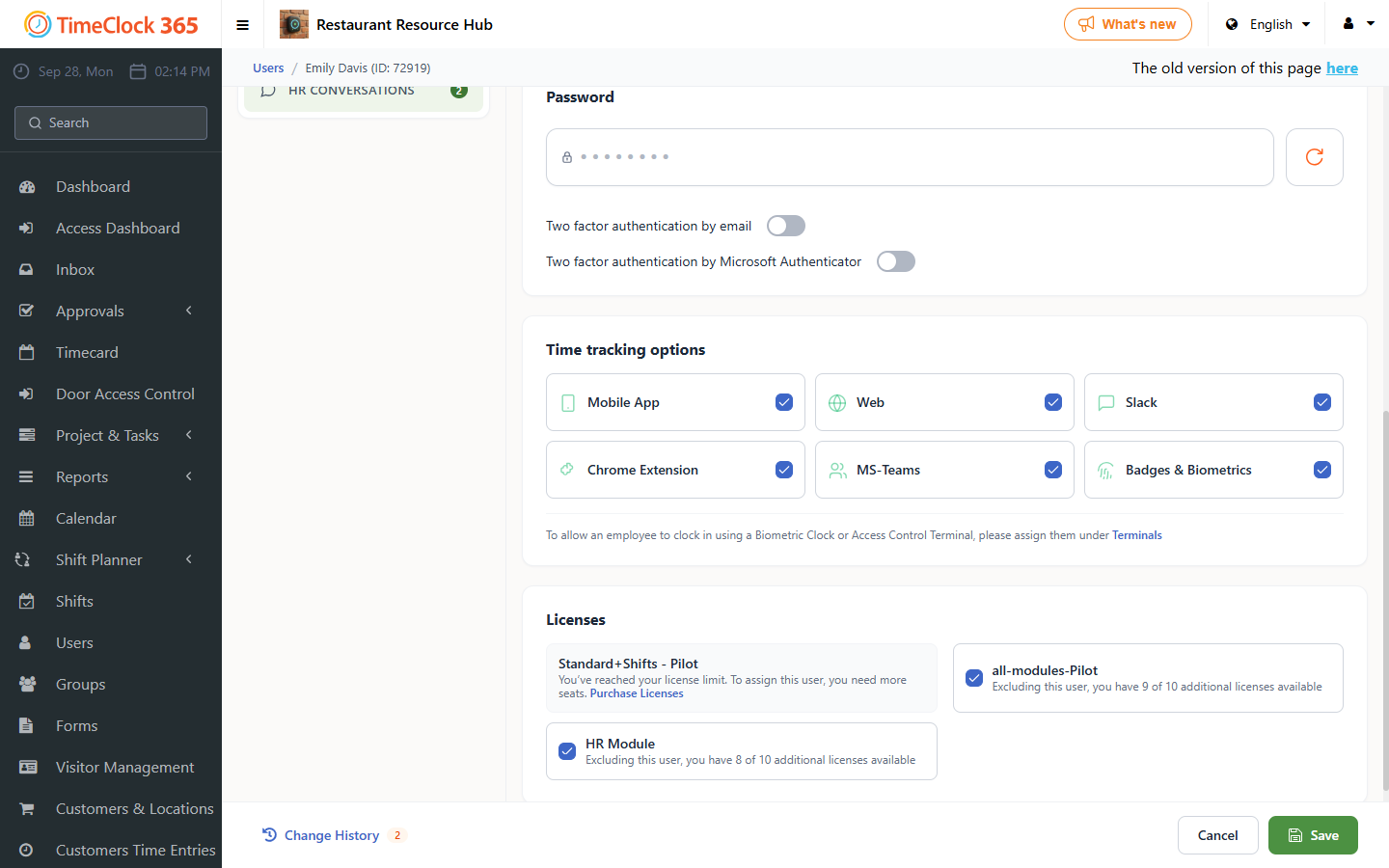
- In the user card, scroll down to the Time tracking options section.
- Check or uncheck the reporting methods:
- Mobile App: reporting via the iOS or Android app.
- Web: reporting from the TimeClock 365 web portal.
- Slack, MS-Teams, Chrome Extension: reporting through integrated applications.
- Badges & Biometrics: reporting via a physical device such as a biometric clock or access control terminal.
- Click Save at the bottom of the page.
Note: to enable terminal access, you must also assign the employee to the specific device in Access Control.
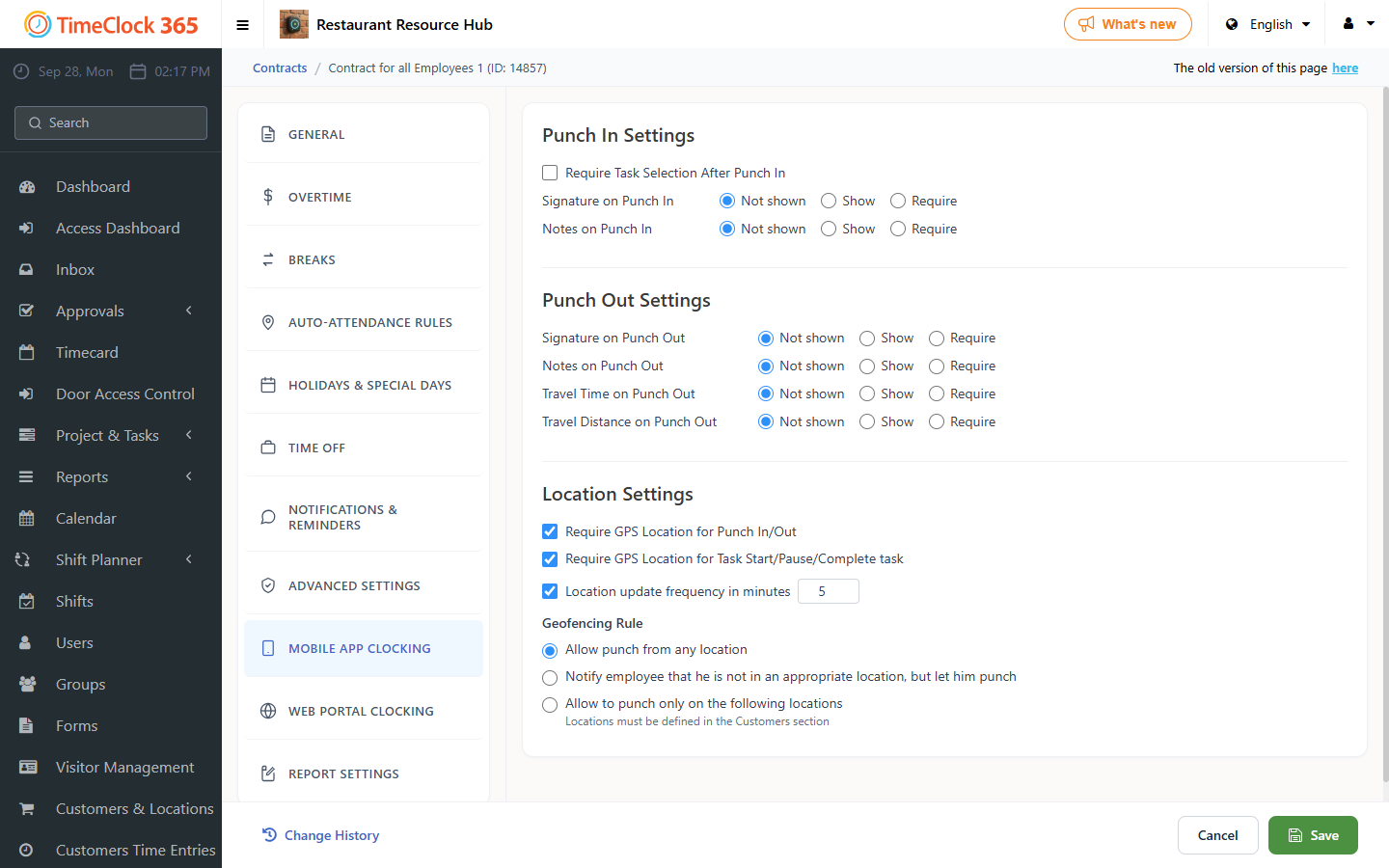
Restrict mobile reporting for an entire contract
This method blocks mobile app reporting for all employees under a contract by restricting it to an approved list of locations and leaving that list empty.
- Open Contracts and select the contract you want to change.
- Open the Mobile app clocking tab.
- Select Allow to punch only on the following locations.
- Do not add any locations to the list below. With an empty list, employees under this contract cannot punch in from the mobile app at any location.
- Click Save at the bottom of the page.