
This guide explains how to download a CSV file of existing users, update it, and upload it back into the system to update all users' details at once.
Steps
- Go to Users, then click "Export and Update".
- Click "Export user list".
- If you want the text in English, edit the exported file directly and re-import it. If the text is in Hebrew, continue with the steps below.
- Open a new Excel file, click Data, then "From Text/CSV".
- Select the file you exported. In the dialog that opens, choose Comma as the Delimiter and Unicode (UTF-8) as the File Origin, then click Load.
- Update the user details you want to change.
- Save the file: click File -> Save As, choose CSV UTF-8 as the file type, enter a file name, and click Save (confirm any pop-up window with OK).
- Return to TimeClock 365, click "Attach file", attach the file you edited, and click "Import user update".
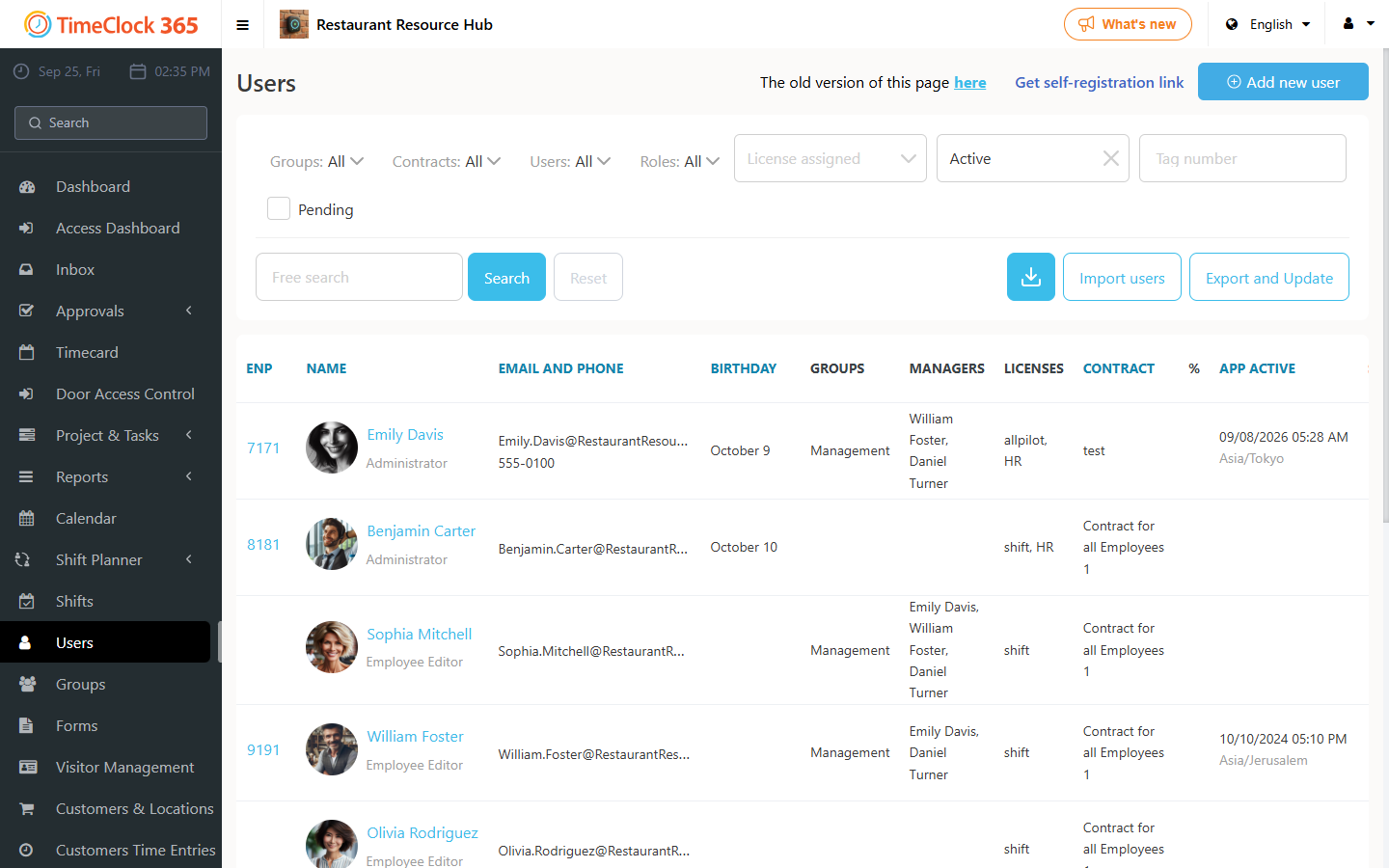
Go back to Users and confirm the user details have been updated.
Important rules:
- This tool updates existing users only. It cannot create new users.
- Do not change the original column headers.
- Do not delete any columns.
- Always save the final file as CSV.
- Import the data into a new blank Excel workbook instead of opening the CSV directly, to avoid formatting issues.