
You can configure the system to send automatic email summaries to managers when employees exceed a set number of work hours on a daily, weekly, or monthly basis. This helps you manage overtime proactively and stay compliant. This guide covers all three alert types.
General setup
The first steps are the same for any alert.
- Open Alerts.
- Click Create new alert.
- Name the alert: give it a descriptive internal name (for example, "Weekly Overtime Alert" or "Monthly Hours Exceeded").
- Select employees: choose individual employees, specific groups, or check Get alerts for all users to apply the rule to everyone.
- Select recipients: choose the managers who receive the email. You can select more than one.
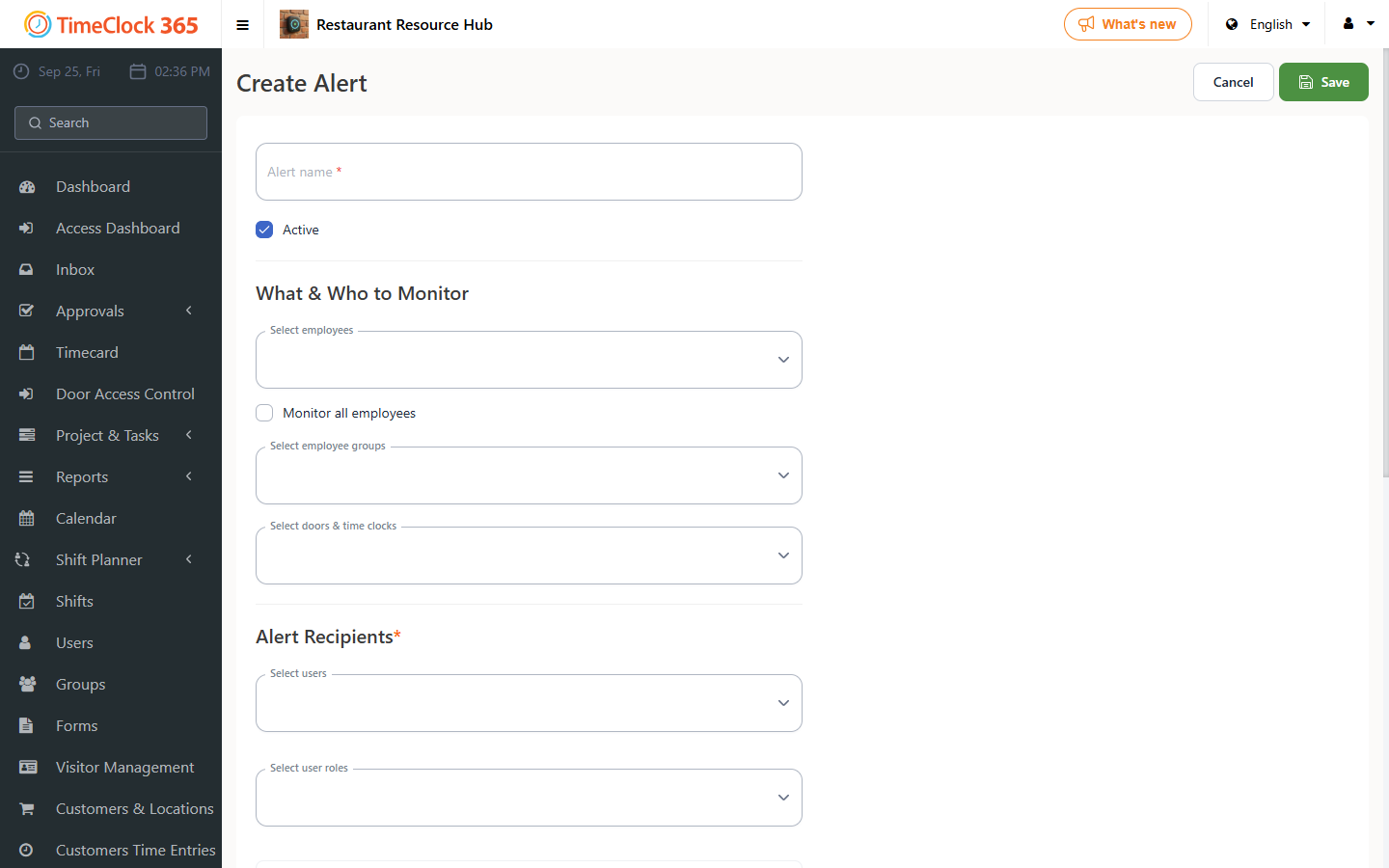
Then continue with the configuration for the summary type you want.
1. Daily hours alert
Get a daily notification if an employee works more than a set number of hours.
- In the Daily summary section, check Daily hours overreach.
- Hours per day: enter the maximum hours an employee should work before the alert triggers (for example, 10).
- Time to receive daily summary: set the time of day for the email. The alert is sent the following day at this time and summarizes the previous day.
Example: with a limit of 3 hours and a time of 17:30, the manager receives a file every day at 17:30 with the employees who worked more than three hours the day before.
2. Weekly hours alert
Receive a weekly summary of employee overtime or total hours worked.
- In the Weekly summary section, choose the alert type:
- Overtime summary: sends the total calculated overtime hours for each employee based on their work agreement.
- Weekly hours overreach: triggers an alert if an employee's total weekly hours exceed a number you define.
- Hours per week: for Weekly hours overreach, enter the maximum hours.
- Period: choose Previous week or Current week.
- Day of the week to receive alert: choose the day (for example, Sunday).
- Time to receive alert: set the time of day.
Example: with a limit of 8 hours, on Friday at 17:00 the manager receives data on employees who worked more than eight hours that week.
3. Monthly hours alert
Get a monthly report of employees who worked too many or too few hours.
- In the Monthly summary section, choose the alert type:
- Monthly lack and overtime alert: reports employees who worked more or fewer hours than their standard monthly requirement.
- Monthly hours overreach: triggers only for employees who exceeded a set number of total hours.
- Hours per month: for Monthly hours overreach, enter the maximum hours.
- Period: choose Current month or Previous month.
- Day of the month to receive alert: choose the date (for example, the 1st).
- Time to receive alert: set the time of day.
Example: with a limit of 40 hours, on the 1st of each month the manager receives a file with employees who worked more than 40 hours in the previous month.
When the configuration is complete, click Save to activate the alert.