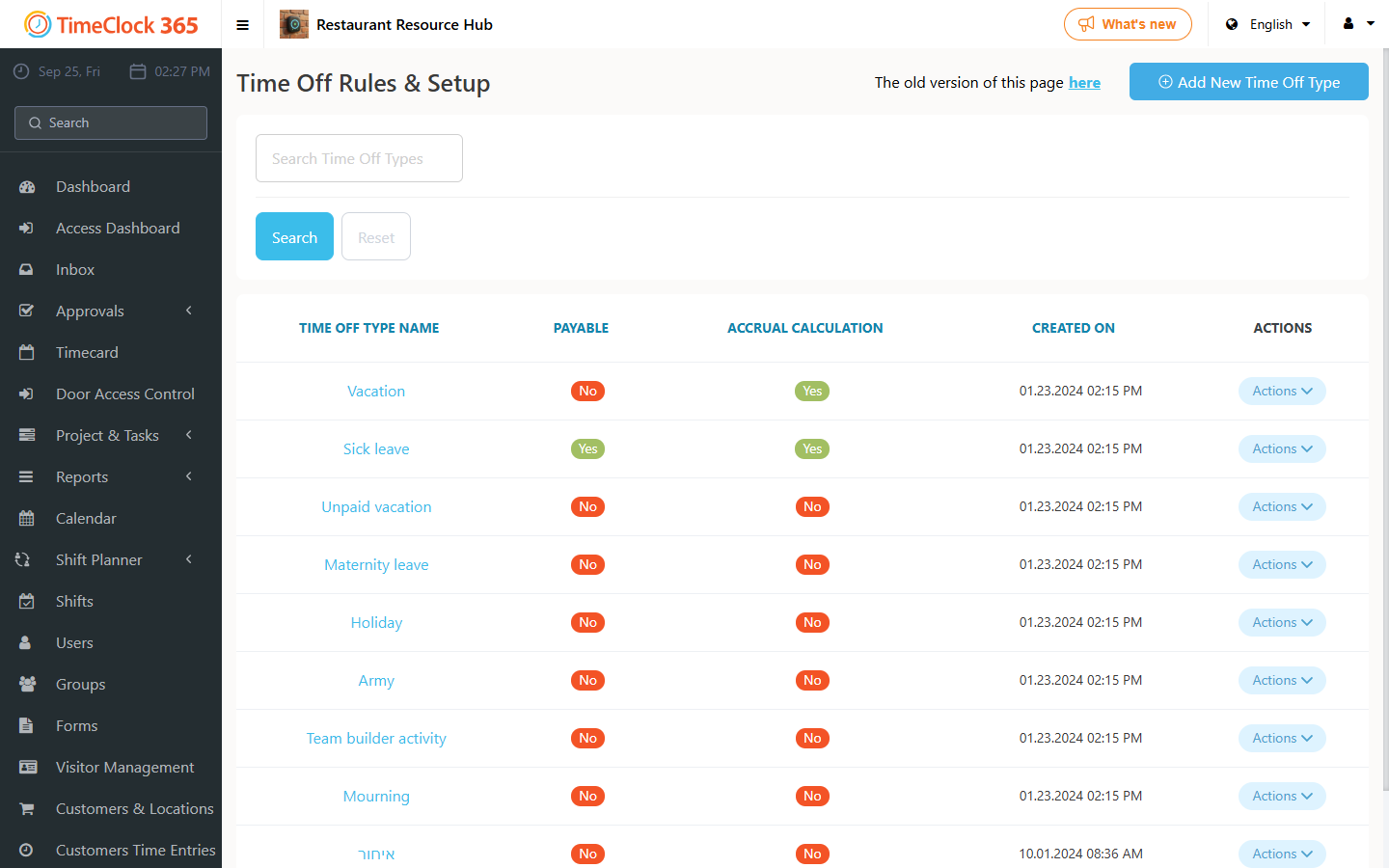
This guide explains how to set an existing time off type as paid (adds hours at 100%).
Note: this change applies retroactively to reports as long as they have not been approved. Approved reports remain unchanged.
If the time off type was already used by an employee, it cannot be changed to paid through the system - in that case, open a support ticket and ask us to make the change for you. If the time off type was never used, you can make the change yourself.
Steps
- Go to Settings -> Company Profile.
- Click "Time Off Types" at the top.
- Scroll to the time off type you want to change.
- Check "Paid" next to the time off type name.
- Scroll to the bottom of the page and click Update.