
This guide explains how employees can add a note when clocking in from a smartphone, and how managers can display that note in the Detailed Attendance report.
Enabling notes on clock-in
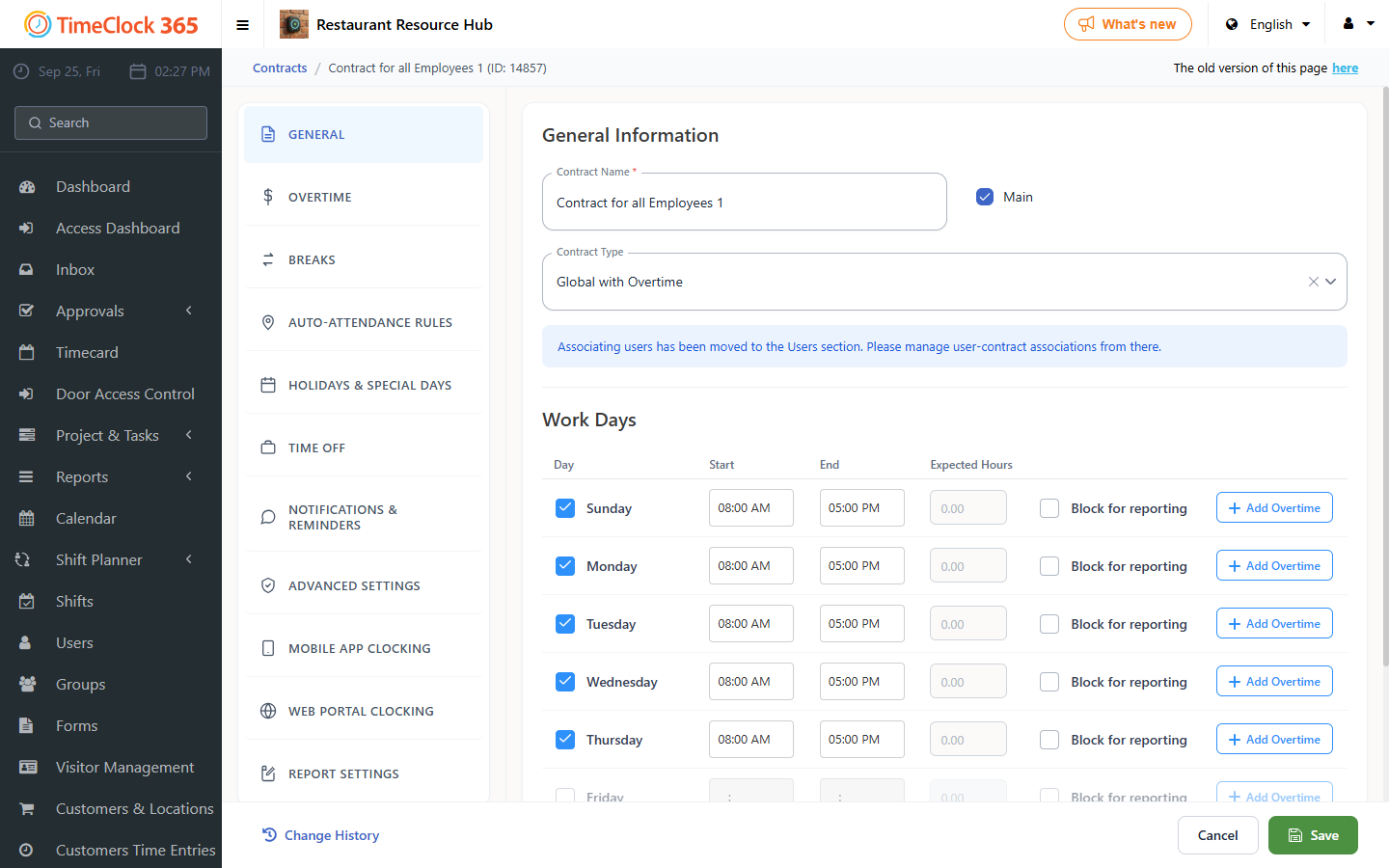
- Click Settings -> Contract, then click the contract you want to require notes for.
- Scroll down and open the "Smartphone Clock-In Conditions" tab, select "Show Notes on Clock-In" and "Notes on Clock-In Required", then click Save.
Showing notes in the report
- Click "Settings" -> "Reports Setup", select "Notes", then click Save.
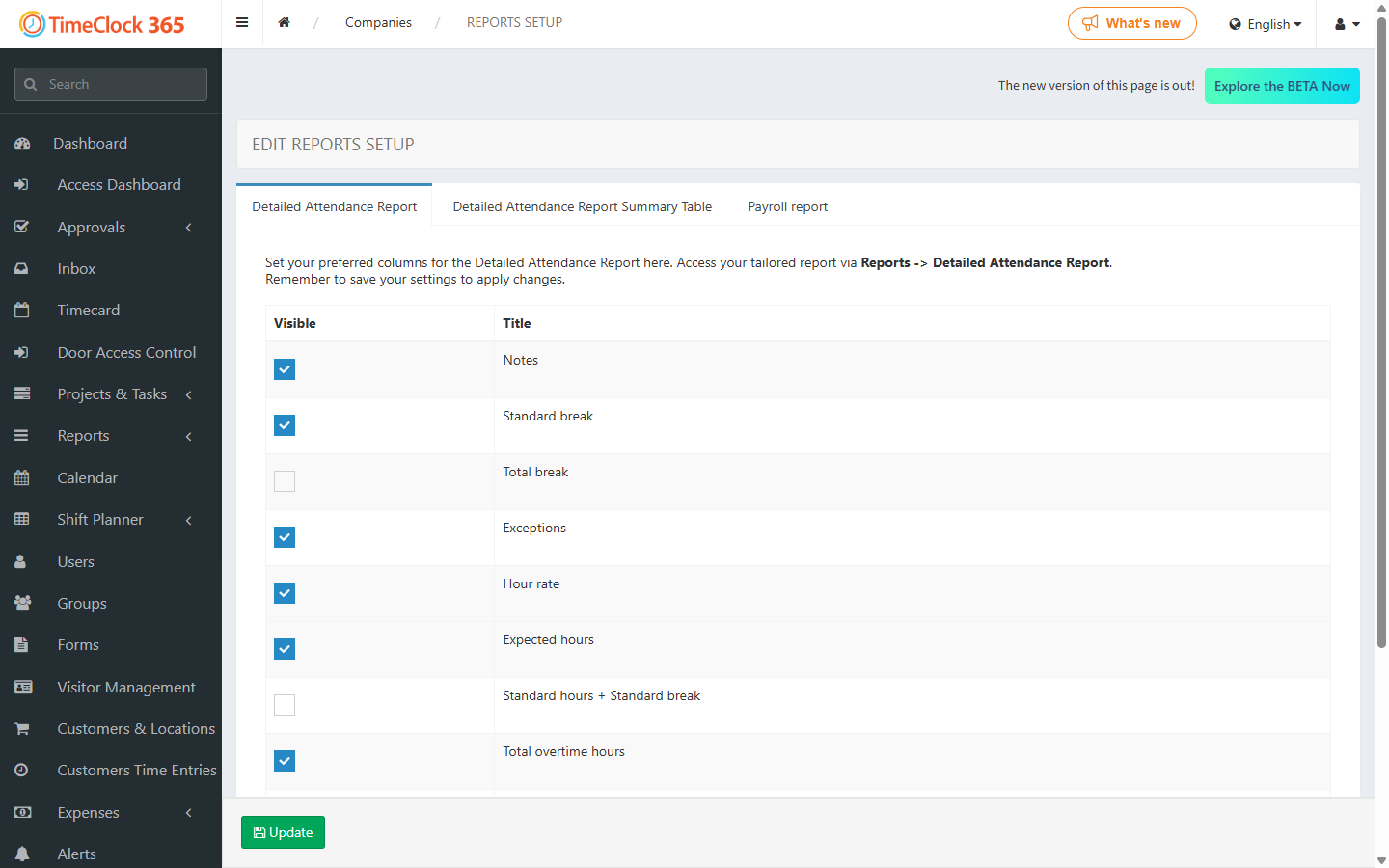
From now on, when a user reports a clock-in, they will be required to add a note, and that note will appear as a column in the Detailed Attendance report.