
Using TimeClock 365's work agreement history feature, you can set different date ranges for different work agreements assigned to an employee.
Work agreement history is useful in situations like these, or similar ones:
- The employee moves from an hourly agreement to a global one, or vice versa.
- The employee has different standard hours.
- The employee has different weekly working days or other settings that require switching to a new agreement.
You can now see the transition between agreements in reports without needing to freeze and approve the report, and see which agreement is assigned to which employee.
How it works
- When a new employee is created, they are automatically assigned to the default agreement. To assign the employee to a different agreement, go to Users, click the employee's name, and change the agreement in the "Work Agreement" tab.
To add a new agreement to the employee's history, click the plus (+) icon at the bottom of the list of agreements and fill in:
- Contract - choose the agreement from the dropdown.
- Percentage - the percentage that applies to this agreement, for example 100.
- Comes into force - the start date of the agreement.
To remove an assignment, click the "x" icon to the left of its row. Click Save when done.
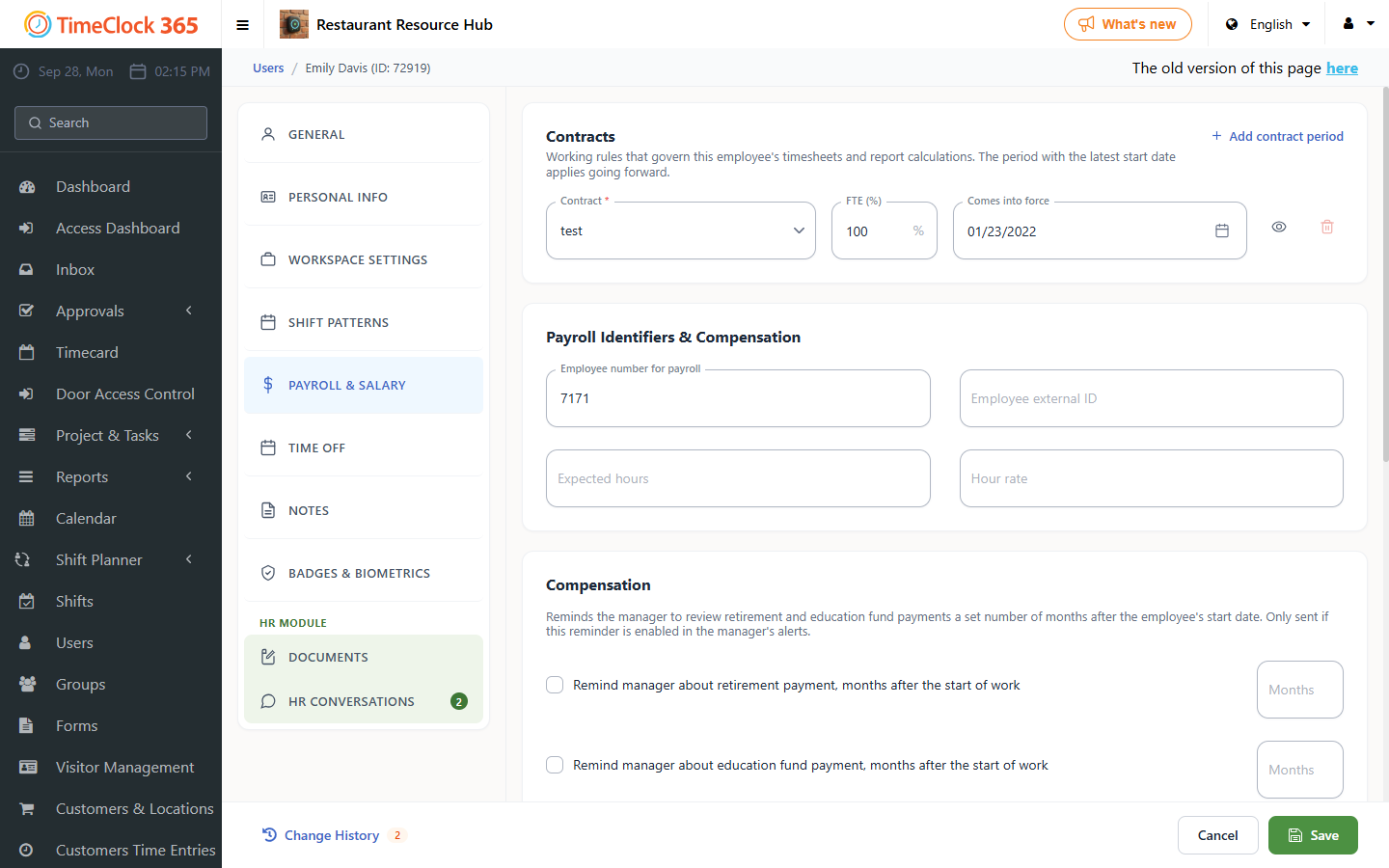
An employee can be assigned to only one contract at a time, and there is never a period without an assigned agreement. Since each agreement only has a start date and no end date, the end date of the previous agreement is set to the day before the new agreement's start date.
Here is an example of a contract history where an employee switches back and forth between two contracts, along with the resulting start and end dates for each agreement.
When adding an agreement to the history, keep these conditions in mind:
- You cannot set a future date as the agreement's start date.
- An employee's agreement can only be switched once per day. If you switch it more than once on the same day by mistake, only the last change is kept.
- Every new employee is automatically assigned to the default agreement, with a start date equal to the date the user was created.
2. How to check which agreement an employee is currently assigned to
- You can open the employee for editing and see the assignments in the Agreements tab.
- You can go to the Work Agreements page (Settings, then Work Agreements) and filter by user.