
This guide explains how to let users attach a file when submitting an absence request.
- Click Settings -> Company Profile, select "Absence Types" at the top, scroll down, and next to the absence type you want users to be able to attach a file for, check "File Attachment Allowed", then click Update.
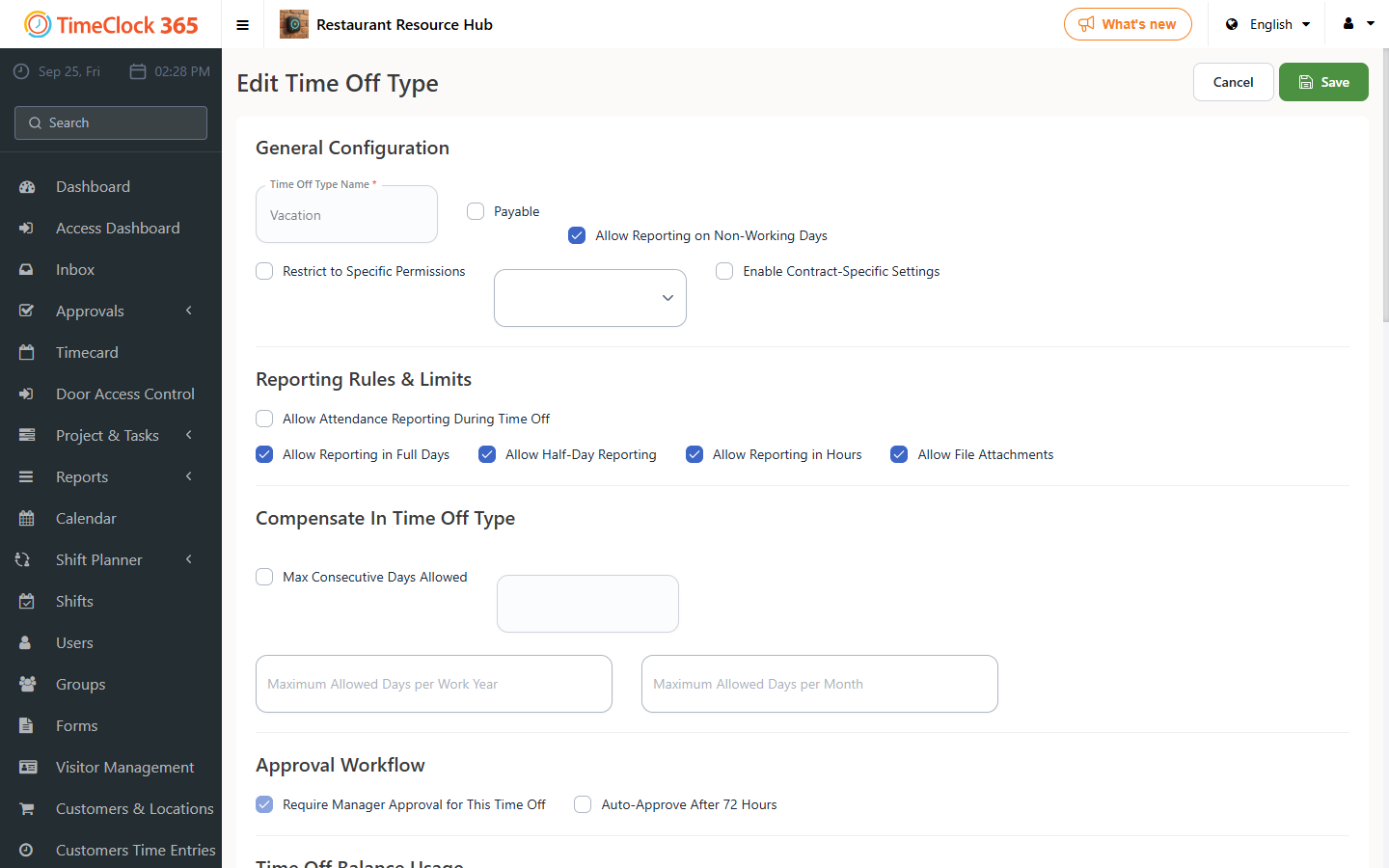
At this point the employee can attach a file, but it isn't required. To make the attachment mandatory, continue with the next section.
Making the file attachment mandatory
After completing the first part, if you want the file attachment to be mandatory, open the contract that this requirement should apply to.
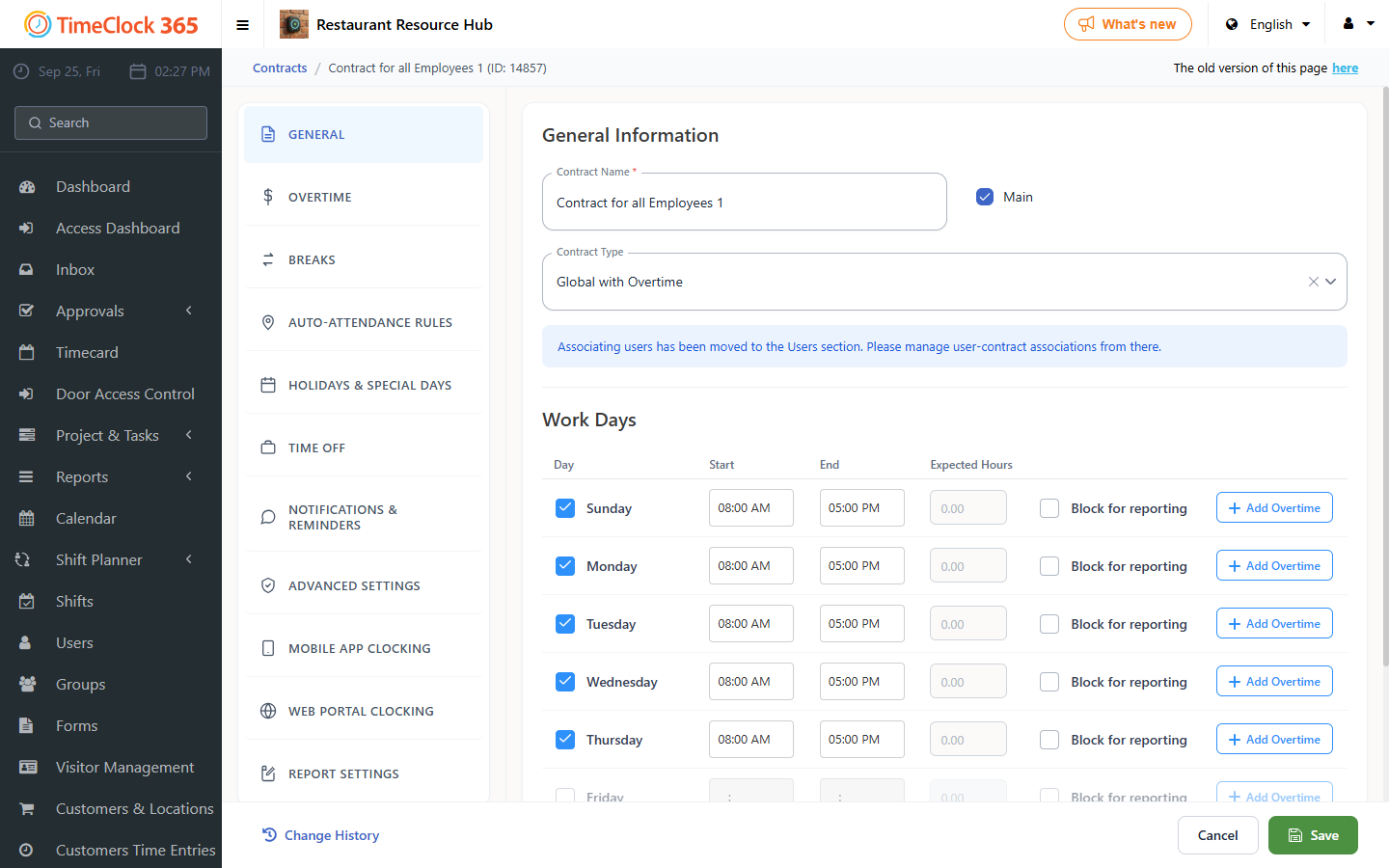
- Click Settings -> Contract, click the contract covering the employees this requirement should apply to.
- Scroll down to the "Web Clock-In Conditions" tab, and under "File attachment required for absence type", select the absence type this requirement should apply to, then click Save.
This is useful, for example, to require a doctor's note for sick leave.
Now, when an employee submits an absence request without attaching a file, they will get a message that the request cannot be submitted.