
The clock's System menu has settings for how punches are recorded and how fingerprints are matched. Most companies never need to change them, but a few are useful to know.
This guide is for TimeClock 365 biometric clocks with a 2.8, 3 or 3.5-inch color screen. Menu names can differ slightly between models and firmware versions.
Attendance settings
- Press M/OK, select System, then Attendance and press OK.
- Press ▲/▼ and OK to change a setting, then press OK to save and exit.
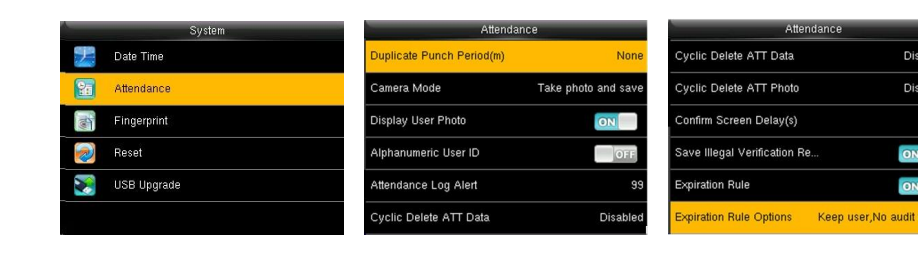
- Duplicate Punch Period (m) - if an employee punches again within this many minutes (1-60), the second punch isn't saved. Useful to avoid double punches.
- Camera Mode (models with a camera) - whether to take a photo at each punch: no photo, take photo without saving, take and save, save only on successful verification, or save on failed verification.
- Display User Photo - show the employee's photo after they verify.
- Alphanumeric User ID - allow letters in user IDs.
- Attendance Log Alert - warn when storage for attendance records is almost full.
- Cyclic Delete ATT Data / ATT Photo - how many old records or photos to delete automatically when storage is full.
- Confirm Screen Delay(s) - how long the verification result stays on screen (1-9 seconds).
Fingerprint settings
- Press M/OK, select System, then Fingerprint and press OK.
- Press ▲/▼ and OK to change a setting, then press OK to save and exit.
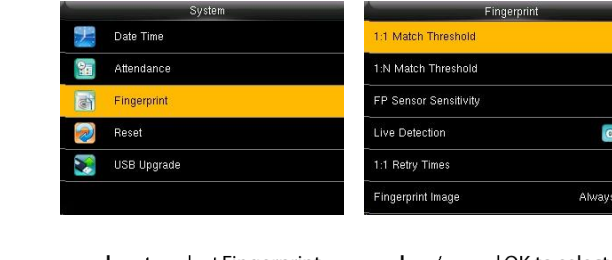
- 1:1 / 1:N Match Threshold - how closely a fingerprint must match the enrolled one. Keep the defaults unless our support team advises otherwise.
- FP Sensor Sensitivity - Medium is recommended. Use High if fingers don't read well in a dry environment, Low in a humid one.
- Live Detection (on supported models) - rejects fake fingerprints.
- 1:1 Retry Times - how many tries an employee gets with user ID + fingerprint or password.
- Fingerprint Image - whether to show the fingerprint image on screen.
More fingerprint tips: Fingerprint Reading Issue on the Time Clock.
FAQ
How do I stop the clock from recording double punches?
Set Duplicate Punch Period in System > Attendance. If an employee punches again within that many minutes, the second punch isn't saved.
The clock doesn't recognize fingerprints well. Which setting helps?
In System > Fingerprint, set FP Sensor Sensitivity to High in dry environments, or Low in humid ones. Medium is recommended by default.
Need help? Open a support ticket.