
Enroll an employee's fingerprint or card/tag on a biometric time clock or access controller.
Important: DO NOT create users on the clock. Users created on the clock do not sync to TimeClock 365. First create the users in the TimeClock 365 cloud interface and push them to the device. Only then add fingerprints and cards, selecting the EXISTING users.
- First, create the employee in the web system.
- After creating the employee, assign them to the group linked to the time clock - the employee will then be registered on the terminal automatically (recommended). If no group is linked to the time clock, you can assign the employee without a group: go to Settings, then Devices, edit the terminal, choose the employee to assign to it, and save.
- To enroll a fingerprint for the employee, go into the time clock's menu, then Employee Management, then Employee List, select the employee, click Edit, then Fingerprint, and place the finger three times until you get a green checkmark.
Enrolling on the clock - step by step
Employees added in TimeClock 365 are uploaded to the clock automatically. To add their fingerprint, card or password on the clock:
- Press M/OK, select User Mgt. and press OK. Choose All Users, select the existing employee and choose Edit. Do not use New User - users created on the clock do not sync to TimeClock 365.
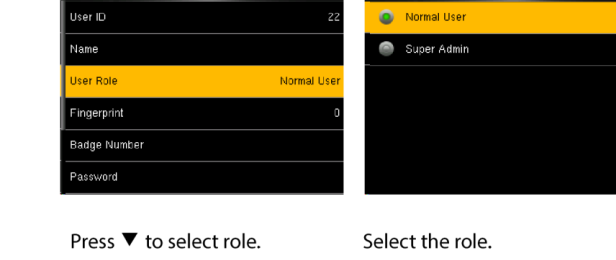
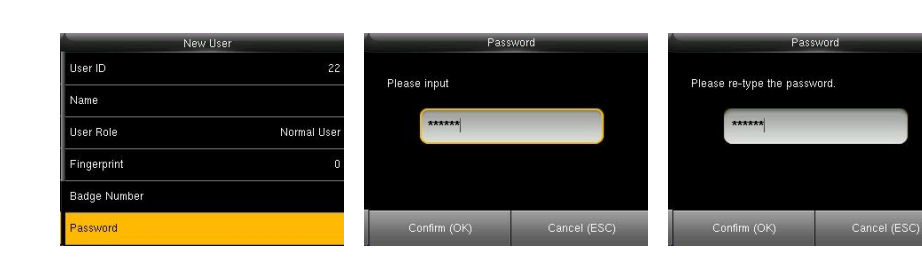
The user screen shows the User ID, Name, User Role, Fingerprint, Badge Number (card) and Password. Keep the User ID the same as the employee number in TimeClock 365. The User Role is Normal User for employees and Super Admin for people who manage the clock's menu.
Fingerprint
- Press ▼ to select Fingerprint and press OK.
- Select the finger to enroll, then place it on the sensor three times.
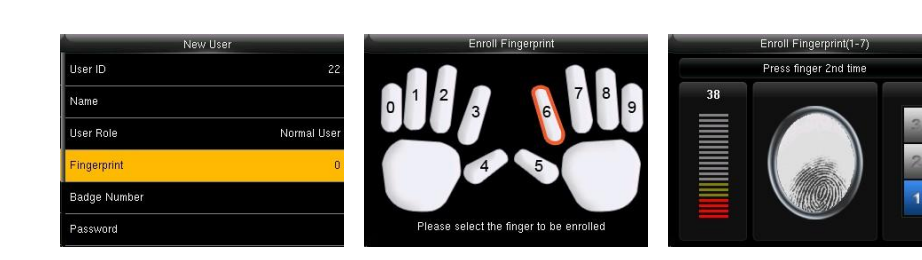
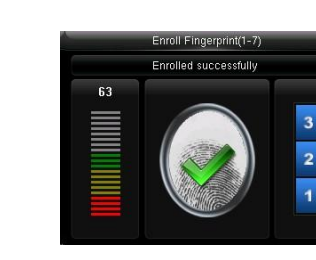
When enrollment succeeds, a green check mark appears. If it fails, the clock returns to the Enroll Fingerprint screen - try again. Enrolling a second finger is recommended.
Card (badge)
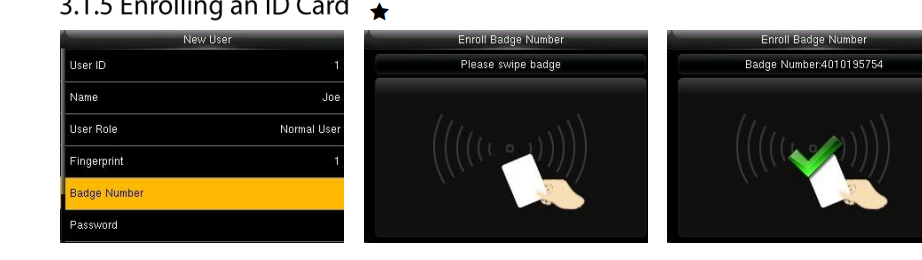
- Press ▼ to select Badge Number and press OK.
- Swipe the card over the card reader area. The clock shows Read Successfully! and the card number.
Password
- Press ▼ to select Password and press OK.
- Enter a password (1-8 digits), press OK, then enter it again and press OK.
For tips on getting fingerprints read reliably, see Fingerprint Reading Issue on the Time Clock.