
Every punch made on a TimeClock 365 biometric (fingerprint) clock is saved on the device. With Attendance Search you can check an employee's punches right on the clock, without a computer.
Good to know: once the clock is connected to the TimeClock 365 cloud, all its attendance data appears automatically in the Detailed Attendance report in the web portal. That's the best place to view, edit and export attendance. See Attendance Report - General Overview.
This guide is for TimeClock 365 biometric clocks with a 2.8, 3 or 3.5-inch color screen.
Search attendance records on the clock
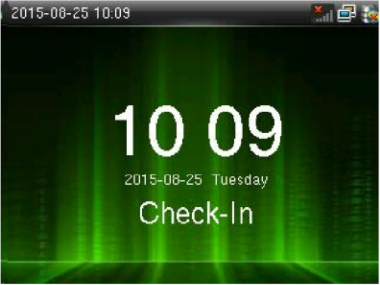
- On the clock's main screen, press M/OK to open the main menu.
- Press ► to select Attendance Search and press OK.
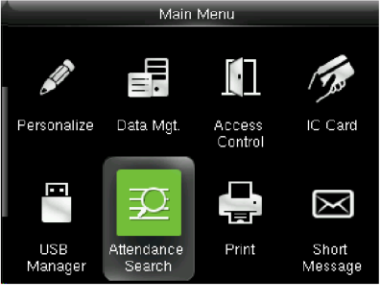
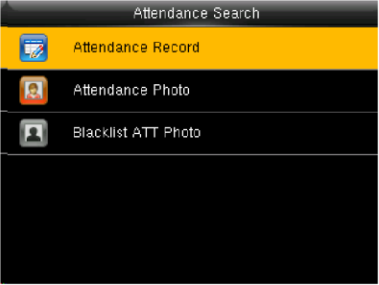
- Select Attendance Record and press OK.
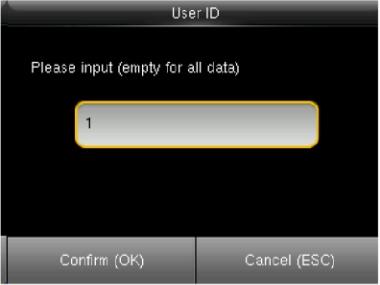
- Enter the employee's User ID and press OK. To see the records of all employees, leave the field empty.
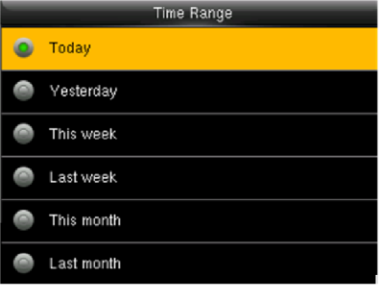
- Press ► to select the Time Range and press OK: Today, Yesterday, This week, Last week, This month, Last month, All, or a custom period.
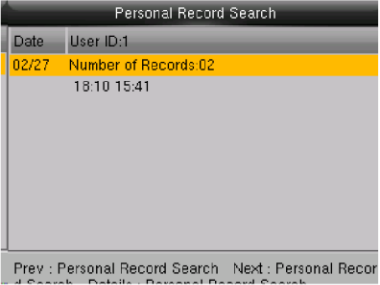
- The clock shows the matching records - the date, the number of records and the punch times.
Attendance Photo and Blacklist ATT Photo
In the Attendance Search menu you can also open Attendance Photo and Blacklist ATT Photo. The steps are the same as for Attendance Record.
Punches missing from the Detailed Attendance report?
If you can see punches on the clock but not in the TimeClock 365 web portal, the clock is probably not connected to the cloud. The punches stay saved on the clock and sync once it reconnects.
- How to Connect a Biometric Clock to the Network
- How to Check Clock / Controller Sync Status
- Time Clock Punches Not Being Recorded
- How to set up a time clock or access controller
You can also copy the punches from the clock to a USB drive. See How to Download Attendance Data from a Biometric Clock to a USB Drive.
FAQ
Can I see all employees' punches on the clock?
Yes. Leave the User ID field empty and choose a time range.
Where else can I see the clock's punches?
In the web portal, under Reports → Detailed Attendance, once the clock is connected to the cloud.
Need help? Open a support ticket.