
TimeClock 365 biometric (fingerprint) time clocks save every punch on the device. Normally the punches sync to the cloud automatically. If the clock is offline, or you need a manual backup, you can download the attendance data straight from the clock to a USB flash drive using the USB Manager menu.
This guide is for TimeClock 365 biometric clocks with a 2.8, 3 or 3.5-inch color screen.
Before you start
- You need a USB flash drive (U disk).
- Important: use a USB 2.0 flash drive of up to 8 GB, formatted in its default FAT32 file system. Larger drives, USB 3.0 drives or other formats (such as NTFS or exFAT) may not be recognized by the clock.
- You need administrator access to the clock's menu.
Step 1 - Insert the USB drive
Insert the USB drive into the USB port on the side of the clock. If the clock has a mini USB port, connect the drive with a mini USB cable.
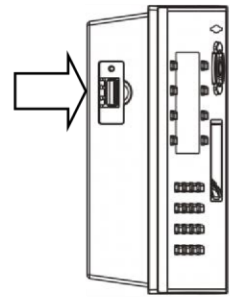
Step 2 - Open USB Manager
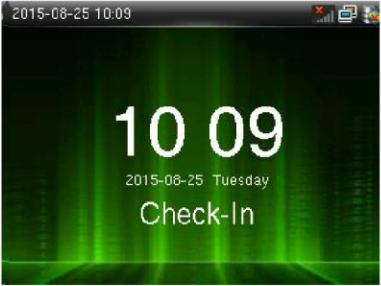
- On the clock's main screen, press M/OK to open the main menu.
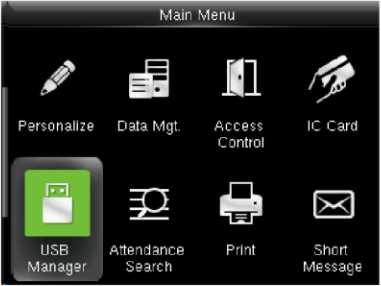
- Press ▼ to select USB Manager and press OK.
Step 3 - Download the attendance data
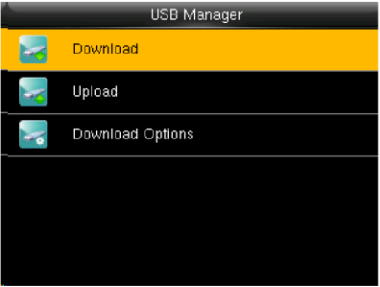
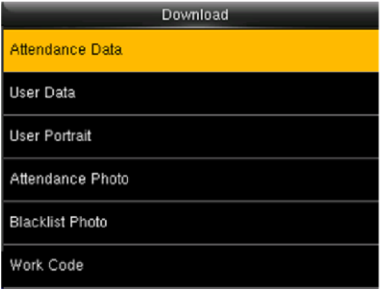
- Select Download and press OK.
- Select Attendance Data and press OK. All attendance records on the clock are copied to the USB drive.
- When the download is complete, remove the USB drive.
Other data you can download
In the same Download menu, press ▼ and OK to choose:
- User Data - all user information, fingerprints and facial images.
- User Portrait - employee photos.
- Attendance Photo - attendance photos saved on the clock (JPG).
- Blacklist Photo - blacklist photos saved on the clock (JPG).
- Work Code - the work IDs saved on the clock.
Download options
In USB Manager, select Download Options and press OK. Press ▼ and OK to change a setting, then press OK to save and exit.
- Encrypt Attendance Data - encrypts the attendance file on the USB drive.
- Delete ATT Data - deletes the attendance records from the clock after they are downloaded.
- Calendar type for the attendance time: Gregorian, Iran Gregorian or Iran Lunar.
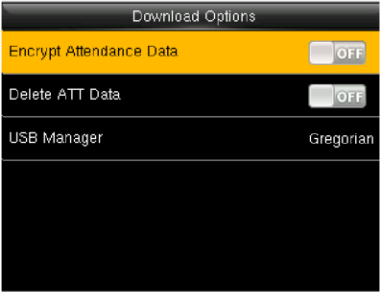
Tip: leave Delete ATT Data off unless you're sure the punches are saved elsewhere. Once deleted, they can't be downloaded from the clock again.
To check punches on the clock screen instead, see How to View Attendance Records on a Biometric Clock.
FAQ
When should I download attendance data by USB?
When the clock is offline and punches haven't synced to the TimeClock 365 cloud, or when you want a manual backup of the device's records.
What USB drive should I use?
A USB 2.0 flash drive of up to 8 GB, formatted in FAT32 (the default for these drives).
Does downloading remove the punches from the clock?
No, unless Delete ATT Data is turned on in Download Options.
Need help getting the downloaded punches into TimeClock 365? Open a support ticket and our team will help.