
This guide explains how to set up automatic day completion with an absence type for employees who worked less than a chosen number of hours.
This feature is intended for cases where:
- An employee did not report attendance on a given day, for any reason.
- The employee only worked part of the day.
The system will automatically close out those days with an absence type set by the system administrator, either daily or monthly.
Note: this action runs at midnight, and the setting is configured per contract.
How to set it up
- Click Settings -> Contracts -> click the contract you want to enable automatic completion with absence on.
- Scroll down to the "Auto-Complete Day with Absence" tab.
- Check the box to enable the feature.
- Set the maximum number of hours an employee can work and still have the absence completed.
- Select the absence type you want completed.
- Choose whether you want daily or monthly completion - if monthly, select the day of the month you want the system to run it.
- Save the contract at the bottom.
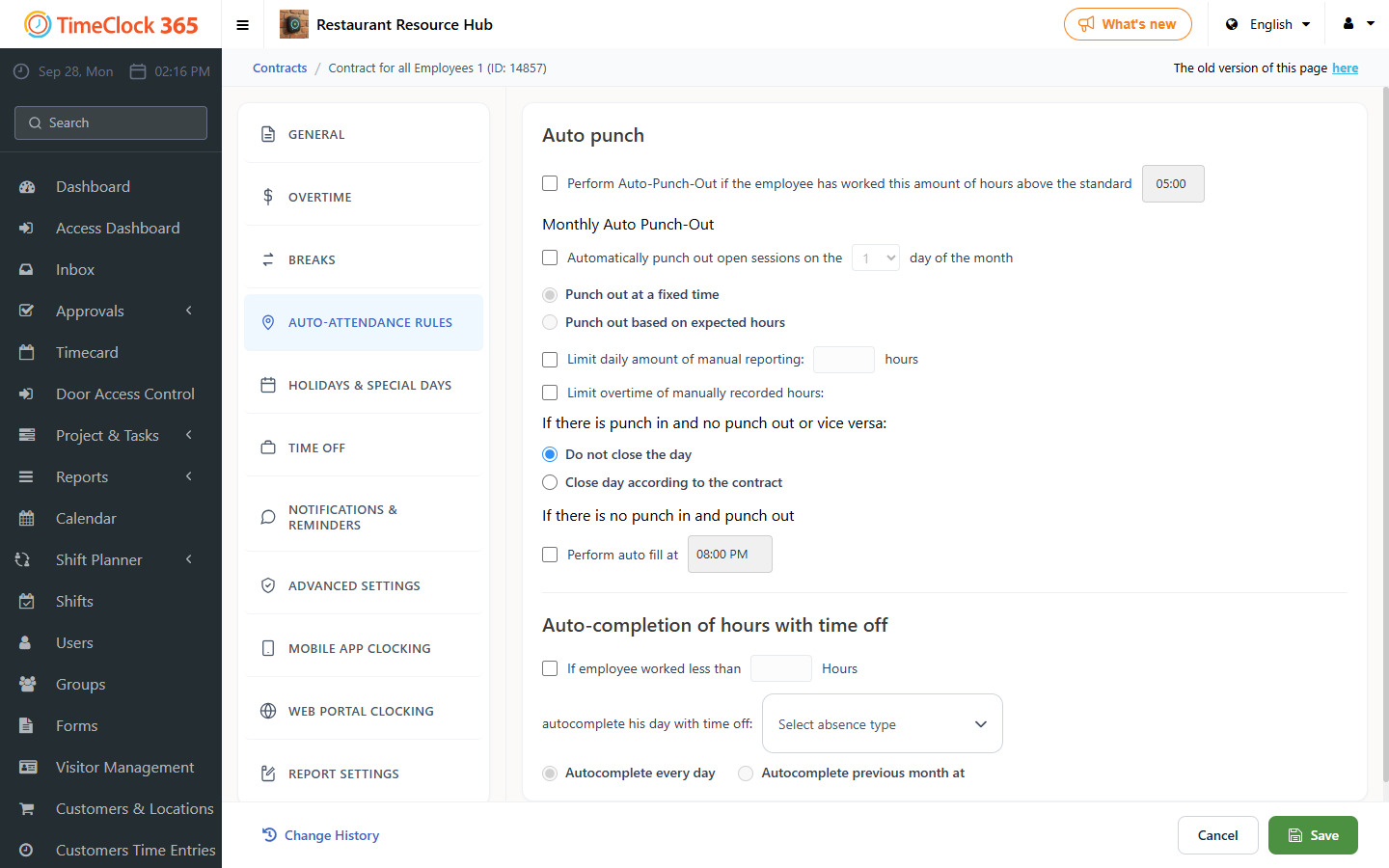
Example: if you set the maximum to 6 hours, the rule applies to any day the employee worked less than 6 hours. At midnight the system fills the remaining hours of the standard workday with the chosen absence type (for example Vacation). This keeps payroll reports accurate for employees who forgot to clock in or left early.