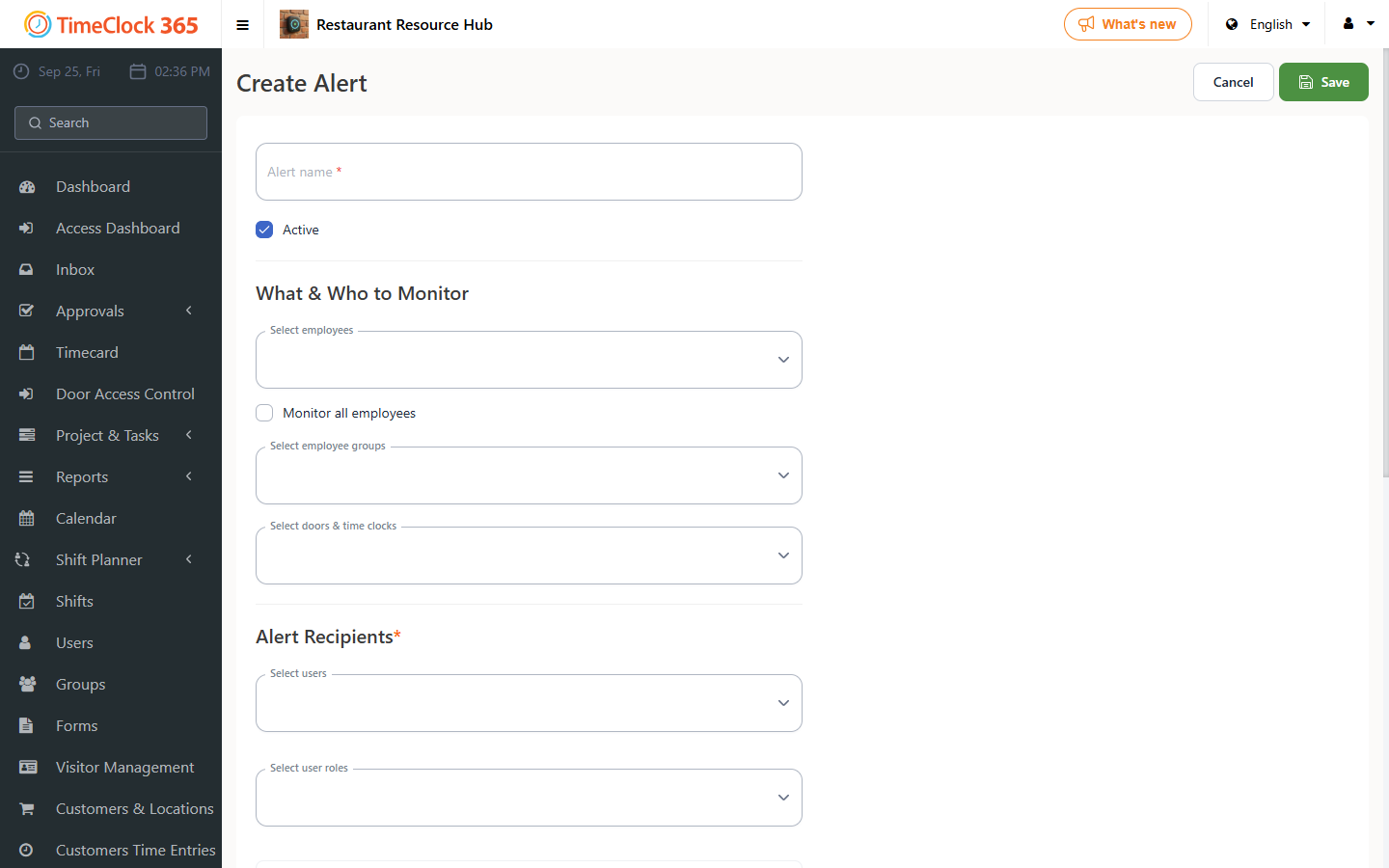
This guide explains how to set up an automatic email report about employees who exceeded a defined number of daily work hours, sent to managers at a fixed time each day.
Steps
- Go to Alerts, then click "Create new alert".
- Enter a name for the alert for internal reference, and define which employees the alert applies to. It's recommended to check "Receive alerts for all users" - this means the alert will be sent to the managers defined in the next step whenever any employee exceeds the defined number of hours.
- Select the manager(s) who should receive the alert about all employees - you can select more than one manager.
- Under "Daily summary", check the relevant settings (this sends the email every morning at 10:00 with the previous day's exceptions).
- Click Save.