
The clock can work as a shift bell: at the scheduled time it plays a ringtone (and can trigger an external electric bell). This is useful for shift start, breaks and end of day in factories, schools and warehouses.
This guide is for TimeClock 365 biometric clocks with a 2.8, 3 or 3.5-inch color screen. Menu names can differ slightly between models and firmware versions.
Add a bell
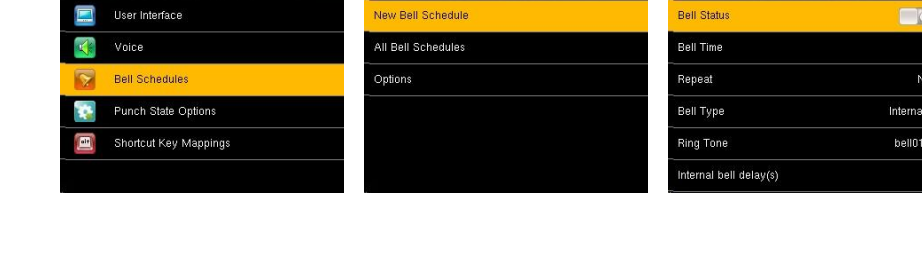
- Press M/OK, select Personalize and press OK.
- Press ▼ to select Bell Schedules and press OK.
- Select New Bell Schedule and press OK.
- Press ▲/▼ and OK to set each item, then press OK to save and exit:
- Bell Status - turn the bell on.
- Bell Time - when the bell rings.
- Repeat - which days it repeats.
- Bell Type - internal (the clock's speaker) or external (an electric bell wired to the clock, on supported models).
- Ring Tone - the sound to play. The clock has 15 ringtones by default.
- Internal bell delay(s) - how long the bell rings, from 1 to 999 seconds.
Edit or delete a bell
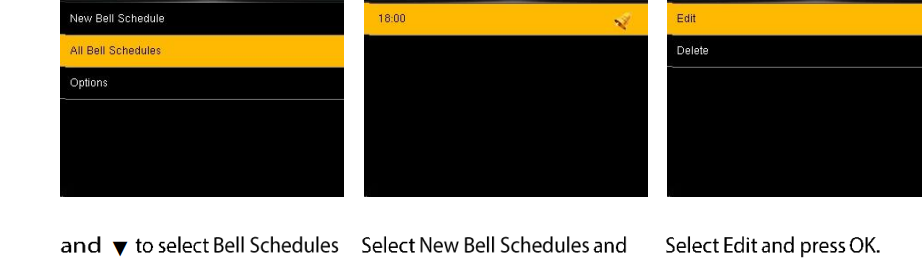
- In Bell Schedules, select All Bell Schedules and press OK.
- Select the bell and press OK.
- Select Edit to change it, or Delete and confirm with Yes to remove it.
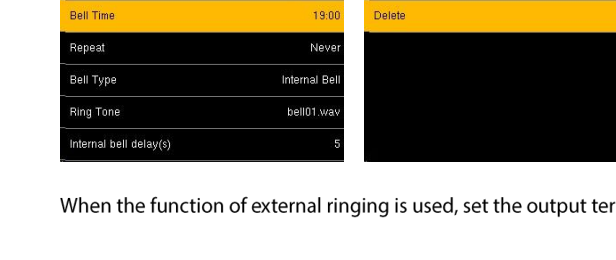
If you use an external bell, set the output terminal for it in Bell Schedules > Options.
FAQ
Can the biometric clock ring a bell for shift start and end?
Yes. In Personalize > Bell Schedules you can create bells that ring at set times, with the ringtone played by the clock's speaker or an external bell.
How do I delete a bell?
Go to Personalize > Bell Schedules > All Bell Schedules, select the bell, choose Delete and confirm with Yes.
Need help? Open a support ticket.