
This guide explains how to change the format shown in the Detailed Attendance report - hourly (hours and minutes) or decimal display.
Changing the format
- Hourly (HH:MM), for example 08:30 - easy to read at a glance.
- Decimal, for example 8.50 - minutes shown as a fraction of an hour, preferred for payroll calculations.
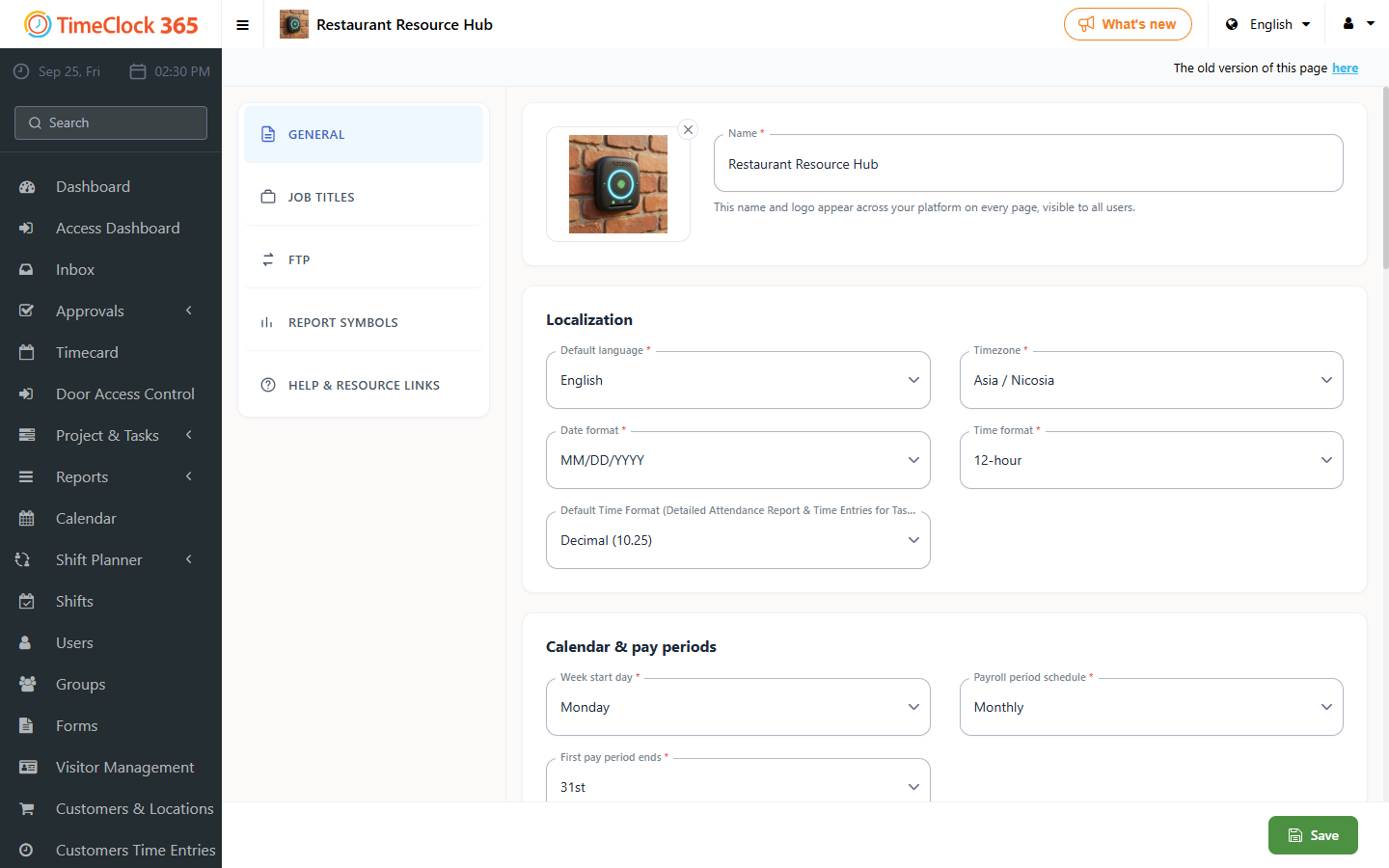
- Go to Settings -> Company Profile -> click "Settings" at the top.
- Change the format in the field "Default Time Format for the Detailed Attendance Report".
- After choosing the format, click Update.
Once the change is saved, open the Detailed Attendance report again to see the new format applied. If you also want to change which columns are shown in the Detailed Attendance report, see the related guide on changing display settings for the report.