
This guide explains how to choose which columns appear in the Detailed Attendance report, its summary table, and the summary report for the accountant.
Detailed Attendance report
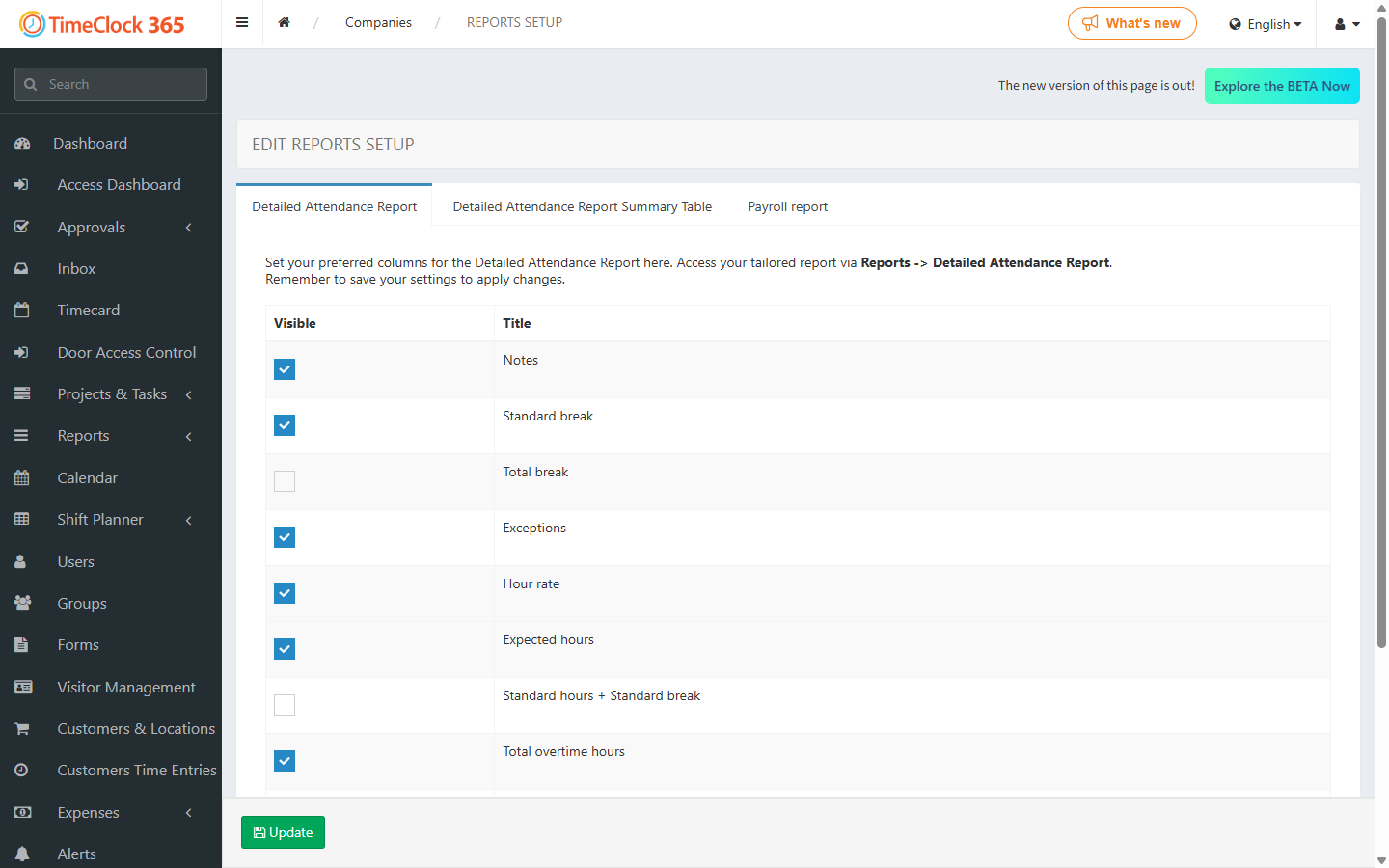
To choose which columns appear in the Detailed Attendance report: go to Settings -> Reports Setup -> click "Detailed Attendance Report" -> select the columns you want to appear -> click Update.
Summary table in the detailed report
To choose the data shown in the summary table at the bottom of the Detailed Attendance report: go to Settings -> Reports Setup -> click "Detailed Attendance Report Summary Table" -> select the columns you want to appear -> click Update.
Summary report for the accountant
To edit and style the columns shown in the summary report for the accountant: go to Settings -> Reports Setup -> click "Payroll report" -> select the columns you want to appear (you can also style the columns) -> click Update.
Example color codes you can set: blue - 1d2ebc, light blue - 00b0f0, yellow - ffff00, white - ffffff, black - 000000.