
This guide explains how to change the password for an existing user in the system.
- In the menu on the right, click "Users", then click the name of the user whose password you want to change.
- Scroll down slightly to the "Password" field (you cannot view the existing password).
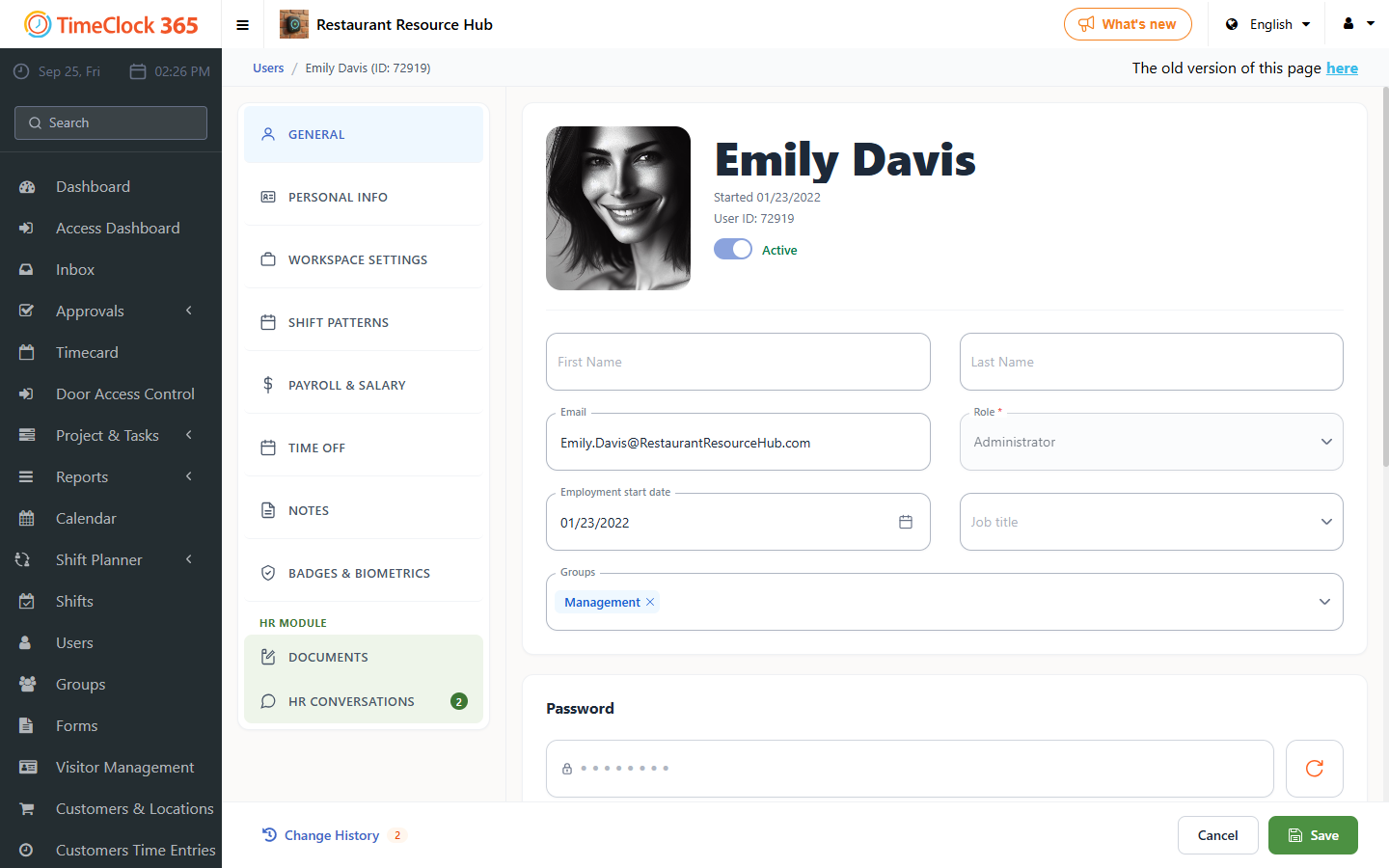
You can create a password yourself containing at least one lowercase letter, one uppercase letter, and one number, with a minimum of 8 characters in total, or you can click "Generate New Password" and the system will create one for you.
Note: if the employee has an email address set, you can check the box "Send the password to the employee's email" and the system will email it to them.
Only users with the relevant permissions can change passwords. Administrators can change the password of any user.
Then click Save so the system updates the new password.