
This guide explains how to change a user's permission level in the system - what the employee can do and see. For example, if an employee currently cannot edit the Detailed Attendance report and you want to allow it, you change their permission level.
- Click "Users".
- Click the employee whose permission you want to change.
- Click the permissions dropdown menu.
- Select the permission level you want to move the user to.
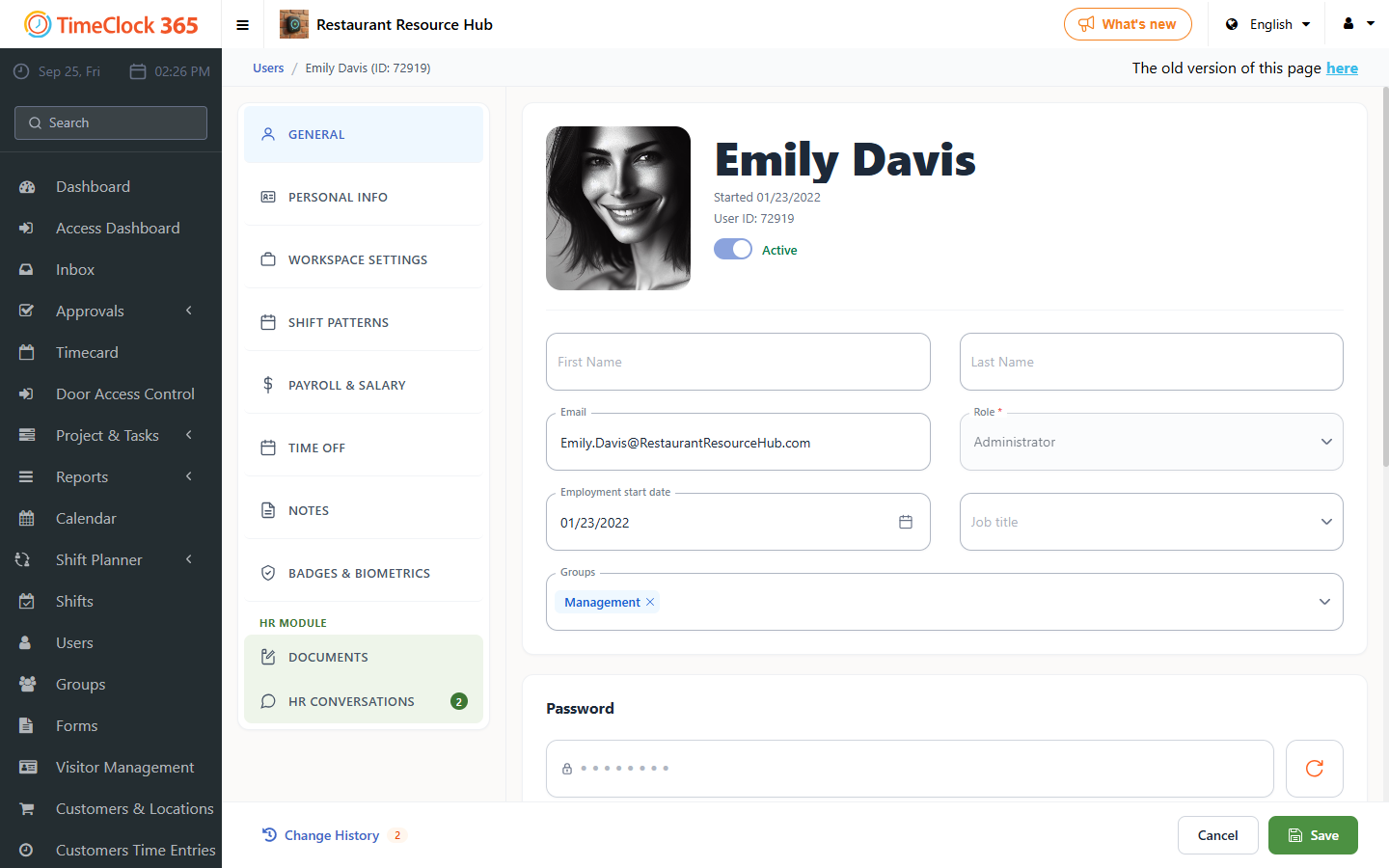
The default permission levels are:
- Employee - an employee without edit permissions.
- Employee Editor - an employee with edit permissions.
- Group Manager - a group manager (see the related guide on setting up a group manager).
- Administrator - system administrator.
- Click Save.
Note: a system administrator cannot change their own permission level while logged in as themselves; if needed, this must be done from another administrator's account.
Need to add a new permission level? See the related guide on permission management.