
This article covers how break time is calculated in the Detailed Attendance report, so you can review or adjust break rules for your employees.
Break calculation rules are set per contract. Go to Settings -> Contracts -> select the relevant contract, and look for the break-related settings, such as the minimum shift length that triggers a break, break duration, and whether the break is paid or unpaid. Once configured, breaks are calculated automatically and shown in the Detailed Attendance report for each day.
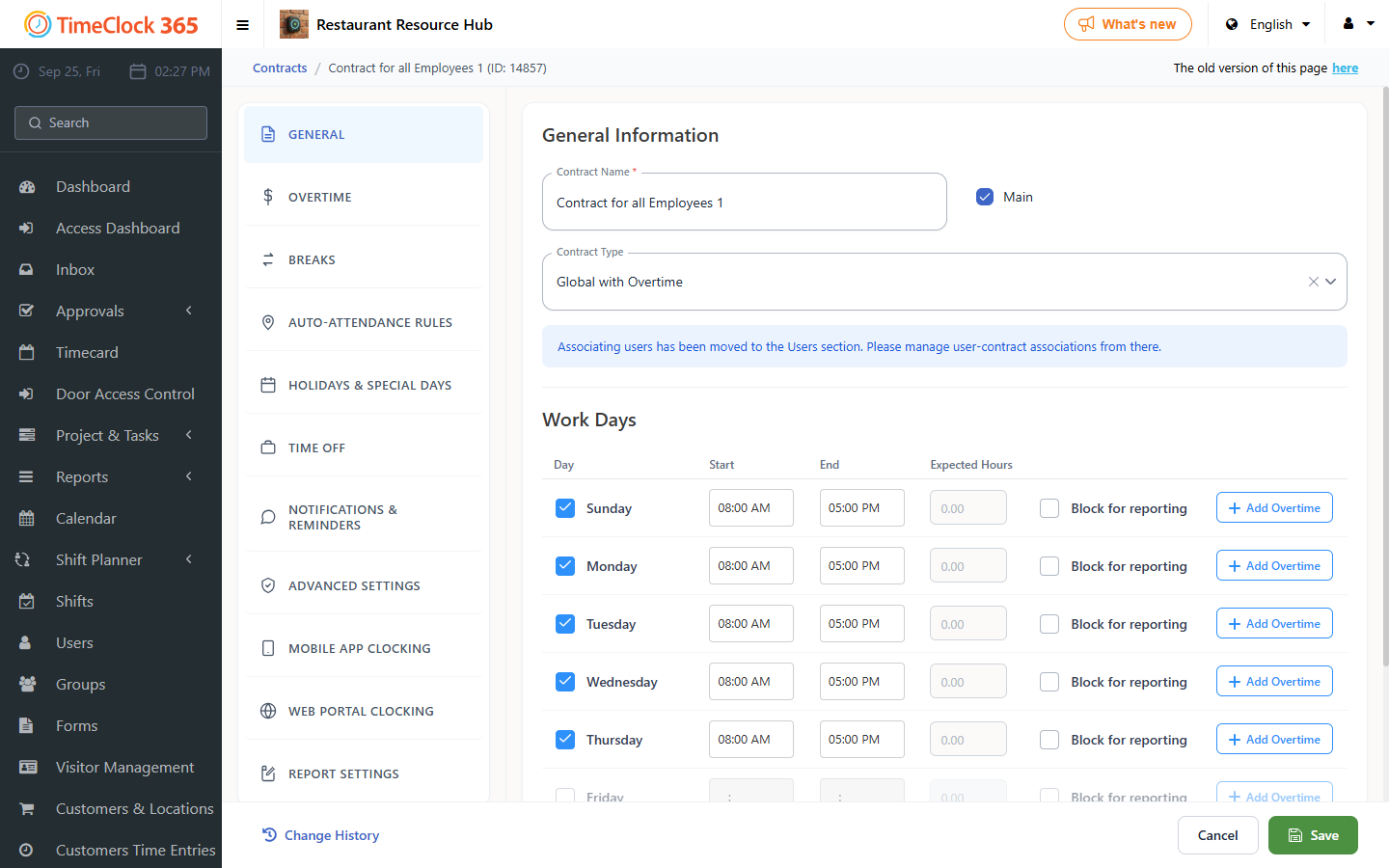
Defining a break rule
- Go to Contracts and open the contract.
- Open the Breaks tab.
- Check the box on the left to set the break rule as the default.
- Enter the number of shift hours after which a break is deducted, and the break period to deduct. For example, if the shift is longer than 8 hours, deduct 0.5 hours.
- Save the changes.
In the report, if the employee worked 8.5 hours with a 0.5 hour break, the hours to be paid are 8.0. To delete a break rule later, click the trash icon on the left of the rule.
Note: we don't recommend using both unpaid breaks and lunch tracking. Choose the option that fits you better and turn off the other. To disable lunch tracking, go to Company Profile -> Settings tab, uncheck "Lunch time" and click Update.
If you need help reviewing or changing your break configuration, open a support ticket.