This guide explains how to create an employee in TimeClock 365 without an email address.
Note: after creating the user, they will get an ID number, which can be used to log in instead of an email.
- Click "Create new employee" on the Dashboard.
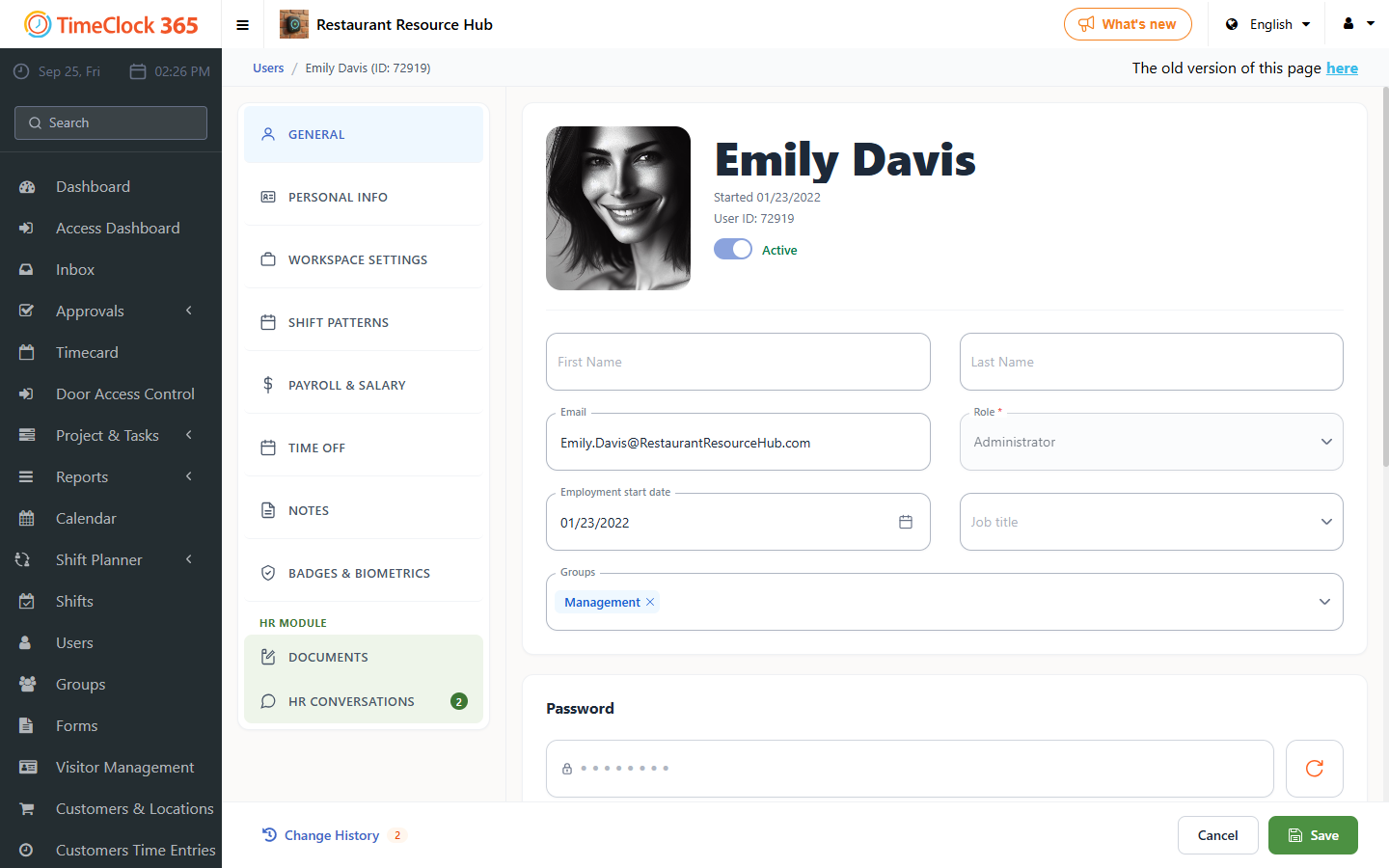
- On the employee details page, fill in the full name, and leave the email field empty.
- Fill in the remaining required details, such as license assignment, role, and work agreement, then click Save. See the full guide on creating an employee for more detail.
- After saving, you will be taken to the full users list, and the new user's details will appear at the top of the screen in a green bar.
- Give the employee their username and password so they can log in. To log in to the web portal or the TimeClock 365 apps, the employee enters their username in the email field and clicks Continue. A password field will then appear, where they enter the password and click Continue.