
This guide shows how to create a new project, create a new task, and assign a user to that task.
- How to create a new project and link it to the IIA (Israel Innovation Authority).
- How to create a new task and link it to a project.
- How to assign users or a group of users to a task.
Creating a new project and linking it to the IIA
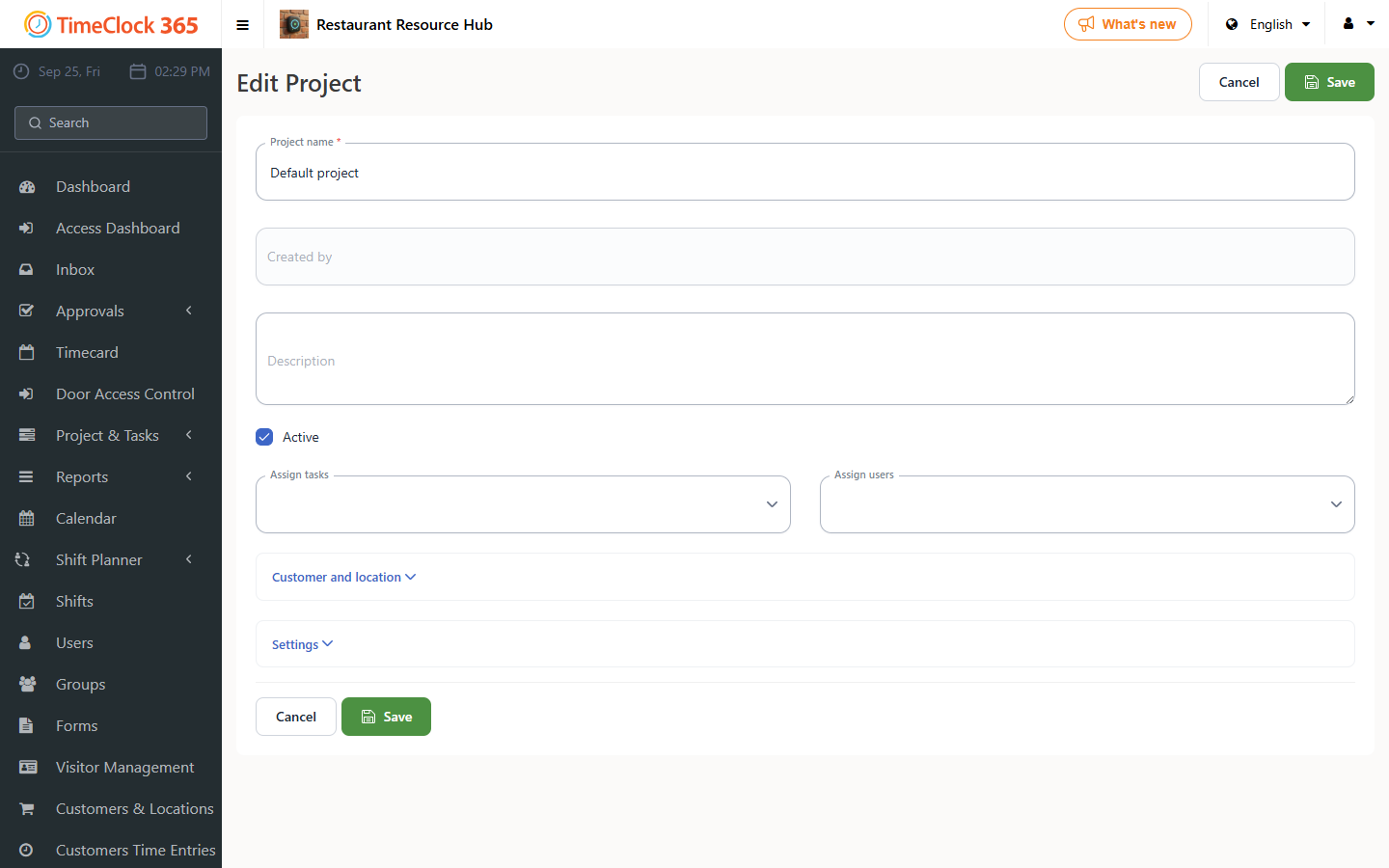
To create a new project, click Project & Tasks -> Projects -> Add new project.
Important fields:
- Project name.
- IIA-linked (check this if the project is related to the Israel Innovation Authority).
Creating a new task and linking it to a project
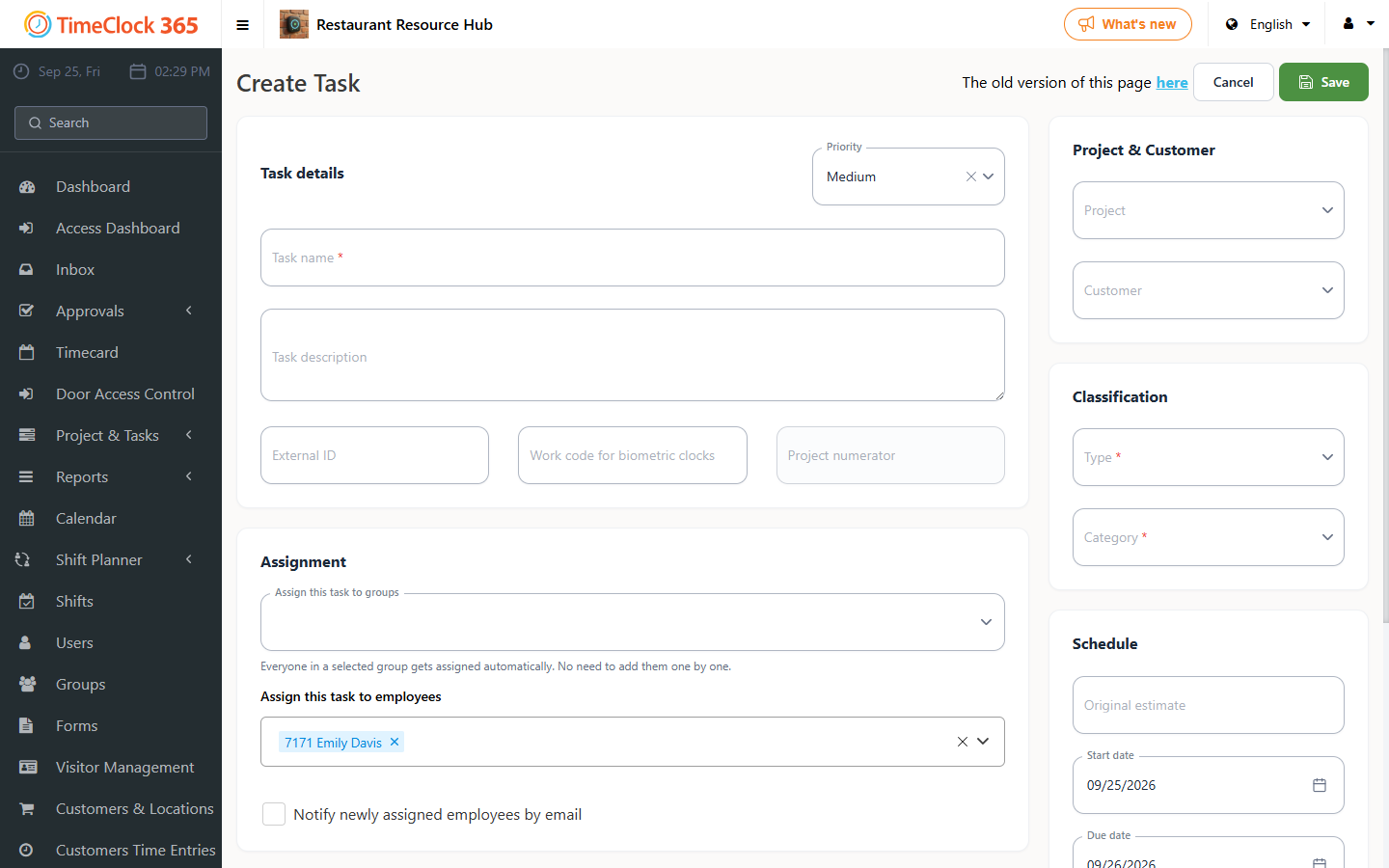
To create a new task, click Project & Tasks -> Tasks -> Create new task.
Important fields:
- Task name.
- Project (select the project this task belongs to).
- Employees or groups assigned to the task - the task appears in their task list.
- Whether to notify the employee about the new task, and the time budget for the task.
- Task start and end dates.
- Additional information: task type, the category of employees handling the task, and priority.
Click Save. You will see a confirmation, and the employee receives a notification that they have a new task.
Note on the mobile app: the user is assigned when the task is created, and the task cannot be linked to a project from the app.
Assigning users or a group of users to a task
To assign a group or specific users to a task, click Project & Tasks -> Tasks -> click the task you want to set users on. Select the group or specific user you want to allow to report on the task, then click Update.
When you assign a task to a group, every member of the group is assigned the task automatically, and new members who join the group will also see it in their task list.
Related guide: clocking in and starting a task in one tap on the mobile app.