
This guide shows how to set up an alert that sends a manager a daily email summary of their employees' attendance.
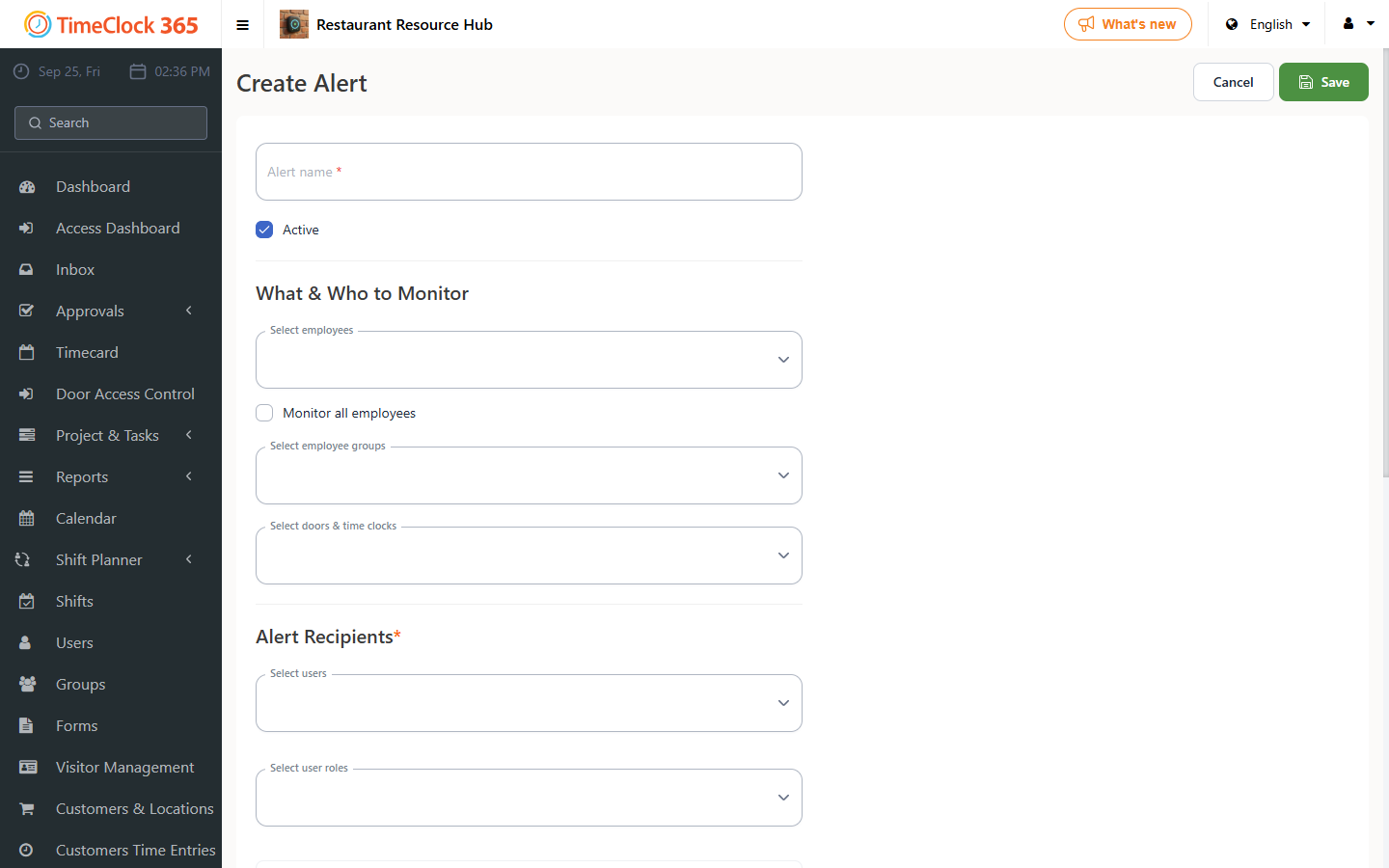
- Click "Alerts" -> "Create new alert".
- Type a name for the alert -> select the employees you want the alert to cover (you can click "Get alerts for all users") -> under recipients, choose the manager who should receive it.
- Scroll down and open the "Daily Summary" tab -> check "Send daily summary" -> choose whether you want to receive reports for the same day or the previous day -> set the time you want to receive the alert -> click Save.
For a guide on setting up an automatic report for employees who exceeded 12 working hours in a day, see the related guide.