
This guide covers everything you need to know about the new Detailed Attendance report - the filter options it offers and how to use them effectively in your daily work.
How to open the Detailed Attendance report
Click Reports -> Detailed Attendance.
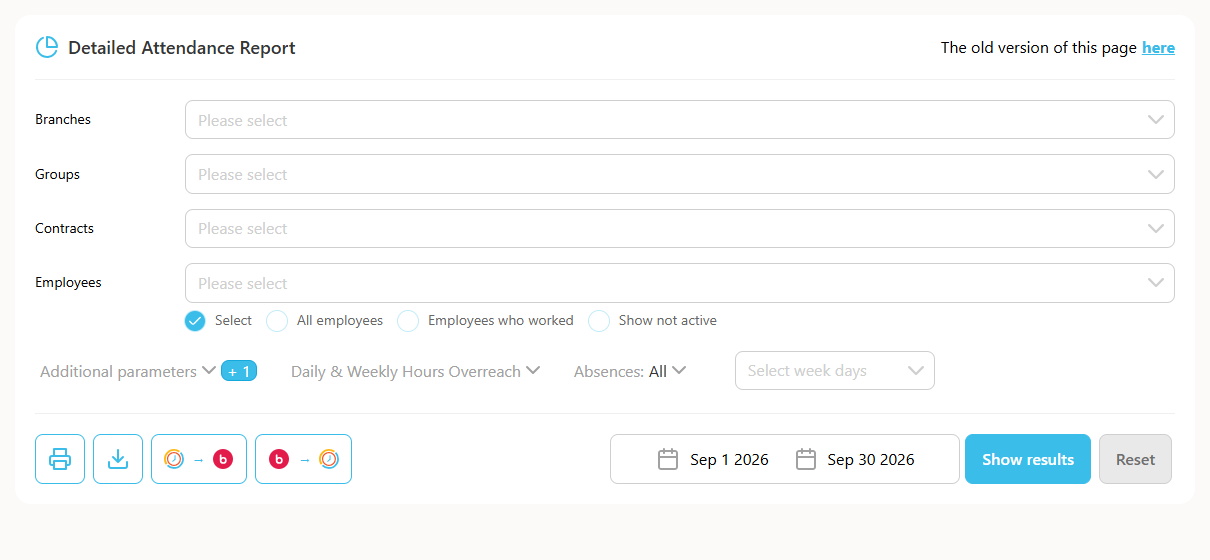
Filters
- Filter by groups - filter by the groups that exist in the system.
- Filter by contract - filter by the contracts employees are assigned to.
- Filter by employees - filter by employee, you can select several employees.
- Filter by absence type - filter by absence types such as vacation, sick leave, and so on.
- Additional parameters:
- Include ended employees - shows all active employees plus employees who have an end date.
- Show only employees who left - shows only employees who are active but have an end date set within that period.
- Exceptions - shows only rows with unusual reports or missing reports.
- Automatic exit - shows exits that were made automatically by the system.
- Manually added or edited reports - all hours users edited or added.
- Missing entry or exit - filters and shows empty reports.
- Missing day - filters days with no report at all.
- Show only days with standard hours - shows only days defined as standard workdays in the contract.
- Reports not approved by employees - shows only reports of employees who have not approved their report.
- Reports not approved by managers - shows reports of employees whose managers have not approved them.
- Travel duration and distance, show absences in hours, sort alphabetically.
What to do with the report
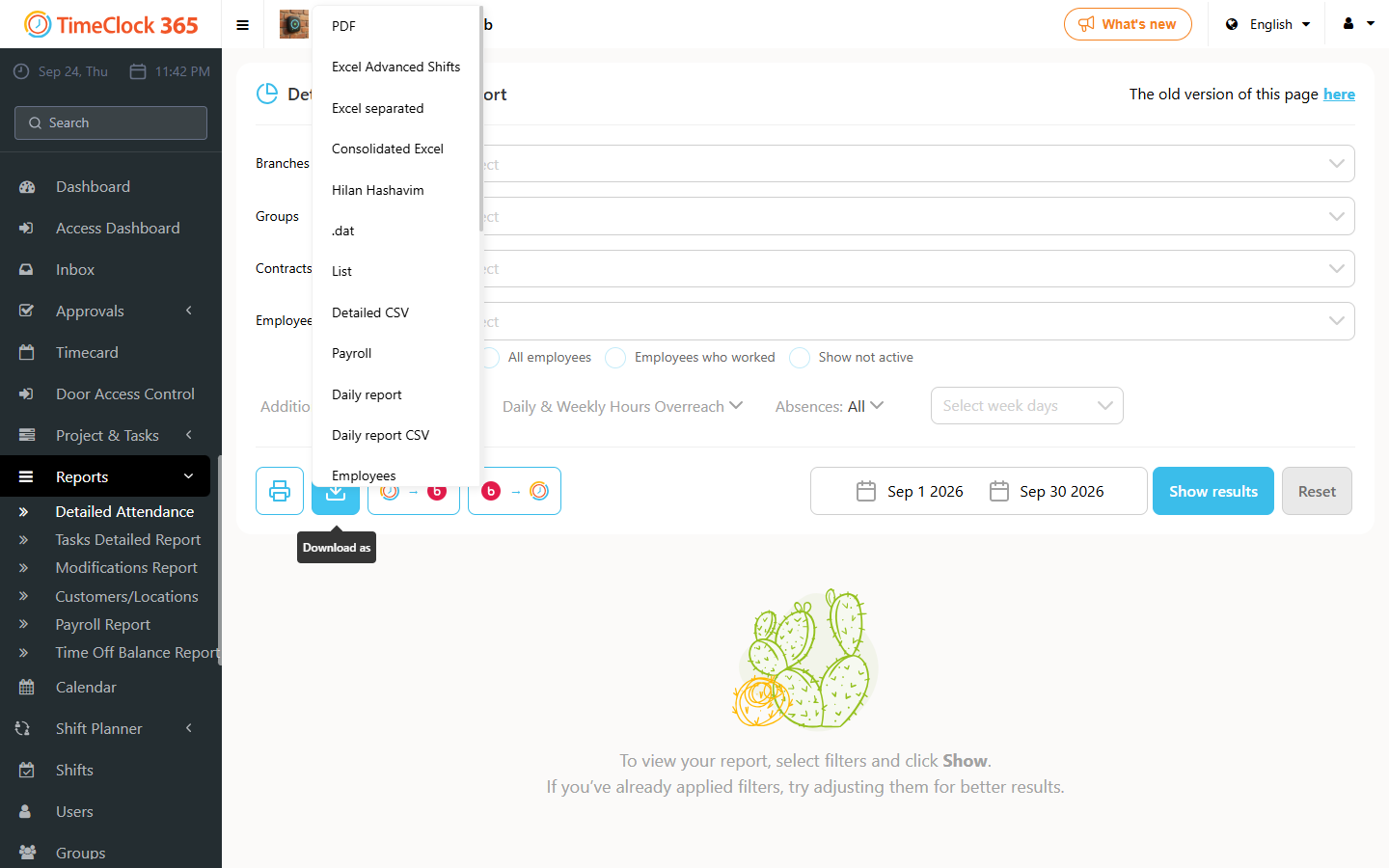
- Print.
- Download as: PDF, Excel, Excel (split), Excel (consolidated), Hilan, Shikulit, Michpal attendance module, Michpal reports intake summary, daily report, daily CSV report, employee report, manager report, Okets, TRIO, split by shifts, Har-Gal, Michpal QDIV, Hilan, and a report of all manually added entries.
- Show reports - displays the reports according to the filters you set.
Choosing dates
Click the dates to choose the range you want: by day, by week, by date range, or by period.
If you want to switch to the previous version of the report, click "Click here for the old version of the report" at the top.