
When a TimeClock 365 biometric terminal controls a door, the Access Control Options decide how long the lock opens, how the door sensor works and when an alarm sounds. This is for terminals that are wired to an electric lock.
This guide is for TimeClock 365 biometric clocks with a 2.8, 3 or 3.5-inch color screen. Menu names can differ slightly between models and firmware versions.
Open Access Control Options
- Press M/OK, press ► to select Access Control and press OK.
- Select Access Control Options and press OK.
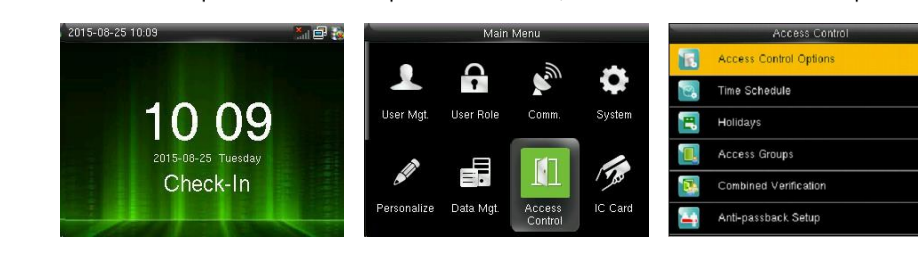
- Press ▲/▼ to move to a setting and change the value, then press M/OK to save and go back. Press ESC to cancel.
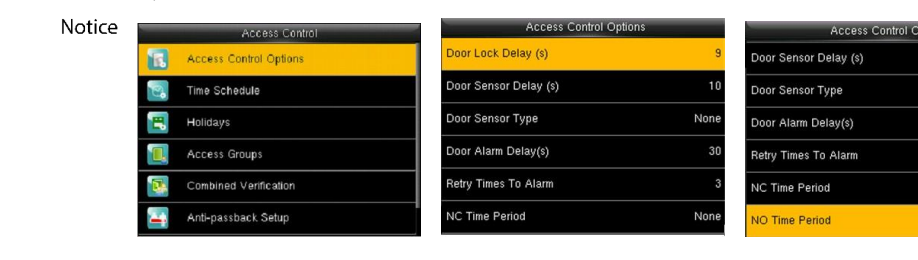
The settings
- Door Lock Delay (s) - how long the electric lock stays open after a successful verification (1-10 seconds).
- Door Sensor Delay (s) - how long the door can stay open before the clock checks the door sensor (1-99 seconds). If the sensor state is wrong after this time, an alarm sounds.
- Door Sensor Type - None (no sensor), NO (normally open) or NC (normally closed).
- Door Alarm Delay (s) - how long after an abnormal door state the alarm goes off (1-99 seconds).
- Retry Times To Alarm - how many failed verifications in a row trigger an alarm (1-9).
- NC Time Period - a time zone when nobody can unlock the door.
- NO Time Period - a time zone when the door stays unlocked.
Note: if you use an NC or NO time period, set the Door Sensor Type to None, or the alarm may go off during that time.
Access records from the terminal appear in the web portal under Door Access Control.
FAQ
How long does the door stay unlocked after a fingerprint?
That's the Door Lock Delay in Access Control > Access Control Options - from 1 to 10 seconds.
Why does the clock give a door alarm?
The door sensor detected an abnormal state, for example the door stayed open longer than the Door Sensor Delay. Check the Door Sensor Type (None, NO or NC) matches your door sensor.
Need help? Open a support ticket.