
Every punch is stamped with the clock's own date and time, so a wrong clock time means wrong attendance records. This guide shows how to set the date and time on the clock.
This guide is for TimeClock 365 biometric clocks with a 2.8, 3 or 3.5-inch color screen. Menu names can differ slightly between models and firmware versions.
Steps
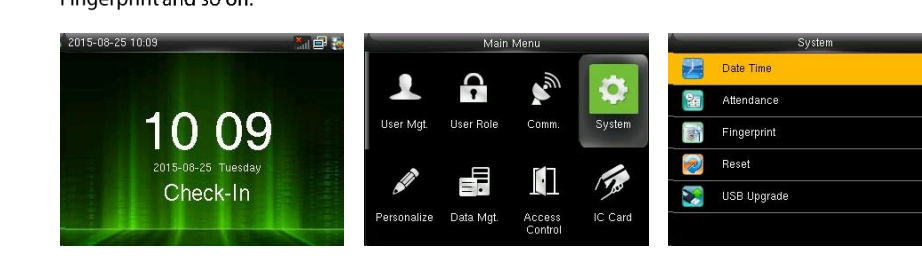
- On the clock's main screen, press M/OK.
- Select System and press OK.
- Select Date Time and press OK.
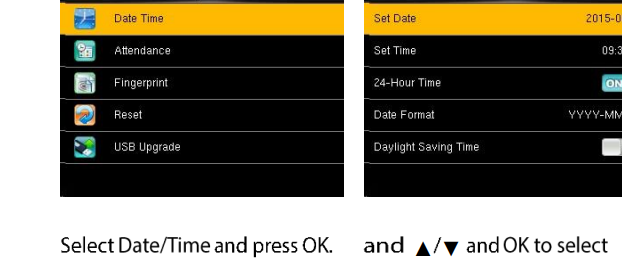
- Press ▲/▼ and OK to set each item:
- Set Date and Set Time - the clock's date and time.
- 24-Hour Time - ON for 24-hour display, OFF for 12-hour.
- Date Format - how dates are shown on the clock.
- Daylight Saving Time - turn on and set the start and end, if your country uses DST.
- Press OK to save and exit.
Daylight saving time
When Daylight Saving Time is on, set the DST start and end in Daylight Saving Setup. Choose the Daylight Saving Mode: by date/time (month, day, hour) or by week/day (month, week, weekday, hour).
Already have punches with the wrong time? You can correct them in the web portal. See How to Edit the Detailed Attendance Report.
FAQ
How do I change the time on the biometric clock?
Press M/OK, select System, then Date Time. Set the date and time, then press OK to save and exit.
Why is the time on the clock wrong?
The time may have been set incorrectly, daylight saving time may be configured wrong, or the clock lost power for a long time. Set the correct date and time and check the Daylight Saving Time setting.
Need help? Open a support ticket.