
This guide explains how to set an employee's end date in TimeClock 365.
Note: if an employee has stopped working during the month and no end date is set for them, they will not be able to approve their attendance report, because they will show missing days.
- Click "Users" and click the user's name.
- In the user's menu, select "Payroll Details", set the employment end date, and click Save.
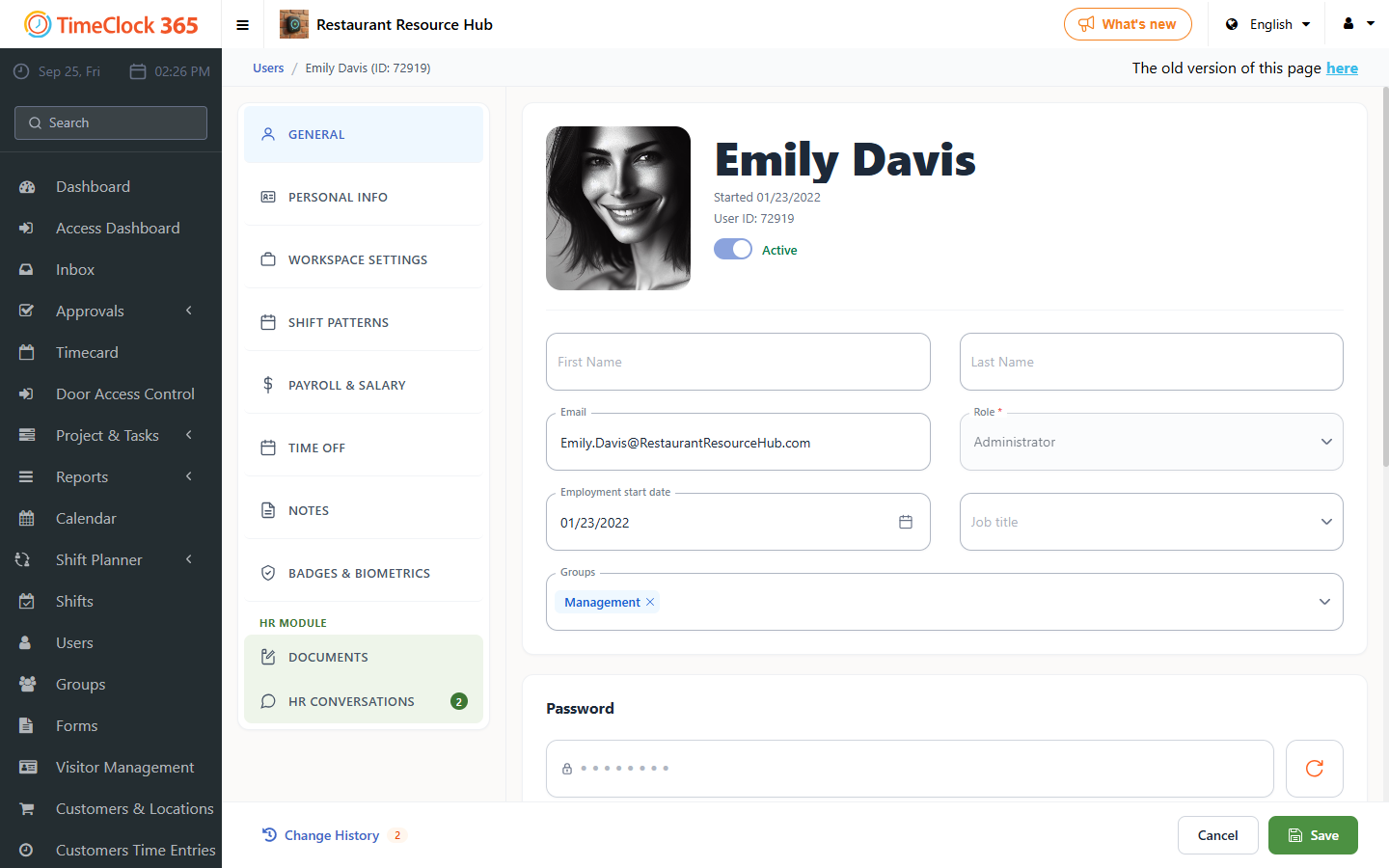
You can also set the employment start date in the same place, for employees who are about to join the company. Click the calendar icon to choose a date, then click Save.
Note: after the termination date, the employee cannot punch in or edit the timesheet, and their standard hours no longer appear in reports.