
The Employee Location Tracking module lets you know where your employees are during their working hours.
Notes: this module is available on the Premium subscription. GPS must be turned on on the employee's smartphone, and the TimeClock 365 app must have permission to access GPS.
How to set it up
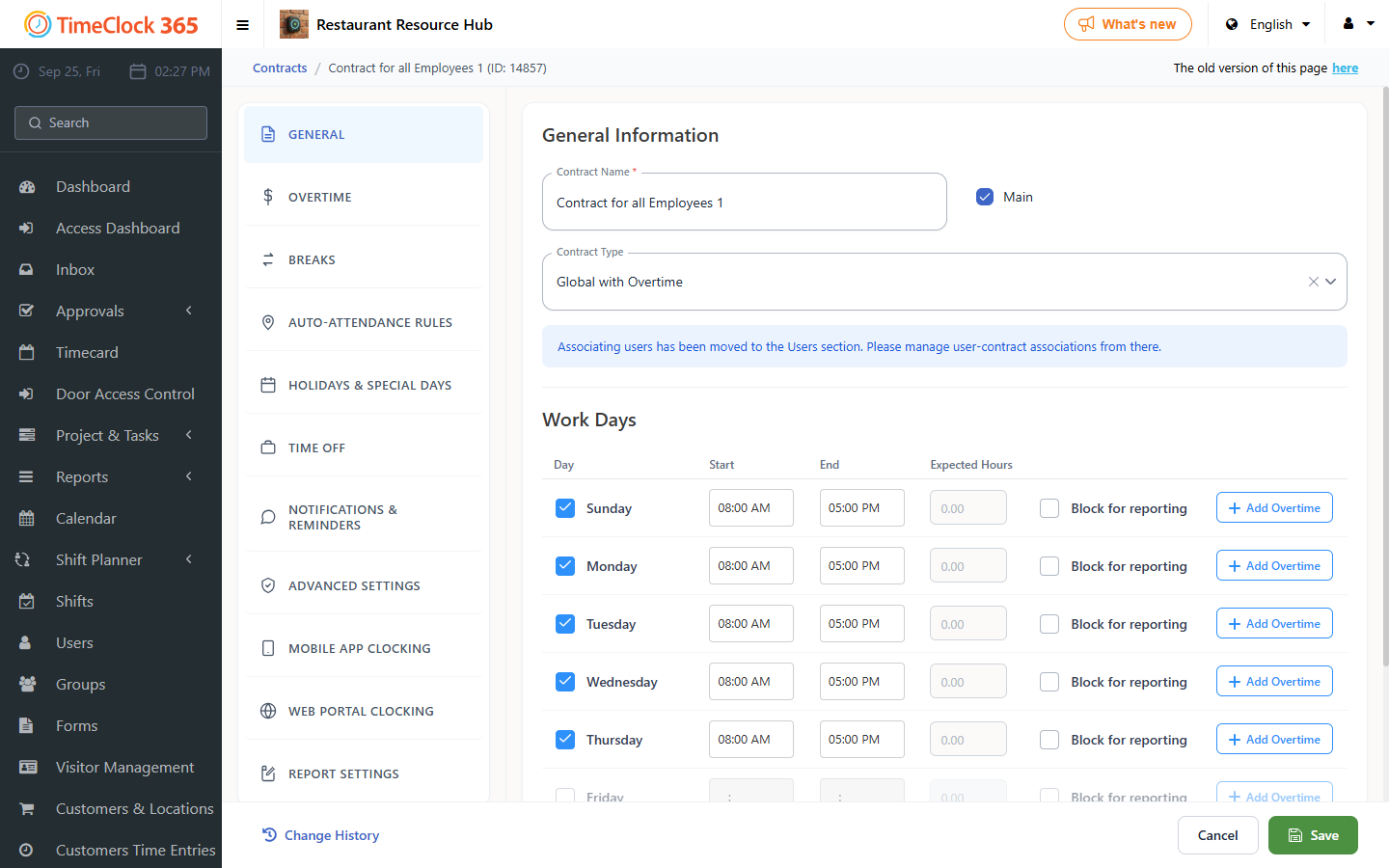
First, set the work agreement so that anyone assigned to it is required to report their location:
- Go to Settings, then Work Agreements, scroll down and open "Conditions for clocking in on smartphone".
- Check "Location required at clock-in".
- Check "Location update frequency in minutes" and enter how often you want to receive updates.
- Click Save.
Next, set up tracking on individual employees:
- Go to Users and select the employee you want to configure tracking for.
- Scroll down to the "Employee Tracking" tab.
- Check "Enable employee location tracking during work".
- Enter how often, in minutes, you want tracking to occur.
- Click Save.
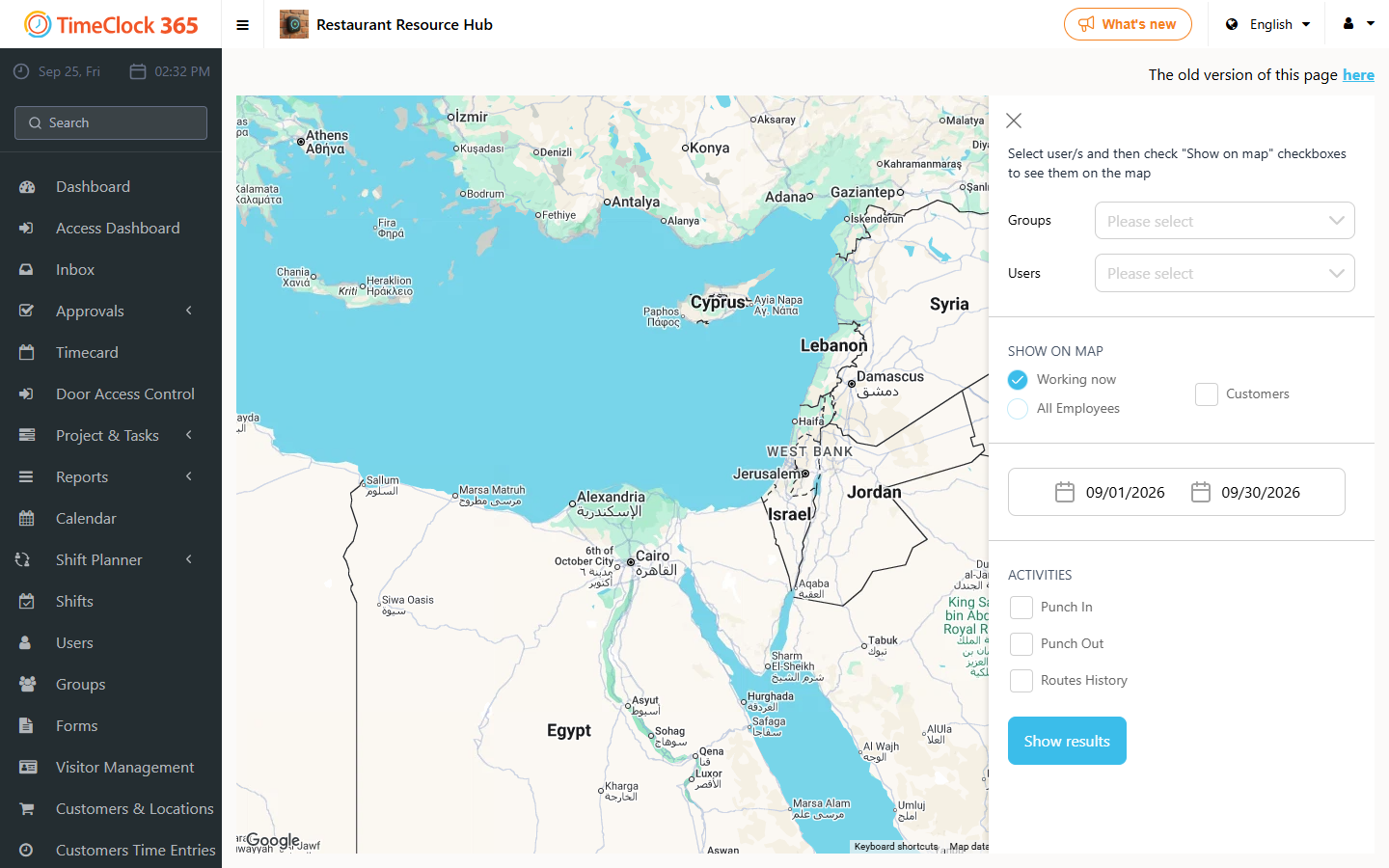
You can then go to Routes to see the routes employees have taken, or to the Map to see where employees are at that moment.
Don't have this module? Contact us at 03-7300000.