
This guide shows how to clock in, update time off, and approve a monthly report - both your own and your employees'.
Clocking in
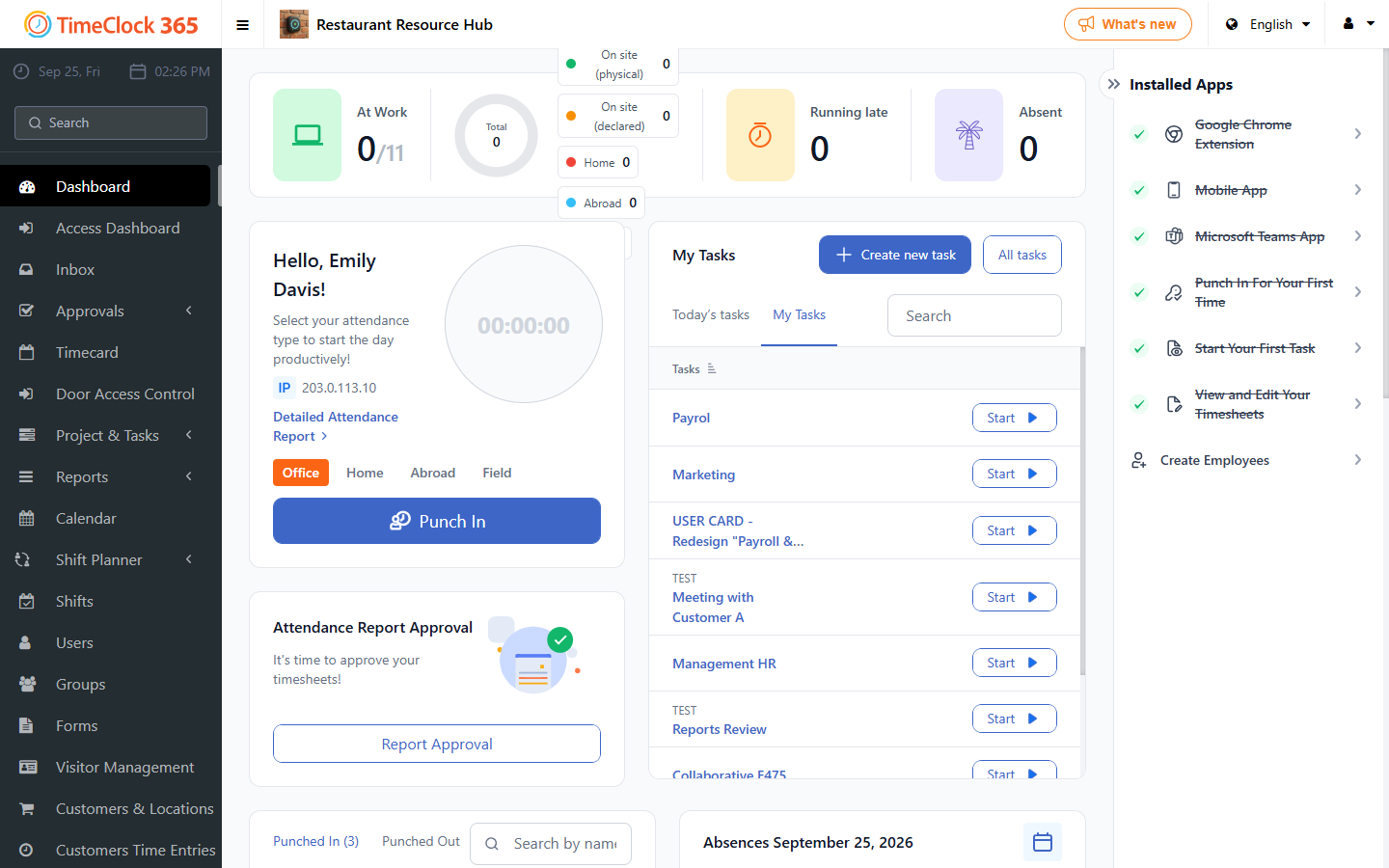
To clock in, select the location you are at and click Punch in. This works the same way on the web portal and in the mobile app.
Reporting time off
Time off can be updated in two ways:
- Using the "Report time off" button - recommended for a future time off request. Available on the web portal and in the mobile app.
- By opening the Detailed Attendance report and selecting a time off type for the relevant day - recommended for updating time off retroactively. Available on the web portal and in the mobile app.
To report a half day off, see the dedicated guide on that topic.
Approving a monthly report
To approve an attendance report for a given month: open the attendance report for that month to update any time off, make sure all days are complete and the times are correct, then click "I approve this report" to approve and lock the report from further changes.
If changes are needed after the report was approved, ask a manager to reject it.
Managers - to approve or reject an employee's report, open the employee's Detailed Attendance report and click "I approve this report" or "Reject employee approval" as needed. When a report is rejected, it is sent back to the employee so they can approve it again.
For the full guide on approving and exporting attendance reports, see the dedicated guide.