
This guide explains the different ways to report tasks and task hours in TimeClock 365, across Jira/Trello, the Chrome extension, Microsoft Teams, the web portal, and the mobile app.
Reporting tasks from Jira/Trello
- At the start of the work day, click to start the task inside Jira.
- When finishing work on the task, pause it and start a new one, or click Punch out in the Chrome extension, mobile app, web portal, or Teams to end the work day.
Reporting tasks in the Chrome extension or Microsoft Teams
- At the start of the work day, open the TimeClock 365 Chrome extension, choose the work location (Home/Office), and click Start task.
- When finishing work on the task, pause it and start a new one, or click Punch out to end the work day.
Reporting tasks on the web
- At the start of the work day, click Start task and confirm the popup window.
- At the end of the work day, click Punch out and confirm the popup window.
Reporting in the mobile app
- At the start of the work day, click Punch in on the app.
- Then go to the "Tasks" screen in the app and start the task.
- At the end of the work day, pause the task and click Punch out.
You can report attendance (punch in and out) without reporting a task on the same day, and update the task time the next day through the "Project & Tasks", then "Time Entries for Tasks" screen. If you forgot to report attendance, you can complete it through Reports, then Detailed Attendance report - such an entry is treated as a retroactive report.
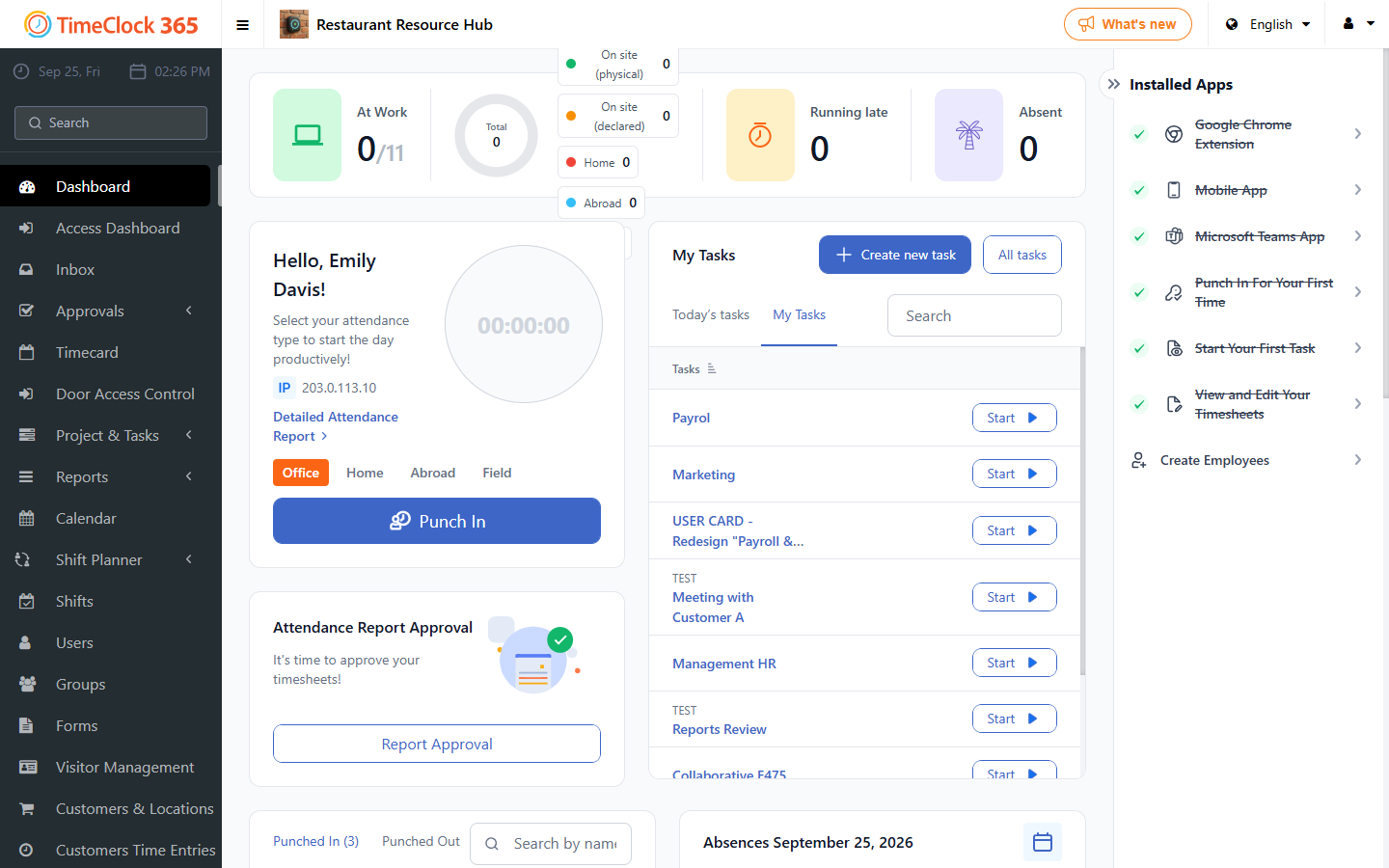
Reporting through the web portal
At the start of the day click "Start task", and at the end of the day click Punch out.
Reporting through the mobile app
At the start of the work day, choose the reporting location - Home/Office/Field - and click Punch in. Then go to the "Tasks" screen in the app and click the play icon to start the task. At the end of the work day, pause the task and then report Punch out.
Retroactive hour reporting
If for any reason you did not report attendance or a task, you can still report it:
- Attendance: through Reports, then Detailed Attendance report, click Show, then click the date you want to edit - a popup window will appear where you enter the start time, end time, and reporting source (Home/Office/Field).
- Assigning hours to tasks: go to Project & Tasks, then Time Entries for Tasks, click Show, then fill in the missing hours.