
This guide explains how to limit absence reporting to a set number of hours, using a 40-hour bank for pregnancy check-ups as an example.
To limit absence reporting to a number of hours or days, your account must have the Absence Management module. If you don't have it, please contact our support team or your sales representative.
Step 1: Set up the absence type
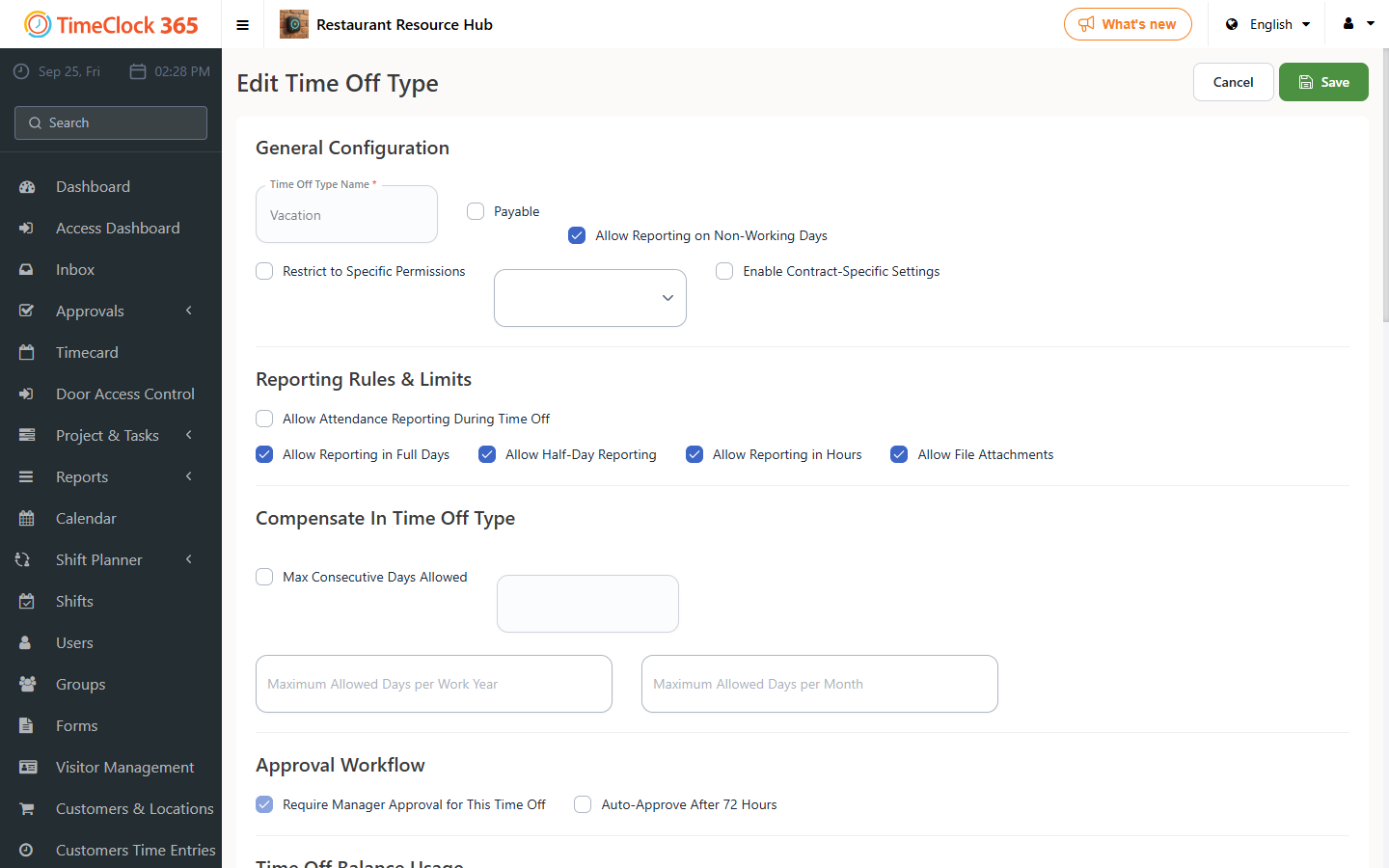
- In Company Profile -> Absence Types, add a new absence type called "Pregnancy Check-Ups" by clicking "Add New" and typing the absence name.
- It's important to set that this absence can only be reported in hours.
- Make sure all the settings are configured exactly this way, then save, so the limit works correctly.
Step 2: Enter 40 hours in the employee's profile
- Go to the employee's profile (Users -> click the employee's name to edit), and in the "Absence Balances" tab, enter a "bank" of hours available to use.
After saving the profile, any cumulative amount over 40 hours will be blocked and cannot be reported unless the administrator enters an additional balance.