
This guide explains how to lock attendance reports so they can no longer be changed after a specific date.
There are two ways to lock reports:
- For all users in the system.
- For users assigned to a specific contract.
Locking reports for all users
Go to Settings -> Company Profile -> click "Settings" at the top -> in the "System lock of reports" field, select the date you want the system to lock reports from -> click Update.
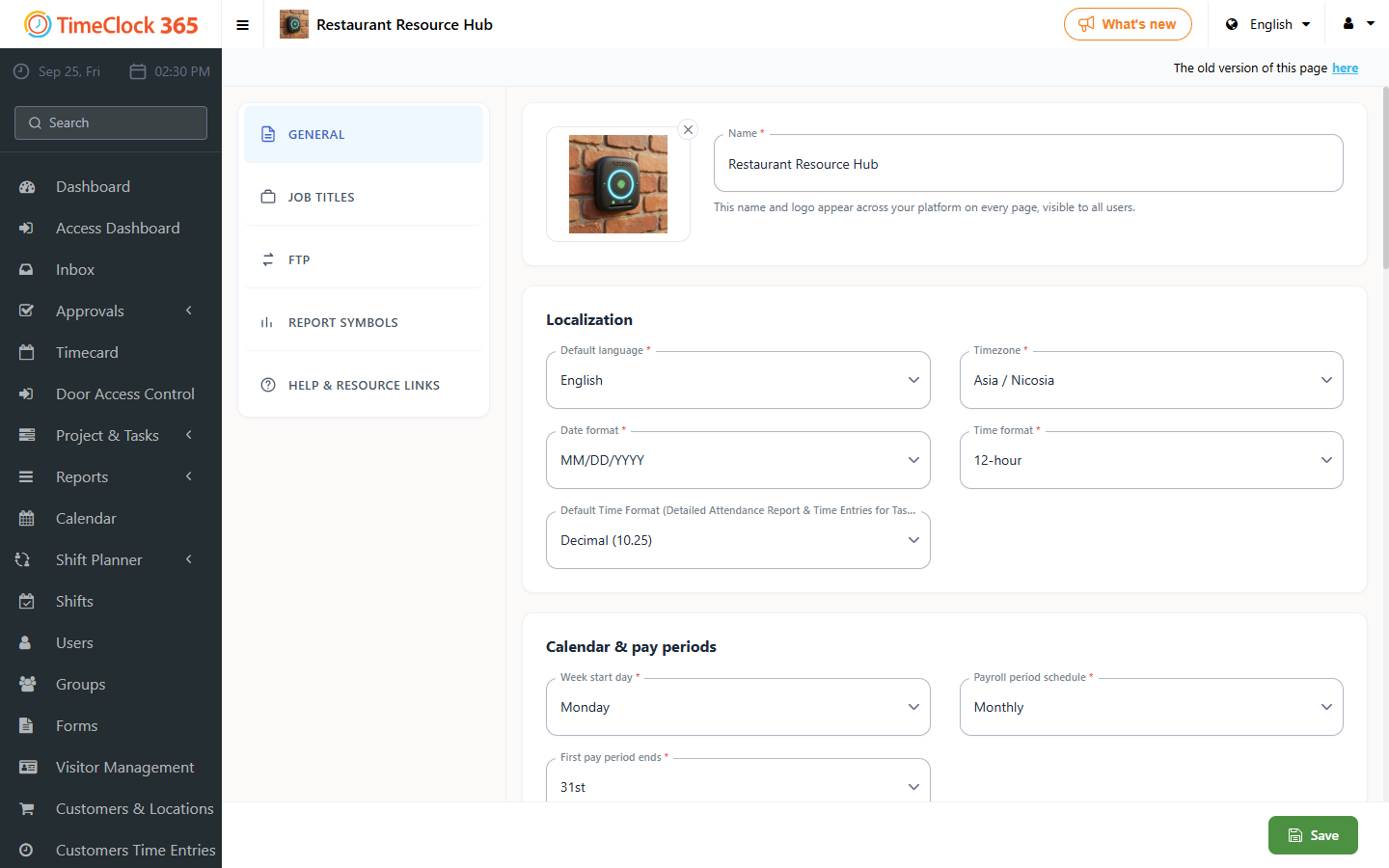
Note: reports lock at midnight (00:00:00) on the day after the selected lock date. For example, choosing '1' locks the reports starting at 00:00:00 on the 2nd.
Locking reports for a specific contract
Go to Settings -> Contracts -> select the relevant contract.
Scroll down and click "Report Settings" -> in the "System lock of reports" field, select the date you want the system to lock reports from for users on this contract -> click Save.
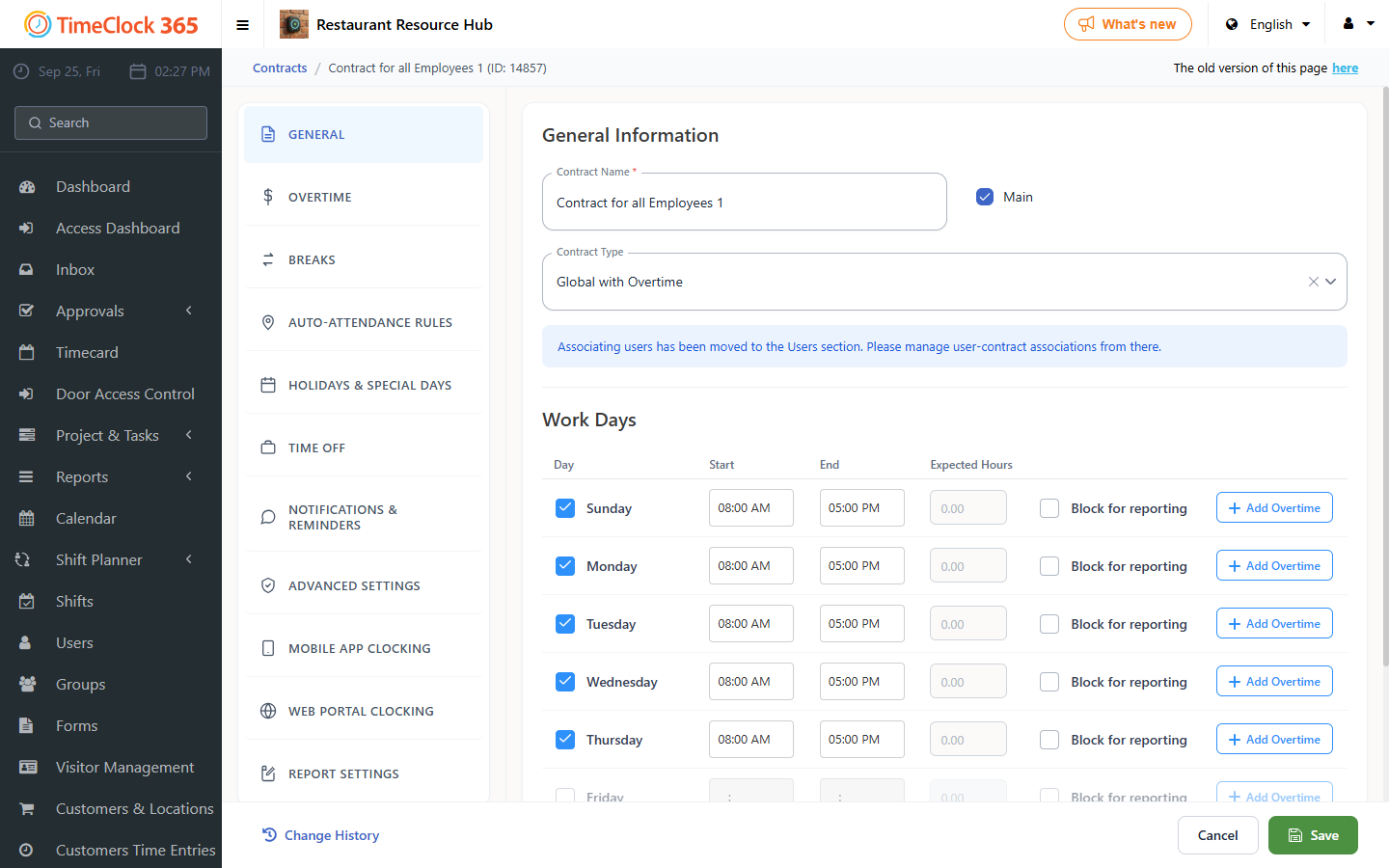
Note: reports lock at midnight (00:00:00) on the day after the selected lock date. For example, choosing '1' locks the reports starting at 00:00:00 on the 2nd.
If you want to keep the ability to edit a report even while it's locked for yourself, see the related guide on that option.