
Lock the biometric terminal's menu so only a designated manager can access its settings.
Note: once a manager is set for the terminal, it locks its settings menu and only that manager can enter it using a fingerprint or a password.
- Make sure employees' fingerprints are already set up and that their clock-ins appear in the portal. If not, a separate guide explains how to confirm clock-ins appear in the portal when using a fingerprint.
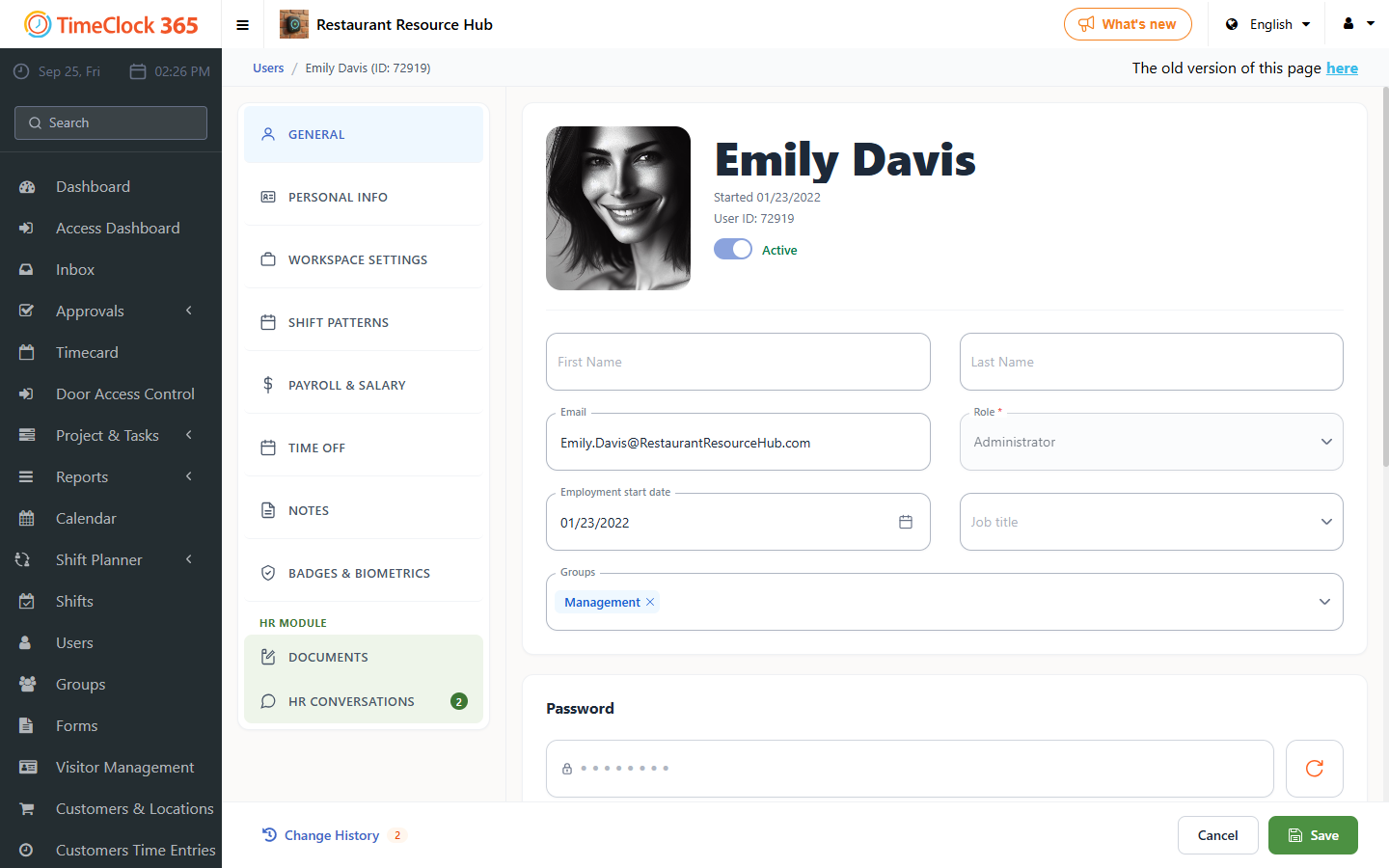
- Go to Users, select the relevant user, open the "Biometric Terminal / Access Controller" tab, set the "IClock Permission Type" field to Super administrator, then click Save.
From that point, the terminal locks its menu when the M/OK key is pressed. The user set as super admin can enter with their fingerprint, or with their user number (5 digits, shown next to their name) plus the terminal password shown on their user card.