
This guide explains how to produce a monthly summary report containing actual hours worked, actual days worked, and time off types, broken down by month - useful for comparing these figures across months.
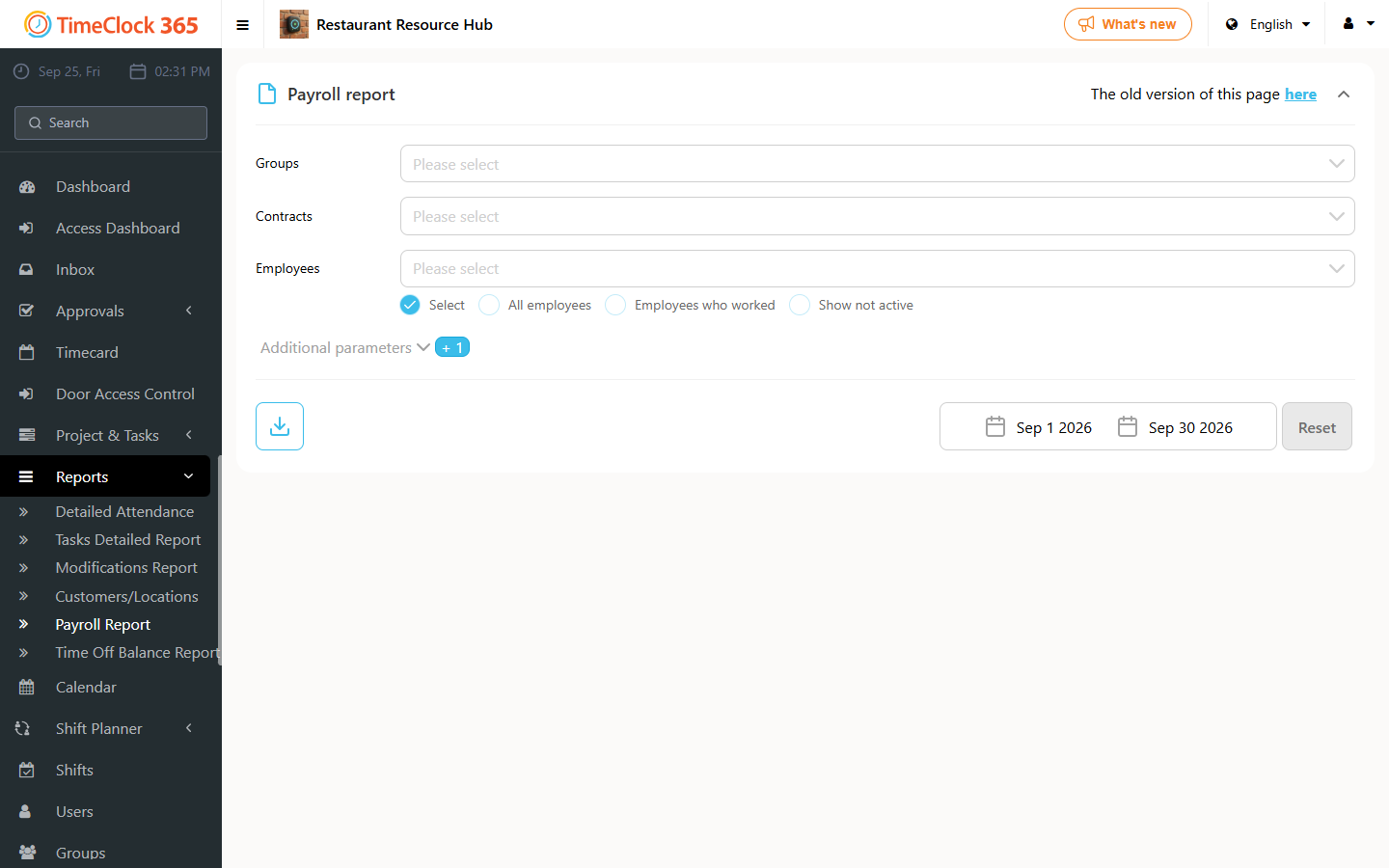
- Click Reports -> Payroll Report (summary report for the accountant).
- Uncheck "Period".
- Select the date range you want the report to cover (start and end date). You can also filter by specific groups, contracts or employees.
- Click Download.
- Select the "Split by months" option.
Open the Excel file to view the data. It contains a separate summary for each month in the selected range.