
This guide explains how to add a nursing break hour for an hourly employee over a date range.
Note: if the employee is not hourly, you do not need to follow this guide - instead update her contract to reduce the standard hours by one hour (if needed, create a separate contract so you don't change the standard hours of other employees on the same contract).
A full-time employee returning from maternity leave can work one hour less per day without a pay reduction, for up to 4 months from the end of the maternity leave and up to 1 year from the date of birth. If she works less than the standard hours, the system adds hours up to the standard, with a maximum of 1 hour per day, in a separate column. For example, if she worked 5 hours, the system adds 1 hour and shows 6.
Step 1: Confirm the employee is on an hourly contract
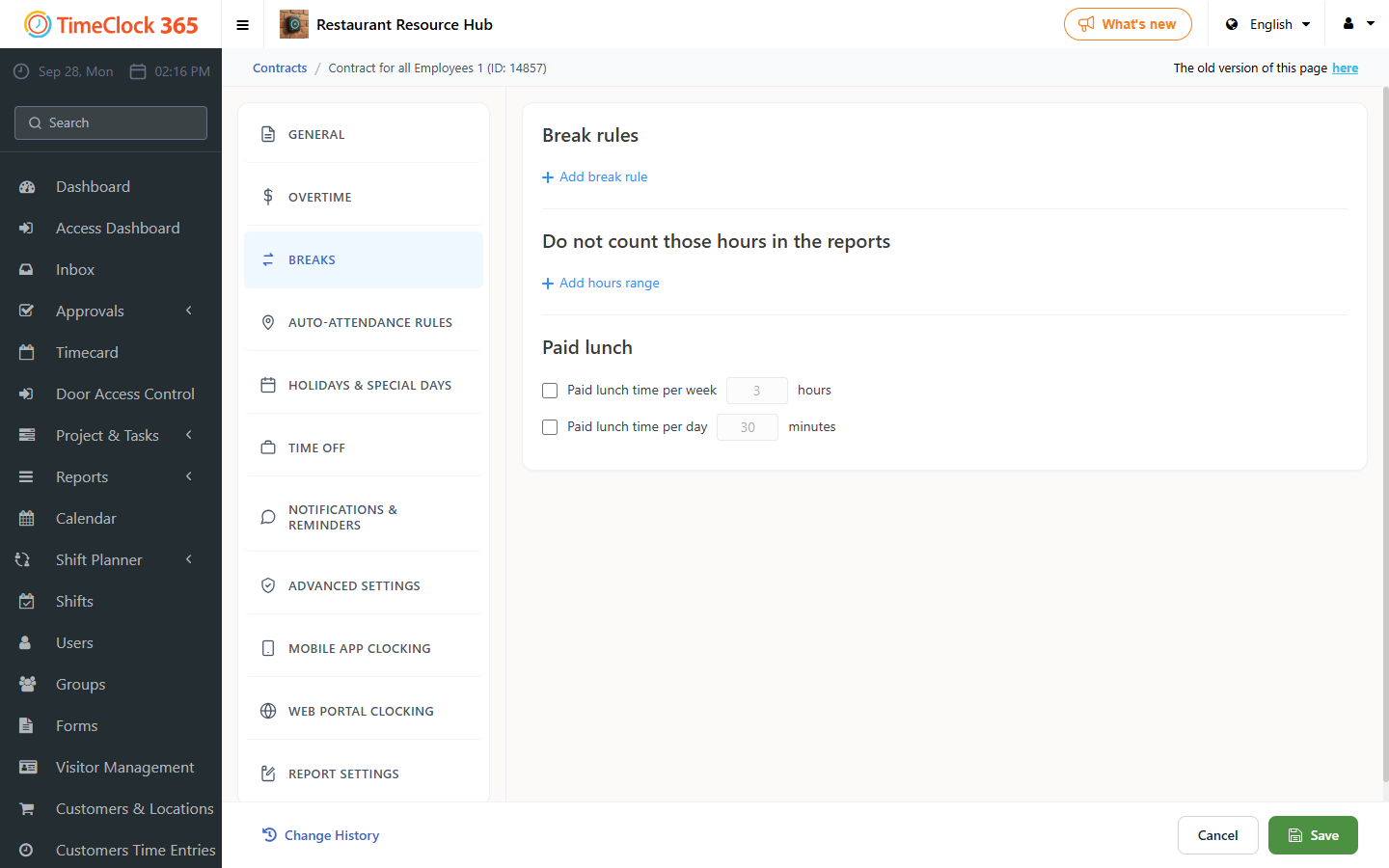
- Click Settings -> Contract, open the contract she is assigned to, and confirm it is set to hourly.
Step 2: Set the nursing break on the employee's profile
- Click Users, select the employee you want to add the nursing break for, click the "Nursing Break" tab, set the start date (first day of eligibility, typically after maternity leave) and end date (the child's first birthday, or the legal extension date) for the nursing break, and click Save.
This information is for general guidance and is not legal advice. For specific situations, consult an HR professional or labor law expert.