
With the HR module, you can keep all of an employee's HR paperwork in their TimeClock 365 profile: onboarding forms, offboarding documents, other digital forms, and uploaded files and scans. You build digital documents once in Document Manager, including e-signature, and send them to employees whenever you need.
Available with the HR add-on.
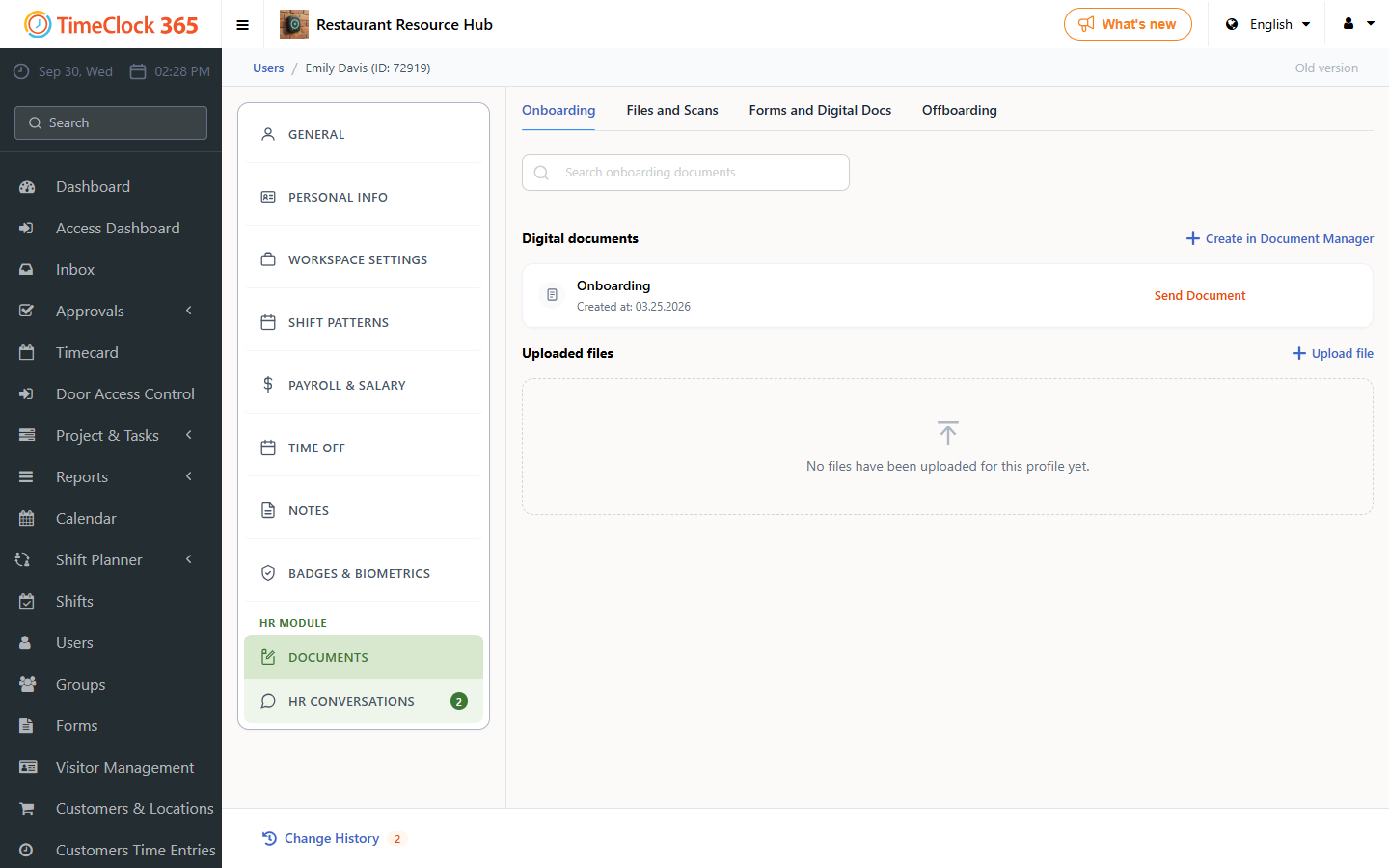
Where an employee's documents are
- Go to Users and open the employee.
- Under HR MODULE, click Documents.
Documents are sorted into four tabs:
- Onboarding - documents for new employees, for example a welcome pack, employment terms or policies to sign.
- Files and Scans - uploaded files such as ID copies, certificates or signed paper forms.
- Forms and Digital Docs - other digital forms and documents.
- Offboarding - documents for employees who are leaving.
In each tab, Digital documents lists the documents built in Document Manager for that tab. Click Send Document to send one to the employee. Under Uploaded files, click Upload file to attach a file to the profile.
How to create a document
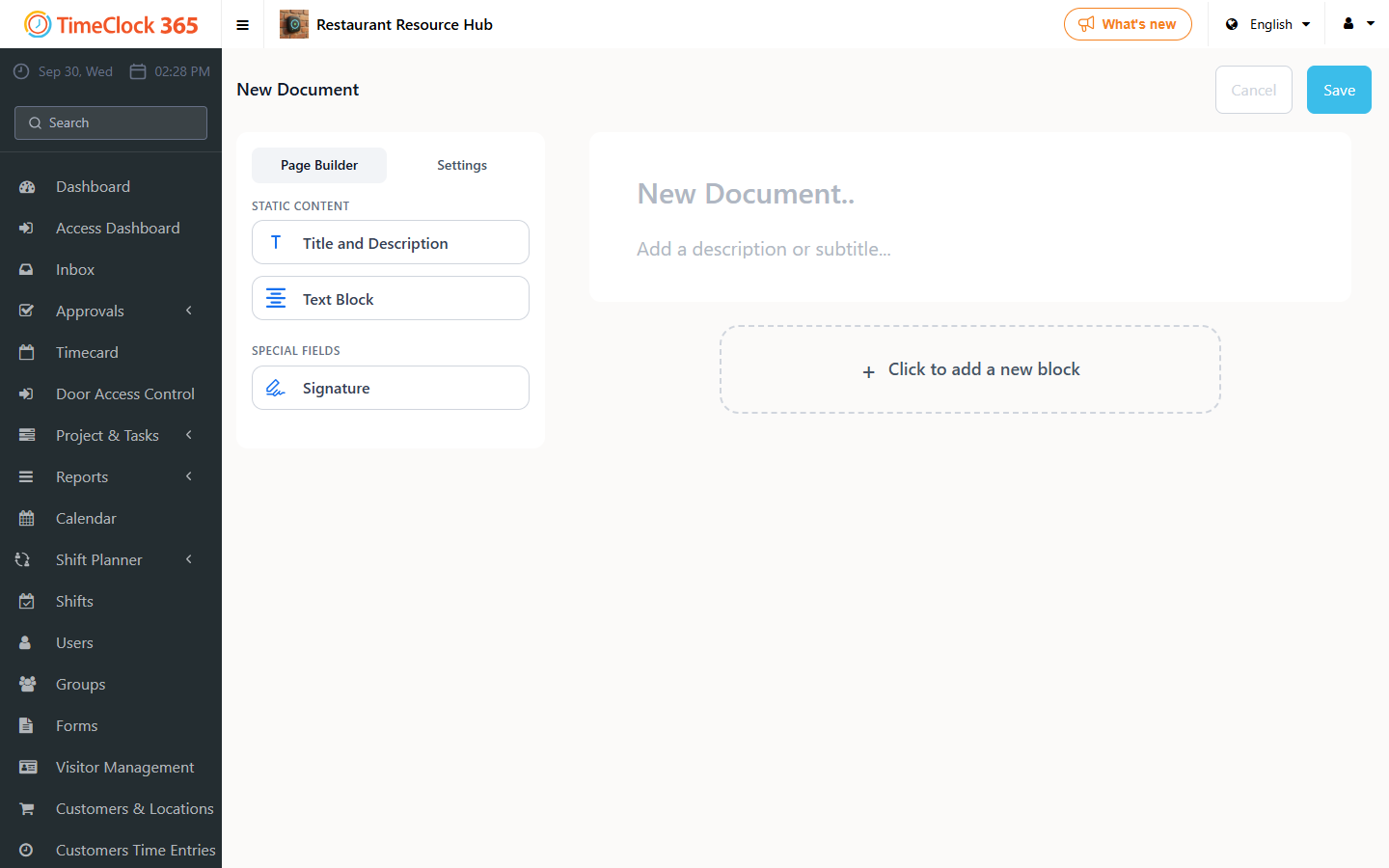
- Open Document Manager and click Create New Document. You can also click Create in Document Manager from the employee's Documents tab.
- In Page Builder, build the document from blocks:
- Title and Description - the document heading and subtitle.
- Text Block - the content, for example terms, policies or instructions.
- Signature - lets the employee sign the document digitally.
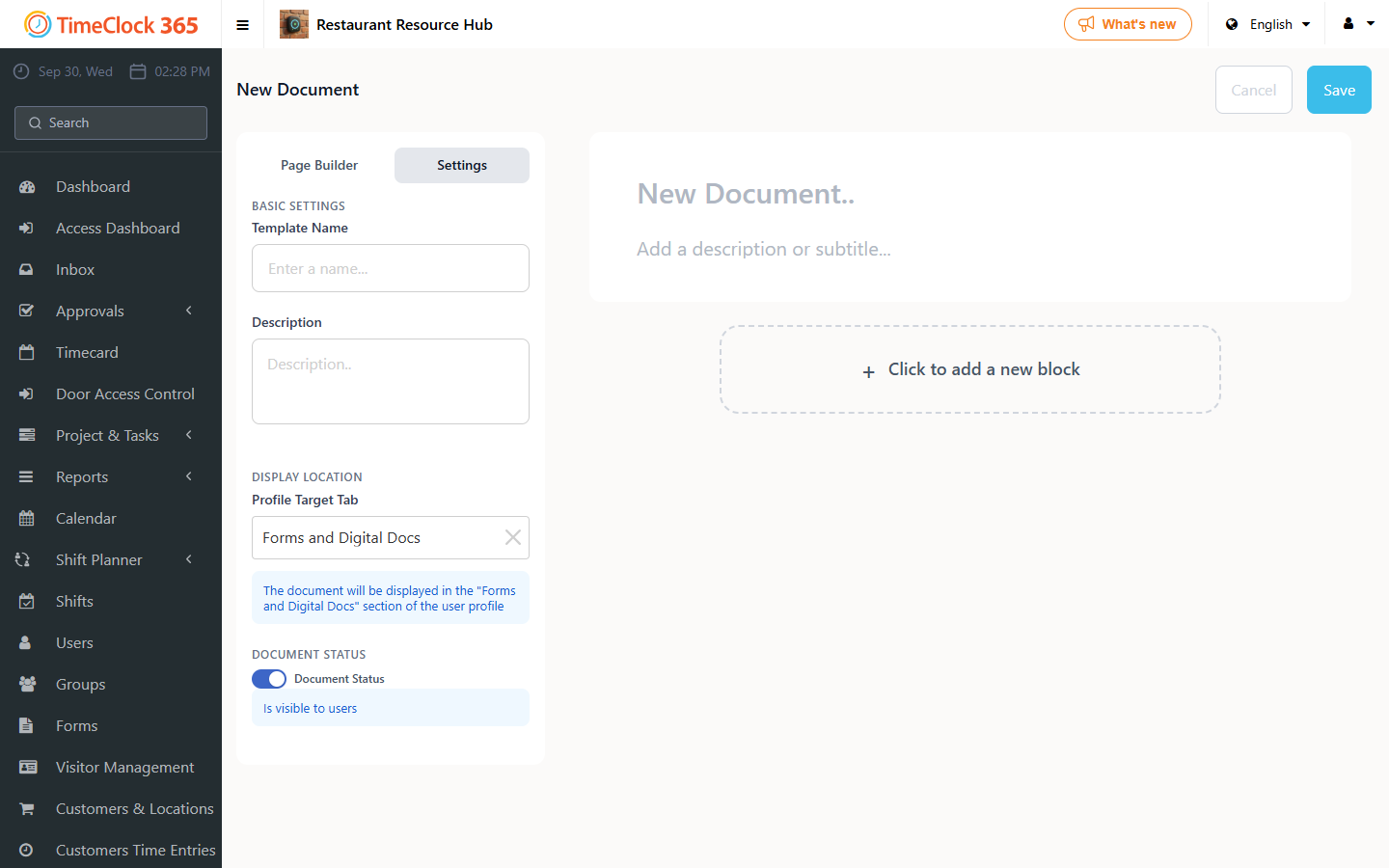
- Open the Settings tab:
- Template Name and Description.
- Profile Target Tab - where the document appears in the user profile: Onboarding, Forms and Digital Docs, or Offboarding.
- Document Status - turn it on so the document is visible to users.
- Click Save.
Sending documents
Send a document to one employee from their Documents tab with Send Document, or from the Document Manager list with Send by email. Sent documents appear under Sent Documents.
FAQ
Which plan includes digital documents?
The HR add-on (HR module).
Can employees sign online?
Yes. Add a Signature block to the document.
Can I use the same document for every new hire?
Yes. A document in Document Manager is a template you can send to any employee.
Need help? Open a support ticket.