
If an employee forgot their password or can't log in, an admin can set a new password for them and email it straight to the employee from the Users list.
Steps
- In the menu, click Users.
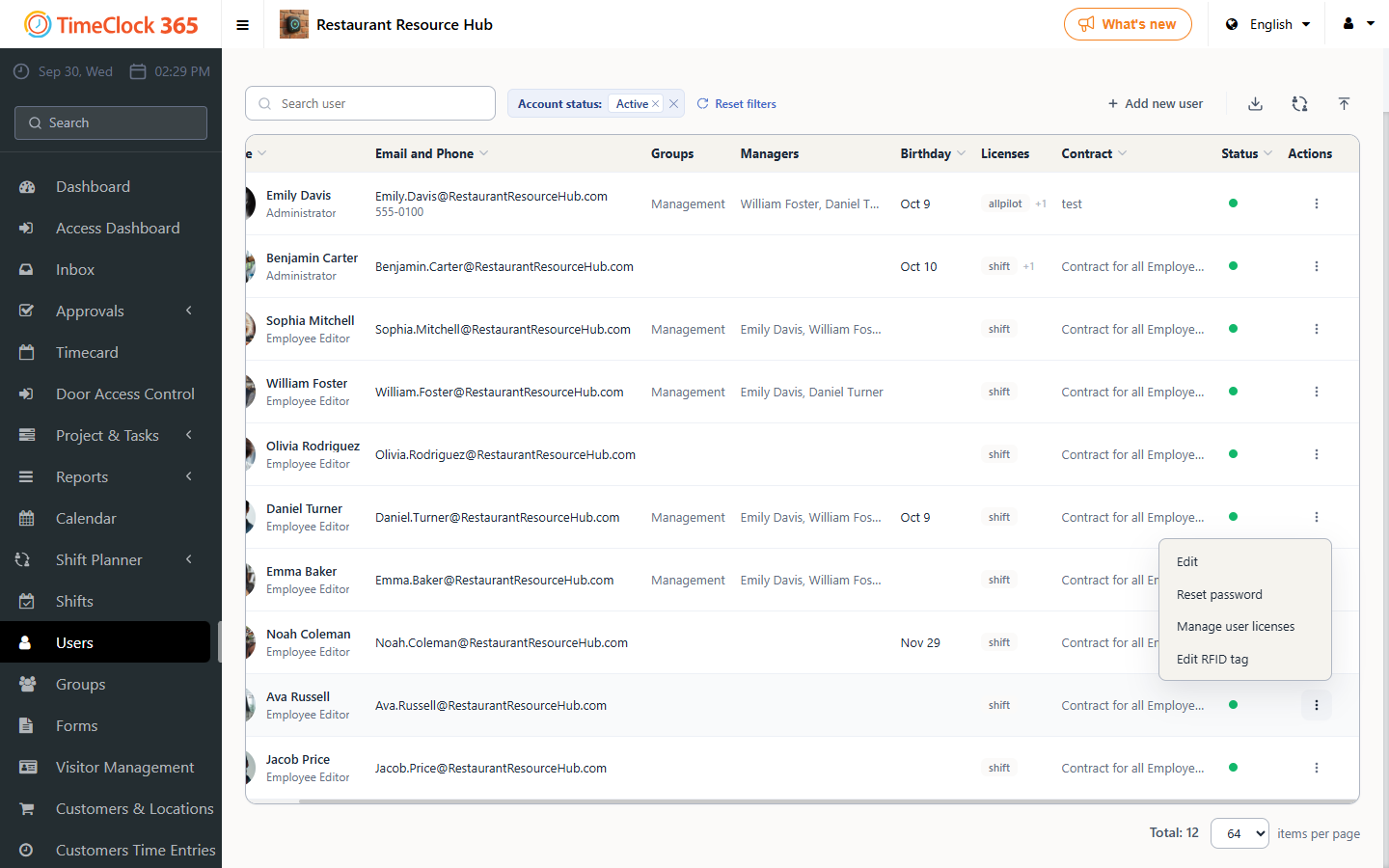
- Find the employee and click the Actions menu (three dots) at the end of their row.
- Click Reset password.
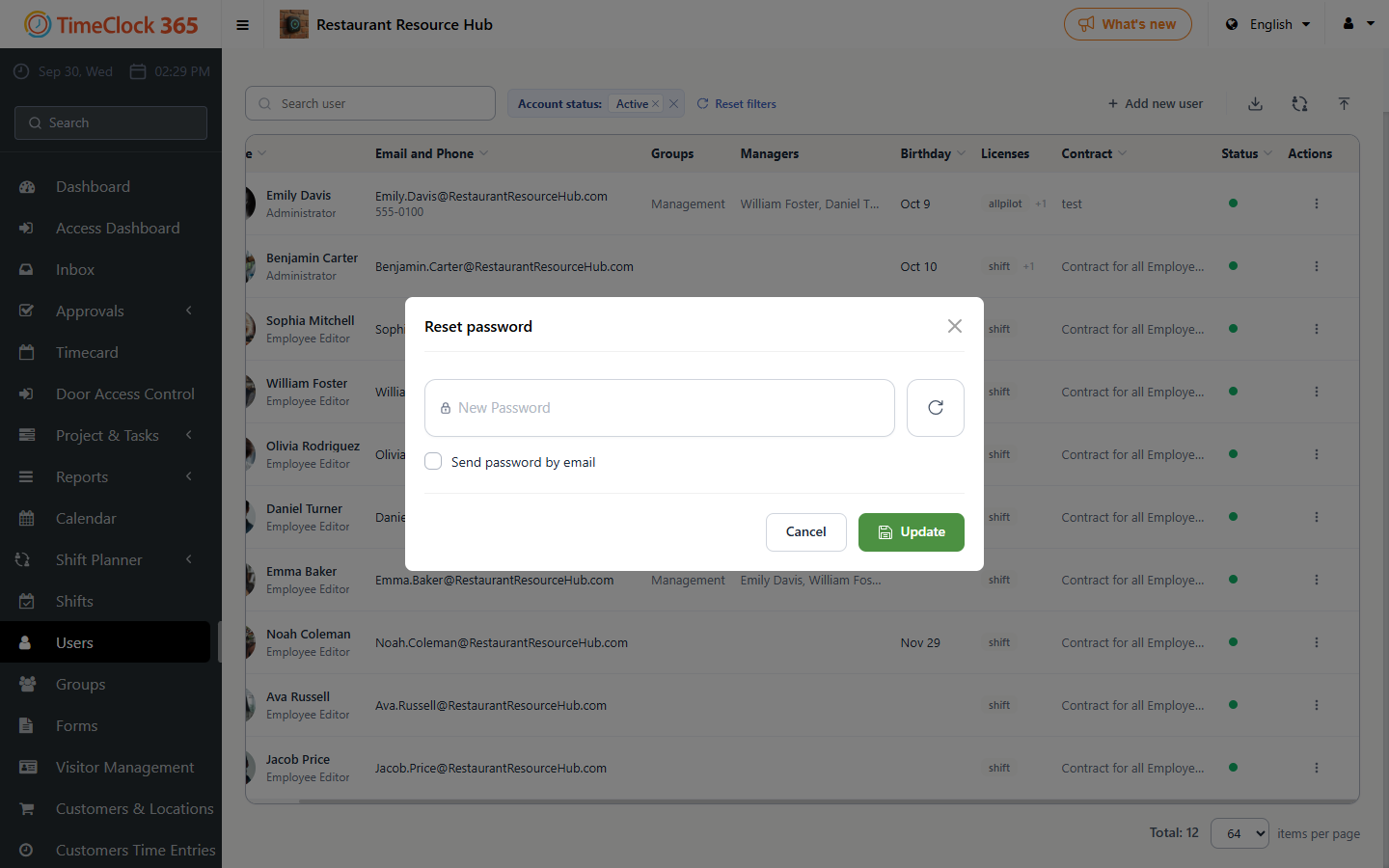
- In the Reset password window, type a new password, or click the refresh button next to the field to generate one.
- Check Send password by email to email the new password to the employee.
- Click Update.
The employee receives the new password at the email address in their profile and can log in right away.
Good to know
- Make sure the employee's email address in their profile is correct before you send the password.
- You can also change the password from the employee's profile, in the Password field on the General tab.
- Employees can reset their own password from the login page. See Password reset.
Need help? Open a support ticket.