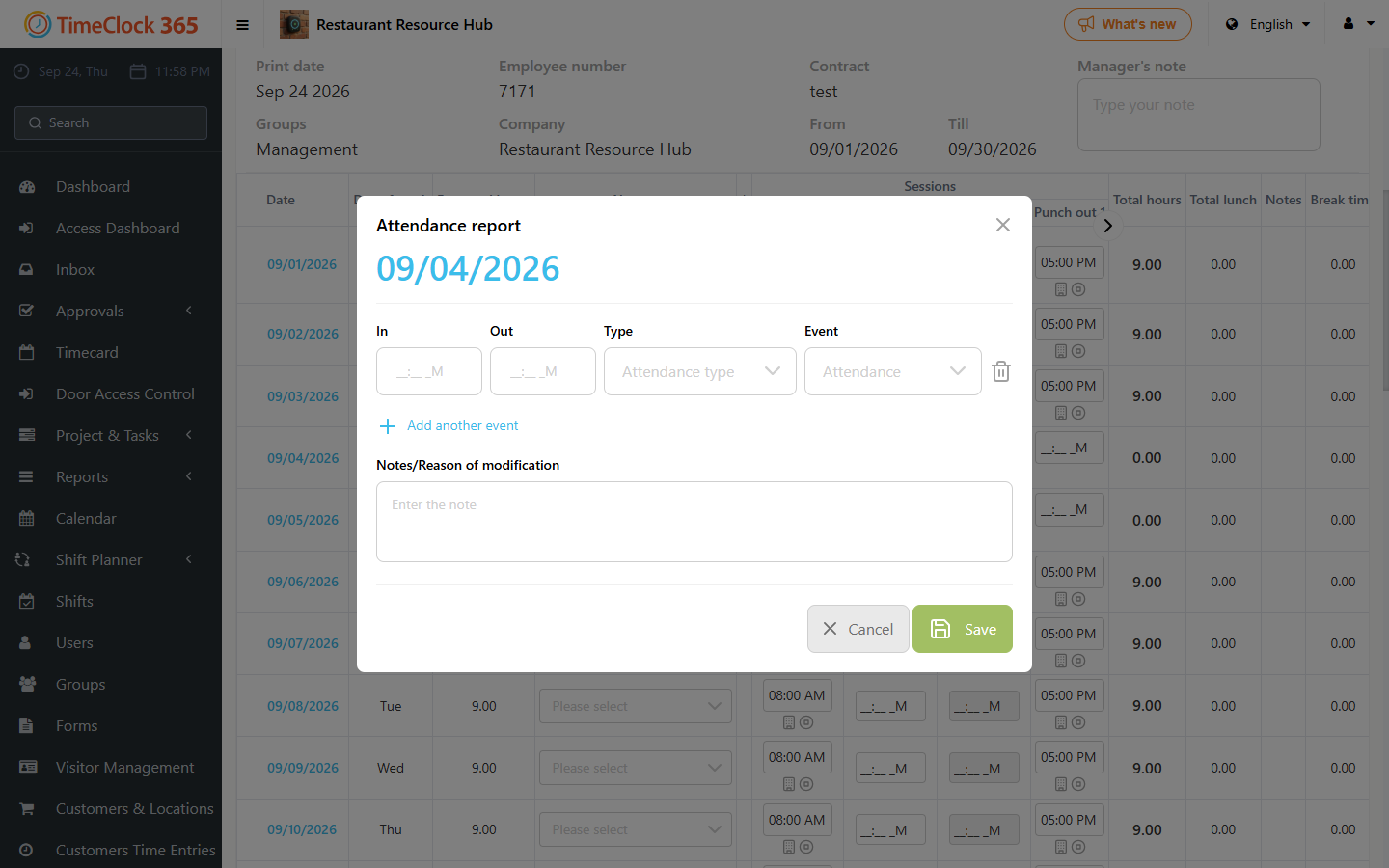
This guide explains how to report a partial absence on a day that already has attendance recorded, for example when an employee worked part of the day and was absent for the rest.
- Go to the Detailed Attendance report and click "View".
- Click the date you want to enter the partial absence for.
- Click "Add Another Entry".
- Set the start and end time for the partial absence.
- In the type field, choose the absence type.
You can also enter your work hours for the day by clicking "Add another event" and entering the work times.
Alternative: request time off
You can also report a partial day through a Time Off request:
- Open the Time Off request page from the dashboard or sidebar and select the leave type (and the employee, if you are a manager).
- Under duration choose "Half day" and select the date and which half (First or Second), or choose "Hours" and fill in the Start and End times.
- Optionally attach files or add notes, then click Save.
The approved time off is added to the schedule alongside any existing work hours for that day.