
There are two ways to reset a password in the system: by the employee, or by the manager.
By the employee
At login, the employee can reset their password on the web portal or the smartphone app. A verification email is sent, and after verifying, the employee can set a new password.
- Go to the login page, enter the username, and click Continue.
- Click Reset password.
- Type your email and click Reset password.
- Check your email inbox and complete the reset (the message sometimes lands in spam).
By the manager
Click "Users" in the right-hand menu and click the name of the employee whose password you want to reset. On the employee's user card, you can ask the system to generate a password or set a password of your choice - it must contain at least one uppercase letter, one lowercase letter, and a number, and be at least 8 characters long. You can ask the system to email the password to the employee, then click Save.
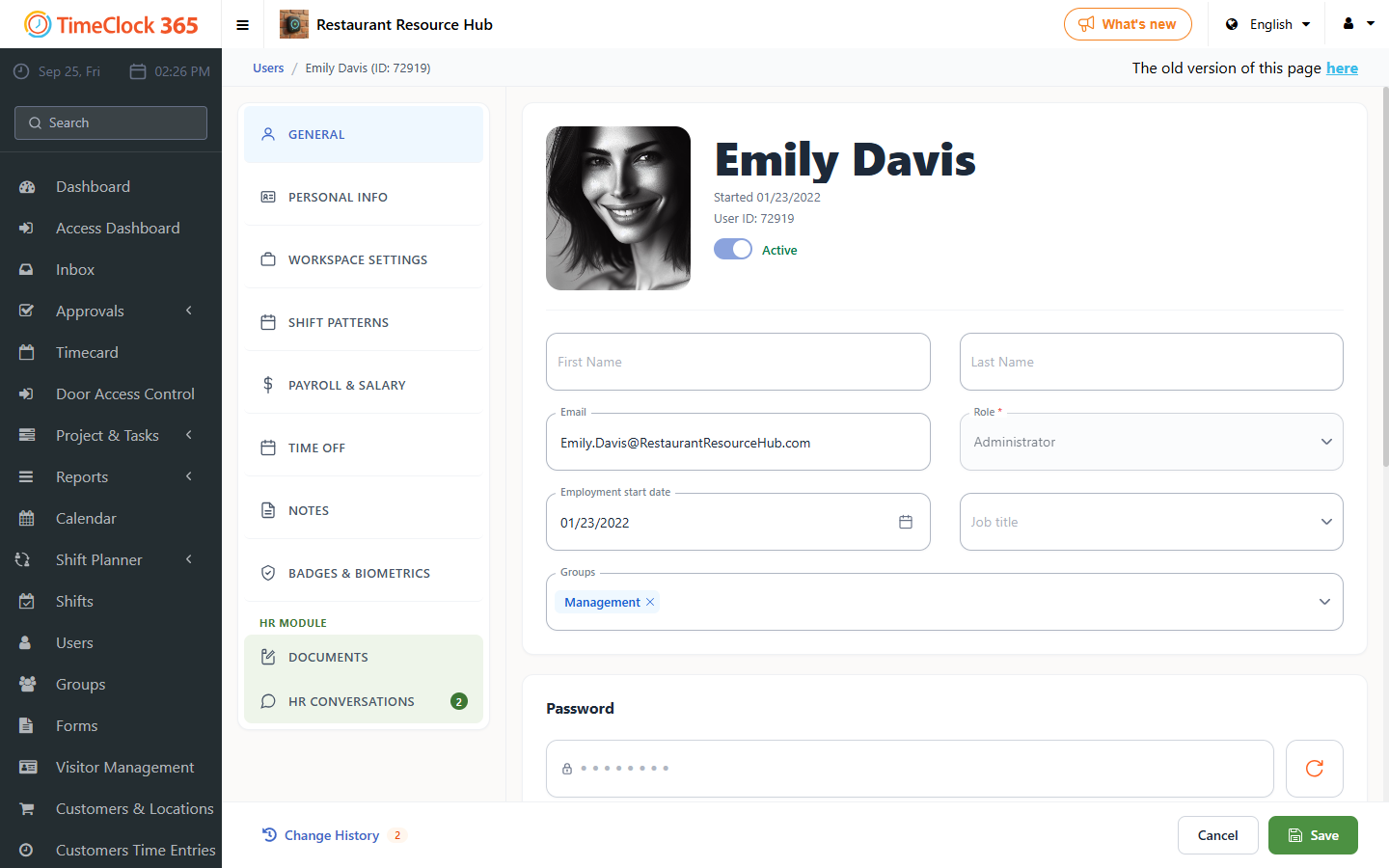
The manager option is useful for employees who do not have an email address. When you send the password by email, the message also includes details on how to download the app and log in.