
The clock's System Info shows how much storage is used and the device details our support team may ask for, like the serial number and firmware version. This guide also explains the factory reset option.
This guide is for TimeClock 365 biometric clocks with a 2.8, 3 or 3.5-inch color screen. Menu names can differ slightly between models and firmware versions.
View system information
- Press M/OK on the main screen.
- Press ► to select System Info and press OK.
- Press ▼ to choose what to see and press OK.
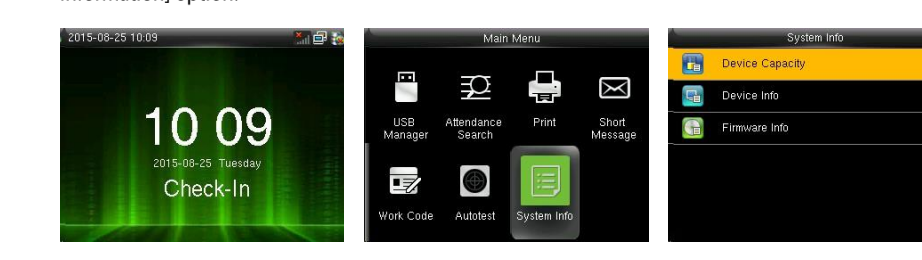
- Device Capacity - enrolled users, administrators, passwords, fingerprints, badges (cards) and attendance records, used vs. maximum.
- Device Info - device name, serial number, MAC address, fingerprint algorithm, manufacturer and manufacture date.
- Firmware Info - firmware version and service versions.
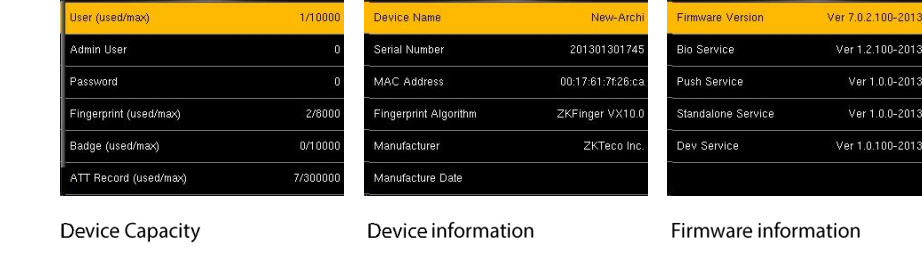
Tip: when you open a support ticket about a clock, include its serial number from Device Info.
Reset to factory settings
Important: a reset returns the clock's communication settings, system settings and other options to factory defaults, and the clock may stop syncing with TimeClock 365. Only reset the clock if our support team asks you to.
- Press M/OK, select System and press OK.
- Press ▼ to select Reset and press OK.
- Select OK to reset, or Cancel to go back.
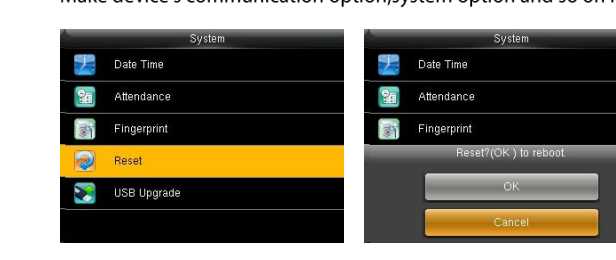
After a reset, reconnect the clock to the network. See How to Connect a Biometric Clock to the Network.
FAQ
Where do I find the clock's serial number?
Press M/OK, select System Info, then Device Info. It shows the device name, serial number, MAC address and manufacturer.
Should I reset the clock to factory settings?
Only if our support team asks you to. A reset returns the communication and system settings to factory defaults, so the clock may disconnect from the TimeClock 365 cloud.
Need help? Open a support ticket.