
This guide explains how to retroactively edit hours logged against projects and tasks for customers.
Step 1: Enable customer-project-task association
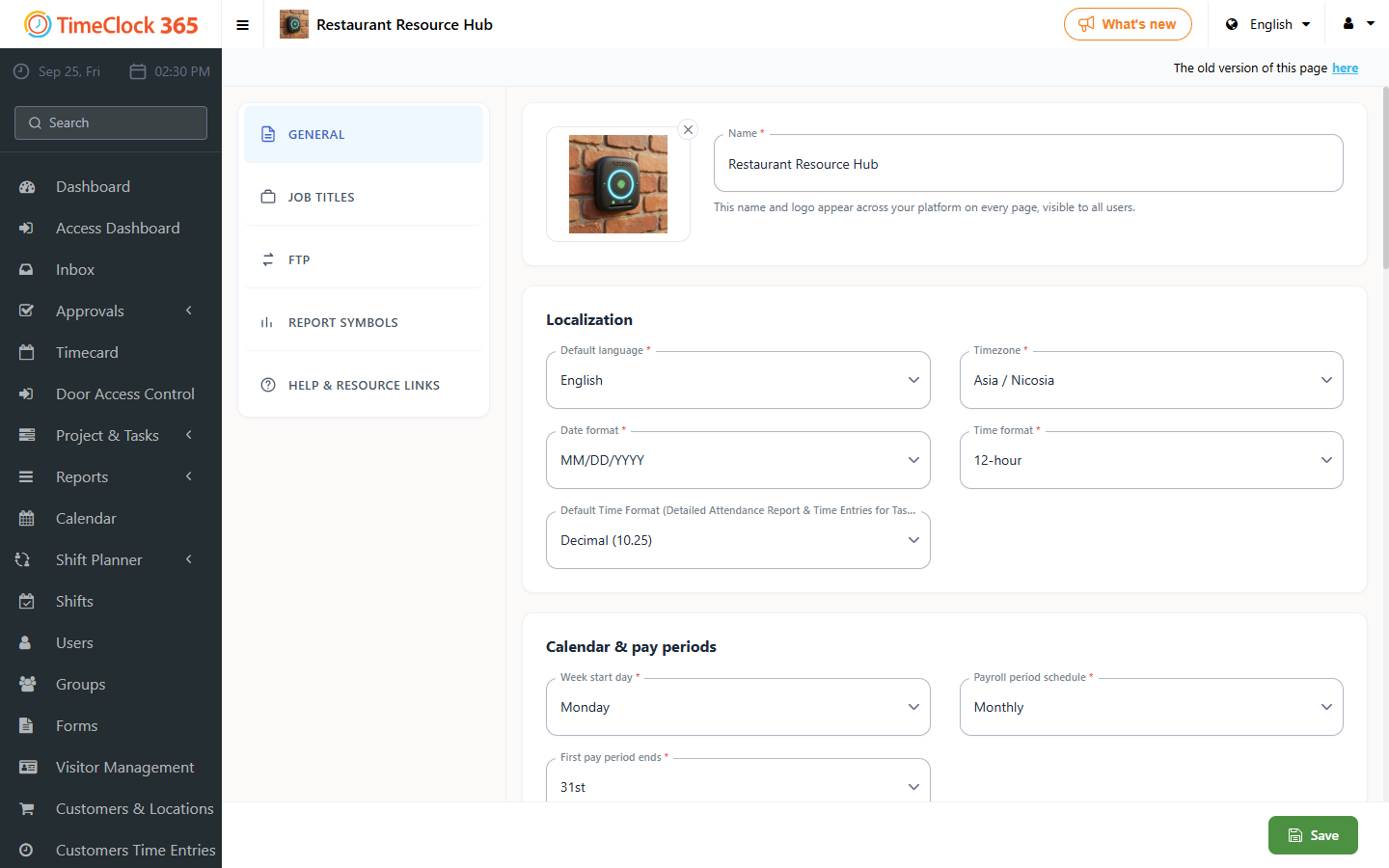
- Click Settings.
- Click Company Profile.
- Click Settings at the top.
- Check "Enable comments in Time Entries for Tasks".
- Check "Enforce Customer > Project > Task Selection Flow" (the user must first select a customer, then a project, then a task, in that order).
- Click Update.
Step 2: Edit the hours for the relevant customer
- Click Project & Tasks.
- Click Time Entries for Tasks.
- Optionally filter, for example by employee or date.
- Click Show results.
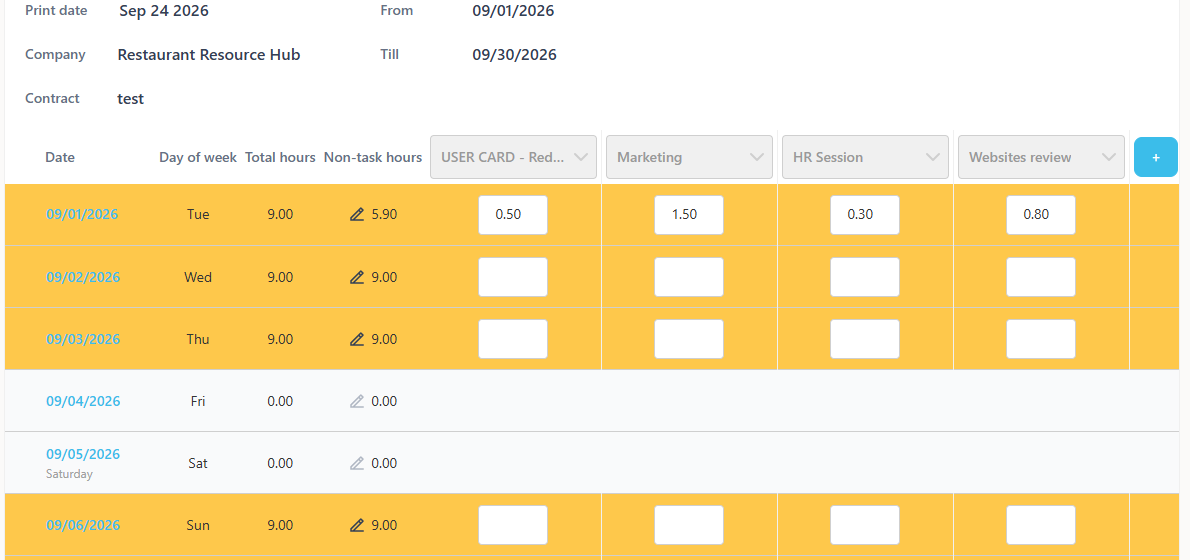
- Click the pencil icon next to the relevant date.
- Select the relevant customer.
- Select the relevant project.
- Select the relevant task.
- Enter the number of hours worked on that task (at the top you can see how many hours are assigned and unassigned).
- You can add a comment.
- Click the checkmark to save.
- After saving, the data will appear on the screen.
For a guide on duplicating a project, see the related guide.