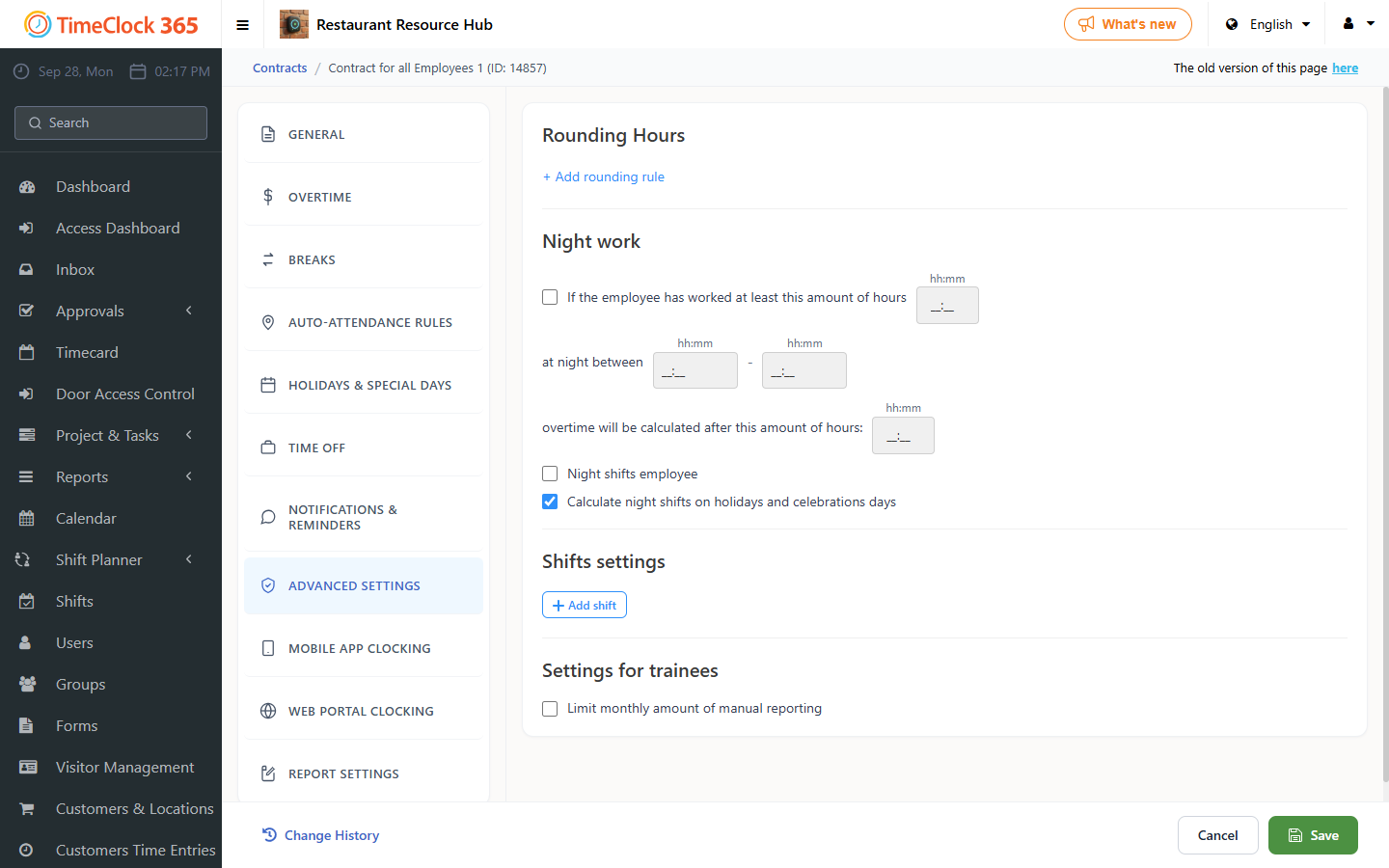
Want the system to calculate actual work hours by rounding an employee's clock-in and/or clock-out time? This is possible.
For example, if a user clocked out at 19:30 and you want the system to calculate actual hours only up to 19:00: the employee clocked in at 18:00 and clocked out at 19:30, but the system calculated only one hour, following the rounding rule set to 19:00.
Another example: an employee clocked out at 16:17 and a rule rounds up to 17:00, so the shift is calculated until 17:00. This is useful for standardizing work hours and simplifying payroll.
How to set it up
- Click Settings -> Contract, then click the contract covering the users you want to set the hour rounding for.
- Scroll down to the "Hour Rounding" tab.
- Click "Add Rule".
- Choose whether the rule applies to clock-in or clock-out.
- Choose the time range the rule applies to.
- Choose the time from which the system will apply the rule.
- Select the day(s) of the week the rule applies to.
- Click Save at the bottom of the page.