
In the clock's Personalize menu you can change the language, the main screen and the sounds.
This guide is for TimeClock 365 biometric clocks with a 2.8, 3 or 3.5-inch color screen. Menu names can differ slightly between models and firmware versions.
Screen and language
- Press M/OK, select Personalize and press OK.
- Select User Interface and press OK.
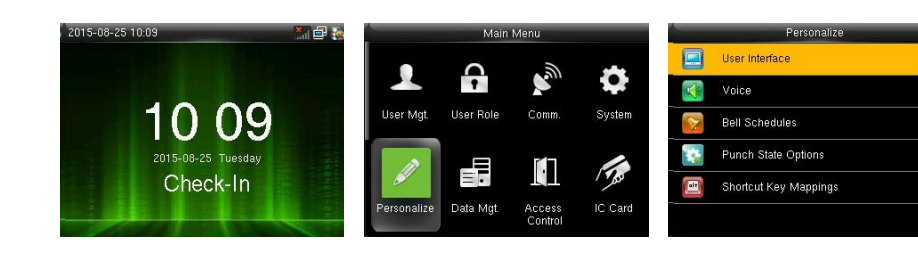
- Press ▲/▼ and OK to change a setting, then press OK to save and exit.
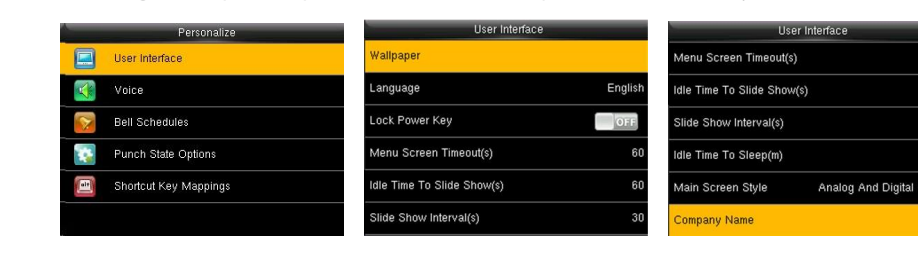
- Wallpaper - the main screen background.
- Language - the clock's menu language.
- Lock Power Key - when on, the power key can't turn the clock off.
- Menu Screen Timeout(s) - return to the main screen after this many seconds without use.
- Idle Time To Slide Show(s) and Slide Show Interval(s) - show pictures on the main screen when idle.
- Idle Time To Sleep(m) - put the screen to sleep after this many minutes (1-30). Press any key or touch the screen to wake it.
- Main Screen Style - how the clock and status keys are shown.
Voice and volume
- In Personalize, select Voice and press OK.
- Change the settings and press OK to save and exit.
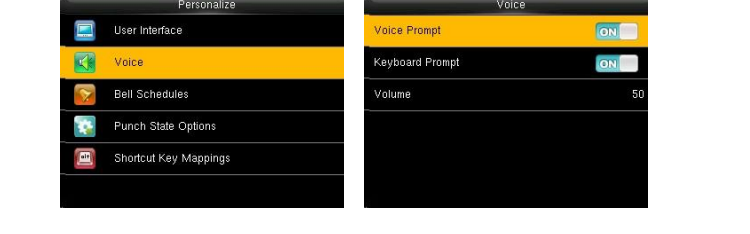
- Voice Prompt - voice messages such as "Thank you". Turn off to mute.
- Keyboard Prompt - beep when a key is pressed.
- Volume - how loud the voice prompts are.
FAQ
How do I change the clock's language?
Press M/OK, select Personalize, then User Interface, and choose the Language.
How do I turn the clock's voice off or lower the volume?
Go to Personalize > Voice. Turn Voice Prompt off to mute it, or change the Volume.
Need help? Open a support ticket.