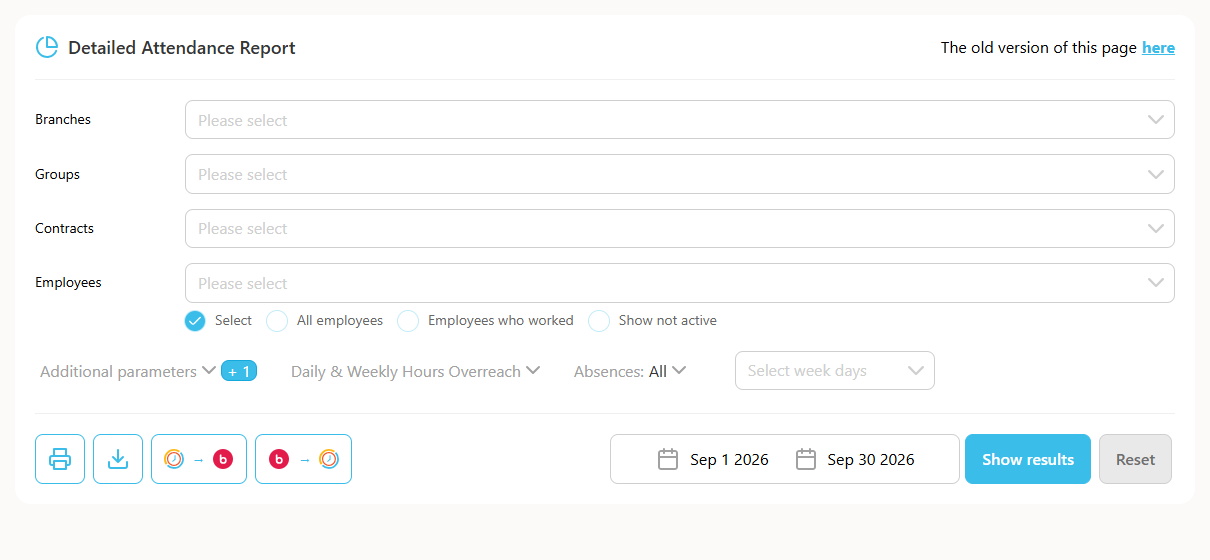
This guide explains how to view only entries that are missing in the Detailed Attendance report.
Steps
- Go to Reports -> Detailed Attendance.
- Select an employee - if no employee is selected, the system will show everyone who has missing entries.
- Open the "More filters" option.
- Select "Missing clock-in or clock-out".
- Click Show.
- Select the period you want to see missing entries for.
- Click "Show reports".