This guide explains how to let employees report a task from the biometric terminal.
Setting up the biometric terminal
- Press M/OK.
- Use the arrows to navigate the menu, find and select "Task Management".
- Select "New Project Code".
- Enter a number of 3 or more digits (for example, 111).
- Press ESC to go back.
- Enter a name for the task in English (text is optional - you can use numbers). Right arrow changes the input method, down arrow moves to additional options such as symbols, left arrow deletes. The task name helps employees identify which task it is.
- Save, then press ESC once.
- Inside the same Task Management menu, click the "Code Settings" button.
- Turn ON the following settings: "Code entry required" and "Select from defined codes only".
Setting up the web portal
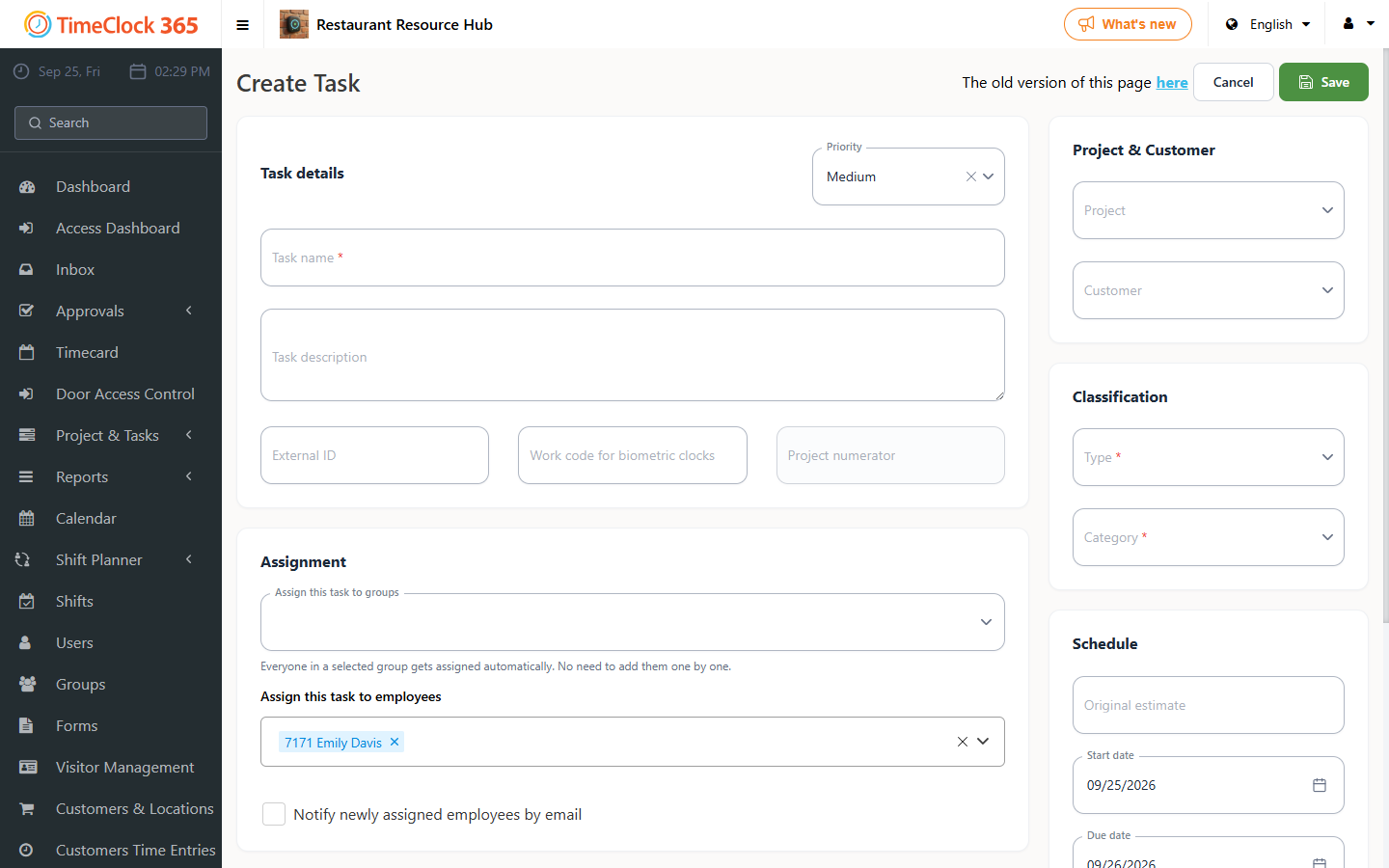
- In the web portal, create a task with an English or Hebrew name (or use an existing task): go to Project & Tasks -> Tasks -> click an existing task or create a new one.
- In the field "Task code for the biometric time clock", enter the number you assigned to this task on the biometric terminal and save.
- Go back to the biometric terminal and clock in with a user who is not currently present, so you can check that the task starts correctly in the web portal.
- After clocking in (finger or card), select the task you want to report - choose the task number/name you created that appears on the terminal's list.
- Refresh the web portal and confirm that the task has started.
- To end the task report, select the task you are finishing.