
This guide explains the ways employees can submit a time off request in TimeClock 365.
From the dashboard
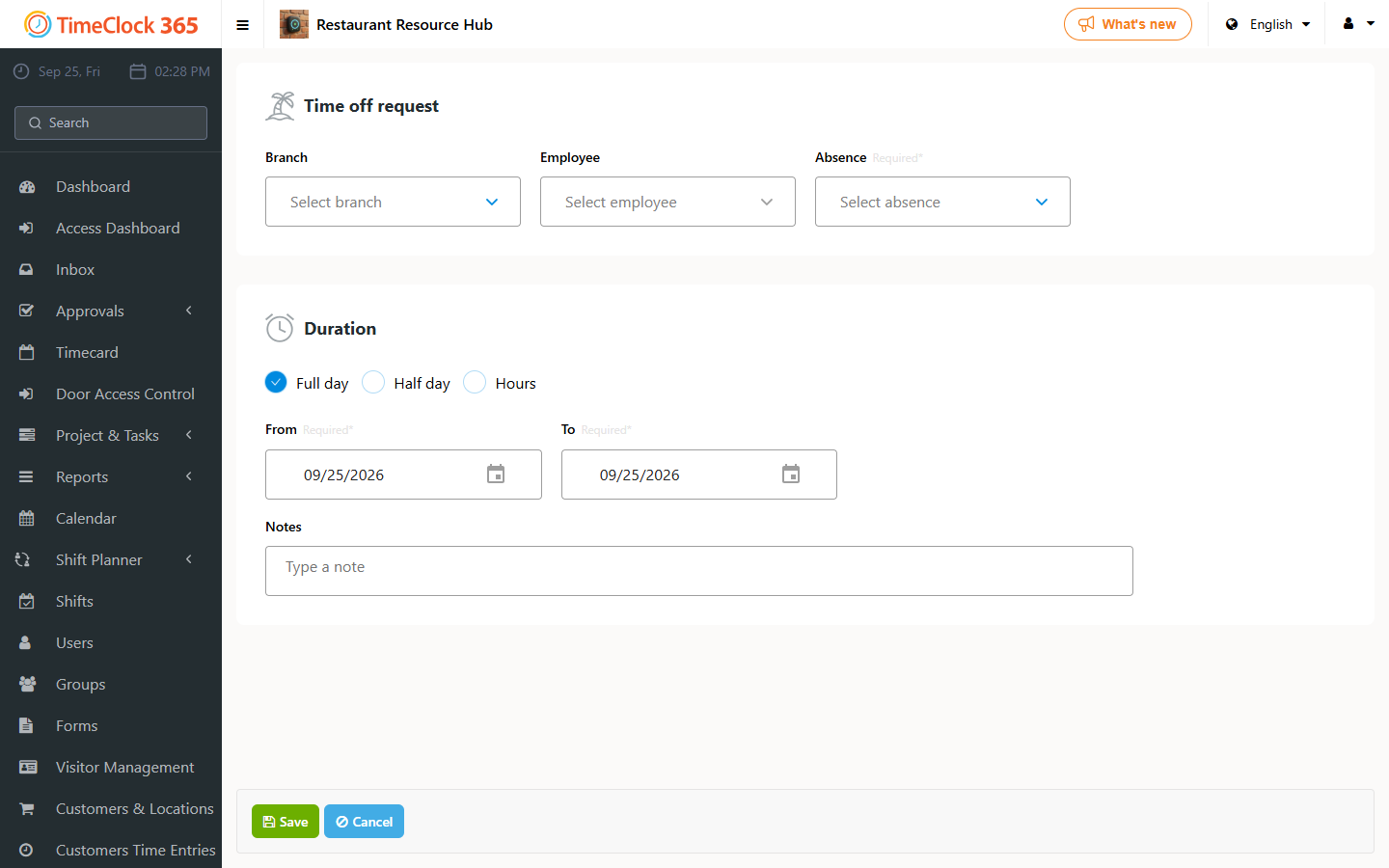
Click "Report Time Off", choose the reason for the absence, and set the start and end date. If it's a partial absence, you can mark half a day and choose the first or second half of the day, or mark hours and set the specific start and end time for the absence. You can attach files and add a note.
From the Detailed Attendance report
Go to Reports -> Detailed Attendance, select a period, and click Show. Here you can see all attendance entries for that period. Hover over the Time Off column and choose the time off type from the dropdown list. As soon as you select the type, a full-day time off entry is recorded.
Time off requests can also be submitted from the mobile app.
Managers and admins
To submit time off for an employee you manage, choose the employee from the Employee dropdown in the request form. If the request needs supporting documents, such as a doctor's note, click Browse files and upload them. After entering the dates, you can check the remaining balance of days off for the year. Click Save and the request is sent to the manager.