
The Time Off Management and Accrual Calculation module lets you manage time off usage and accrual calculation for users, for example so an employee can see how many vacation days they have left. This can only be viewed on the web portal.
Step 1: Choose the time off type for accrual calculation
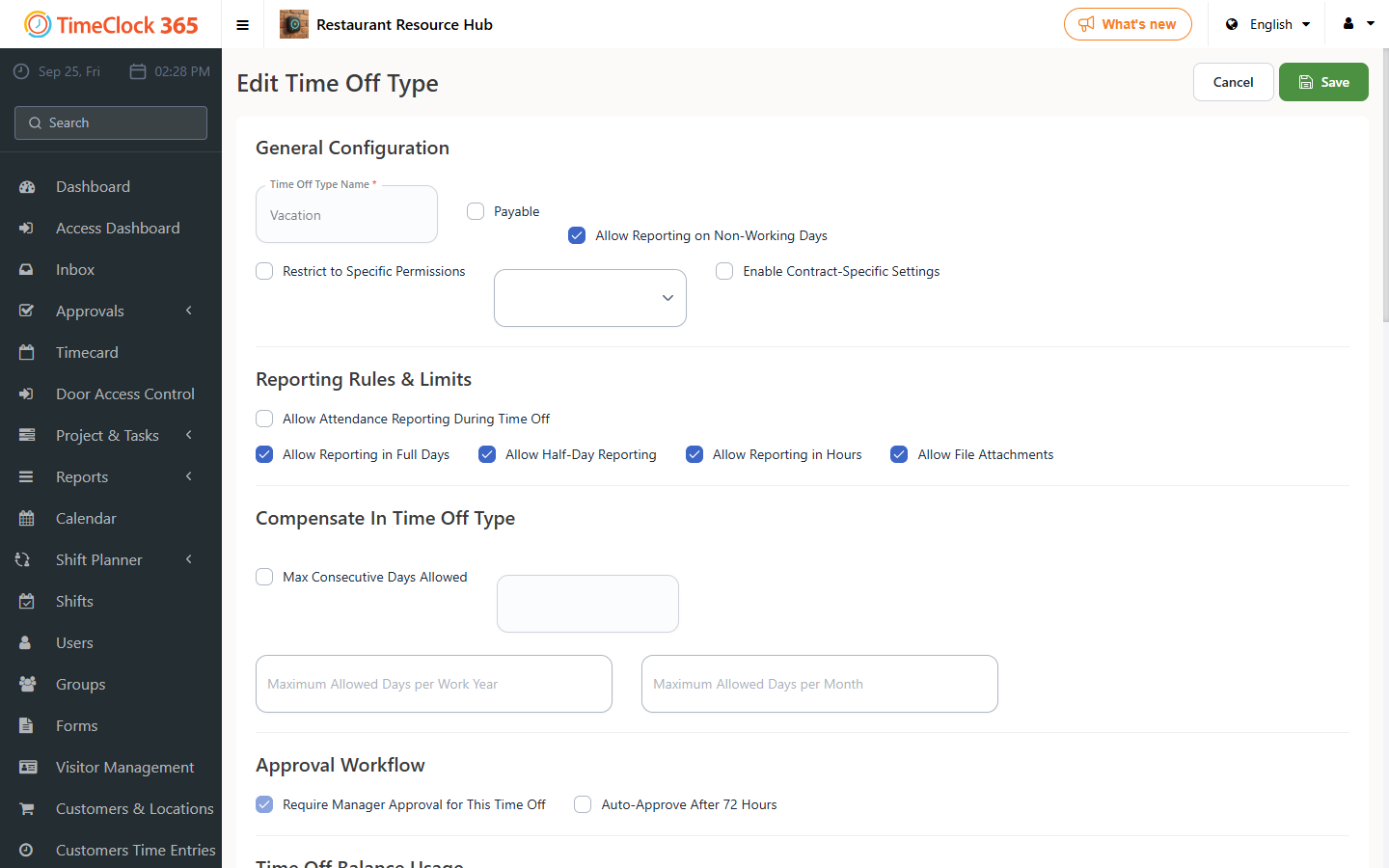
- First, decide which time off type you want to calculate accrual for.
- Go to Settings, then Company Profile, select "Time Off Types" at the top.
- On the time off type you want, check "Calculate accrual" and set the day quota for that type.
- Click Update.
Step 2: Set a quota for a user
- Go to Users and select the employee you want to set a quota for.
- Scroll down to the "Time Off Balances" tab.
- Enter the yearly or monthly day quota.
- Click Save.
Step 3: Update how much has been used so far
- Go to Users and select the employee.
- Scroll down to the "Time Off Balances" tab and click "Show day balance" (the system will show how many days are currently defined at that point), then click Settings.
- Click "Add new update".
- Enter the value date, the number of days (add or subtract from the amount shown in "Show day balance" - you can enter a negative number), and any notes. Click Save, then scroll down and click Save again.
Example: if the balance shows 8 days and you want to update the employee to 6, enter minus 2.
Step 4: What the employee sees before requesting time off
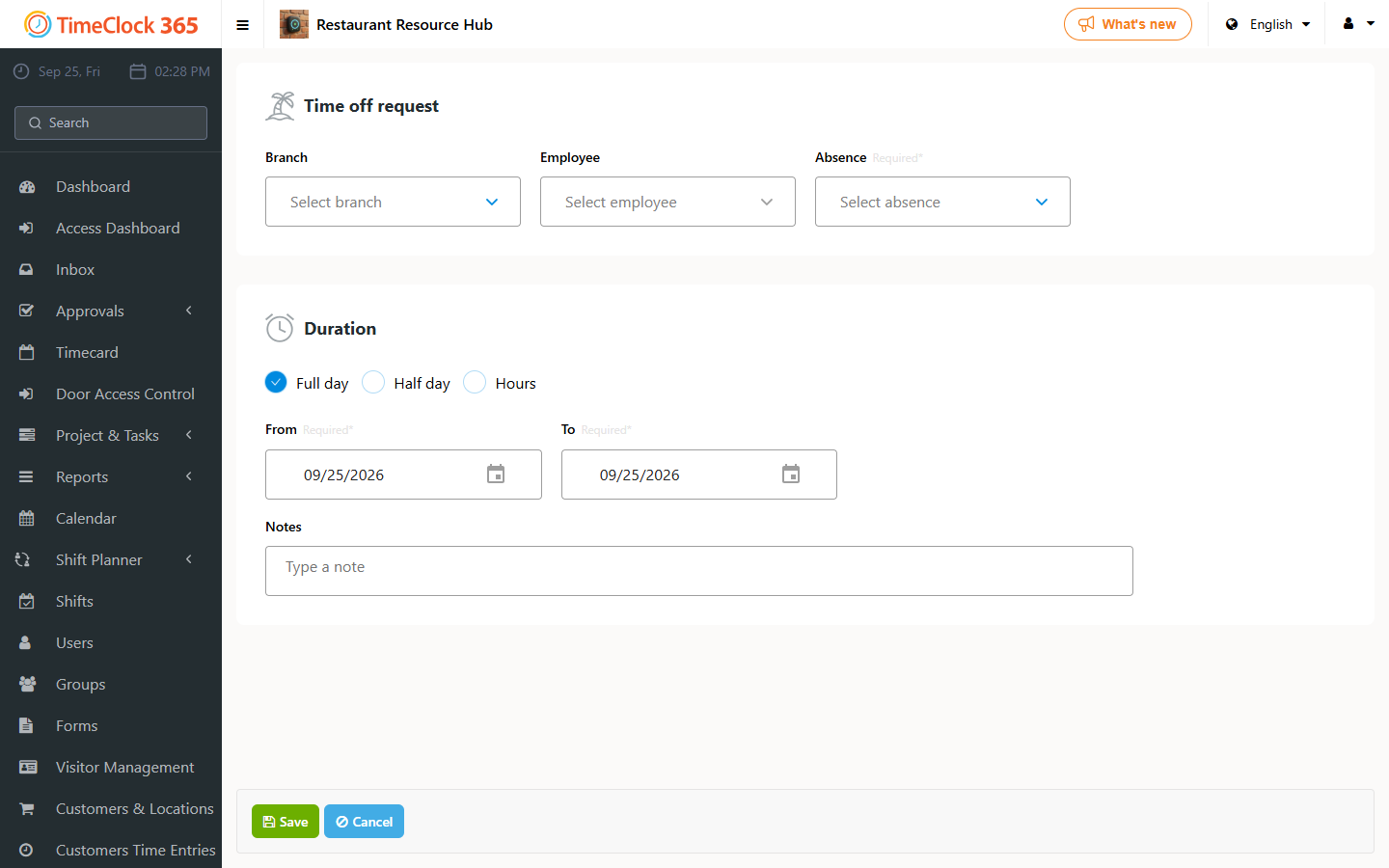
At this final stage, the employee can view the data: go to Dashboard, then Report Absence, choose the time off type, and click "Show time off balance".
Don't have this module? Contact us at 03-7300000. For a guide on using time off from a different leave bank, see the related guide.