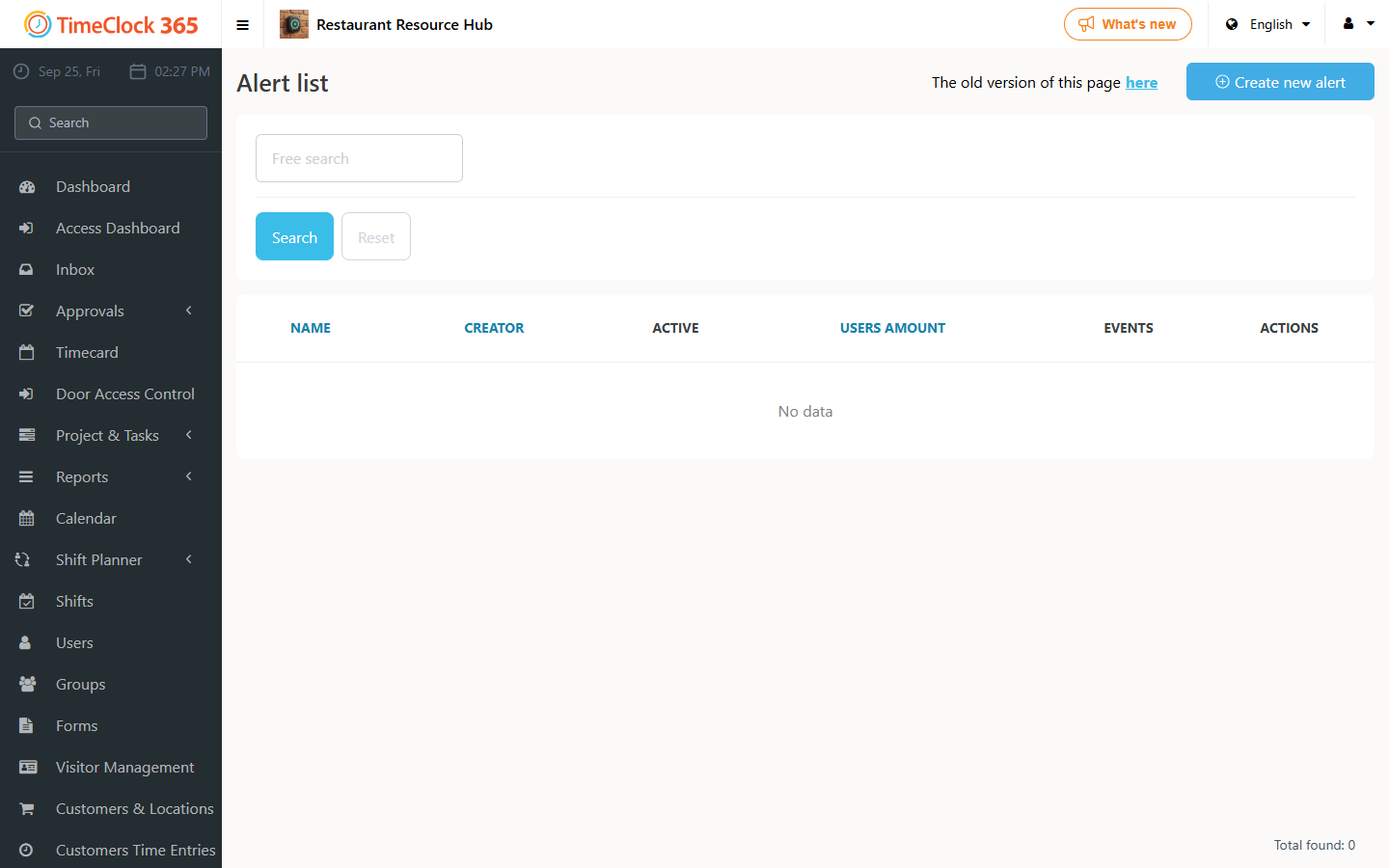
Alerts are created and edited on the Alerts screen. This article explains how an alert is structured and lists all the alert types available in TimeClock 365.
How an alert is structured
Each alert is made up of: the users whose actions trigger the alert (for example, an employee performing a specific action), the users or groups who will receive the alert - or you can choose to receive alerts for all users - and the event or action that triggers it.
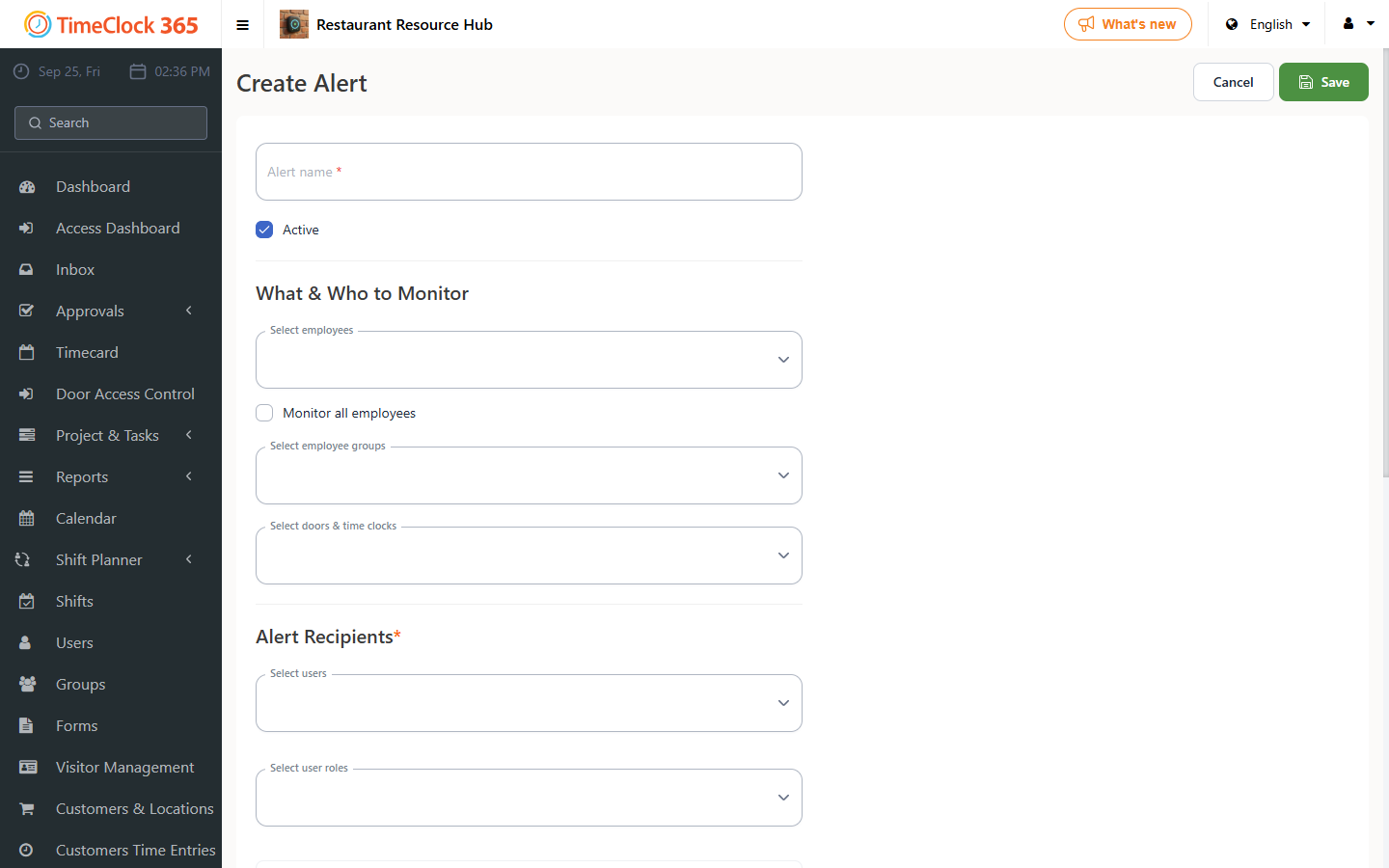
A common recommendation is to create an alert for absence requests where all users are selected as the trigger and all group managers are added as recipients. That way, whenever an employee submits an absence request, their manager is alerted.
Attendance alerts
| Alert | Description |
|---|
| Clock in | The employee clocks in to the system (clock, app, etc). |
| Clock out | The employee ends the work day and clocks out. |
| Employee is late | The employee clocked in later than their expected start time. |
| Employee absent for a full day | No attendance was recorded for the employee on a given day. |
| Did not clock out | The employee clocked in but did not clock out. |
| Automatic day end | The system automatically ends the day for an employee who did not clock out. |
| Absence request | An absence request was submitted by the employee. |
| Deleted absence | An absence request was deleted from the system. |
| Manual reporting limit exceeded | The employee exceeded the manual reporting limit allowed for them. |
| Additional hours request of manual reporting | The employee requested to add overtime hours manually. |
| Send approved TOR invitation to the calendar | After a time-off request (TOR) is approved, a calendar invite is sent. |
Corrections and edits alerts
| Alert | Description |
|---|
| Employee updates hours manually | The employee entered or changed work hours manually in the system. |
Tasks and projects alerts
| Alert | Description |
|---|
| Employee starts a task | The employee actually started a task. |
| Employee pauses a task | The employee temporarily paused the task. |
| Employee finishes a task | The task was completed and reported as such. |
Daily summary
| Alert | Description |
|---|
| Trigger tasks summary notification for | Daily notification with a task summary for an employee or manager. |
| Time to receive daily tasks summary | The time to receive the alert. |
| Send daily summary | Daily summary of employee activity. |
| Daily hours overreach | The employee exceeded the daily hours threshold set for them. |
| Hours per day | The threshold considered a daily overreach. |
| Select time to send summary alert | When to send the summary alert. |
Scheduled CSV report
| Alert | Description |
|---|
| Trigger notification for | Sends an automatic CSV report. |
| Time to receive scheduled report | The time the report will be sent. |
Daily emergency report - entries at selected doors and clocks
| Alert | Description |
|---|
| Automatic Excel report send | Daily Excel report on employees who passed through selected doors or clocked at selected clocks within certain hours. |
| Between hours | Sets the hour range analyzed by the report. |
| Dac entries report observable terminals and doors | Technical description of the data sources (selected doors and terminals). |
Access control and door management
| Alert | Description |
|---|
| Alert about access to selected doors | Real-time alert when there is access to selected doors. |
Weekly summary
| Alert | Description |
|---|
| Send weekly summary | Receive a summarized weekly report. |
| Overtime summary | Summary of overtime performed that week. |
| Weekly hours overreach | Exceeding the allowed weekly hours. |
| Day of week to send summary | Choose the day the summary is sent. |
| Time to receive summary | The hour the summary is sent. |
Monthly summary
| Alert | Description |
|---|
| Trigger monthly notification for | Enable a monthly alert. |
| Monthly alert on excess and shortfall hours | Whether there were missing or excess hours relative to the monthly quota. |
| Monthly hours overreach | Exceeding the monthly hours quota. |
| Day of the month to receive alert | The day of the month the report will be sent. |
| Time to receive alert | The time the alert will be sent. |
Employee report approvals
| Alert | Description |
|---|
| Send alert if employees did not approve reports | Alert if the employee did not approve their reports after the period ended. |
| Days after the report period ends | Number of days after the period ends to check whether reports were approved. |
| Attendance reports / IIA report | The report types being checked for approval. |
Location and customer alerts
| Alert | Description |
|---|
| Get alert when selected employees arrive at customer area | Detects entry into a customer's geographic area. |
| Get alert when selected employees leave customer area | Detects exit from a customer's geographic area. |
| Send alert when employee turns device location on or off | Change in GPS status of the employee's mobile device. |
Expenses alert
| Alert | Description |
|---|
| Get alert on employee expense submissions with attachments | Alert when expense claims with attachments are submitted. |
Administrative alerts
| Alert | Description |
|---|
| Log in / log out | Alert on a user logging in or out of the system. |
| Retirement payment alert | Alert on pension payments. |
| Education fund alert | Alert on study fund (keren hishtalmut) payments. |
| Send a birthday alert at | Reminder for employee birthdays. |
Additional summaries
| Alert | Description |
|---|
| Send monthly per day report | Sends a detailed monthly report broken down by day. |
| Monthly per day report: send time | What time the report is sent. |
| Send average by months report | Sends a report of averages by month. |
| Average by months report: sending time | When this report is sent. |
Project budget
| Alert | Description |
|---|
| Send alert when reaching __% of hours budget | Alert when a project approaches or exceeds a set percentage of its hours budget. |
Anniversary alerts
| Alert | Description |
|---|
| Send anniversary alert | Sends an alert ahead of a work anniversary. |
| Days before anniversary | How many days in advance to send the alert. |
| Time to receive anniversary alert | The time the alert will be sent. |
