
This guide explains how to add or remove a time off type from the portal.
Adding a time off type
- To add a new time off type available for requests, go to Settings, then "Time Off Types", and click "Create new time off type".
- Enter the name, decide whether it is paid, whether it can be reported on non-standard days, and how it can be reported: full day, half day, or by hours (you can select multiple options). If you work with payroll software that has a matching symbol or code for this time off type, fill it in the relevant field.
- Click Save.
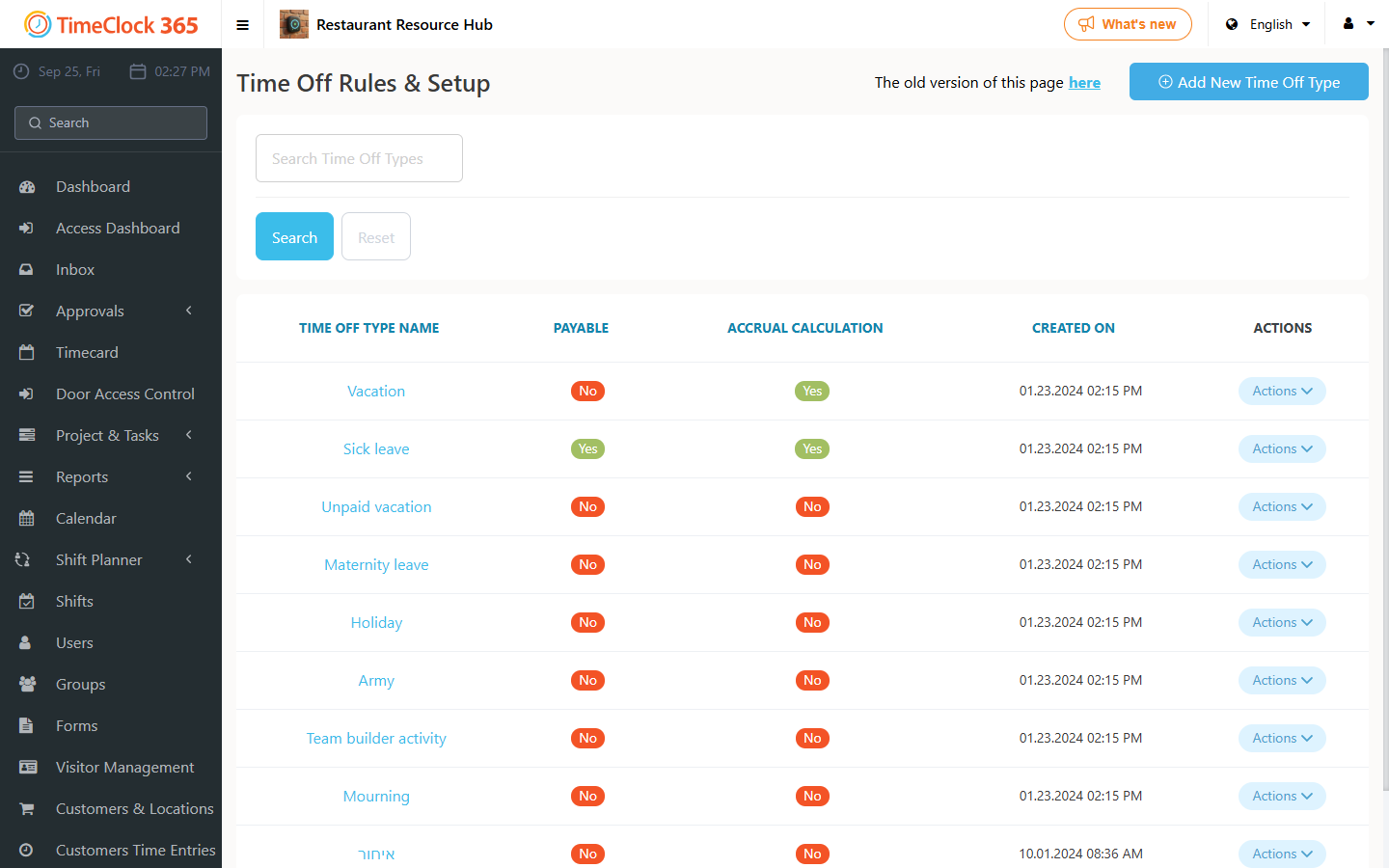
The type will now appear in the list available for selection.
Removing a time off type
To remove a time off type, go to Settings, then "Time Off Types", click Actions next to the type you want to remove, then click Delete.
To find and replace old entries: go to Timecard, set the date filter from the date you began reporting (or earlier), select Time Off, and click Search. Locate the entries with that type, click Actions, and choose Edit to select a different type or Delete to remove the reported time off. If there are many entries, select 64 entries per page at the bottom and use Ctrl+F to search each page. Once all entries are replaced, you can delete the type.
Note: if any employee has ever selected this time off type, it cannot be deleted. In that case, if needed, you can restrict reporting of this time off type to a specific role instead - see the related guide.